How to Add AI Video Editing to Your SaaS Product
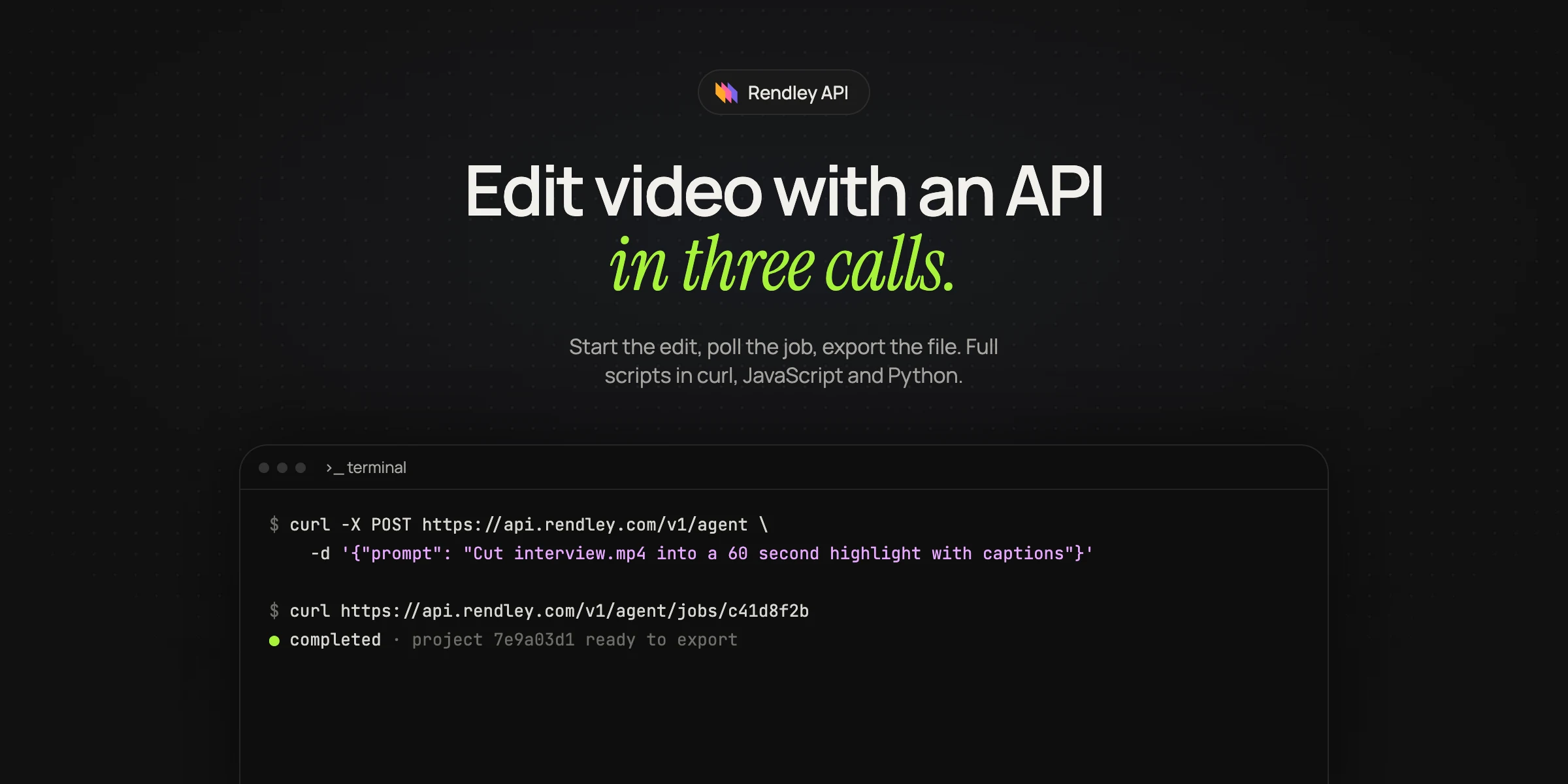
Add AI video editing to your SaaS product without building a video pipeline. Send a file link, wait for the edit, export it and let users ask for changes.
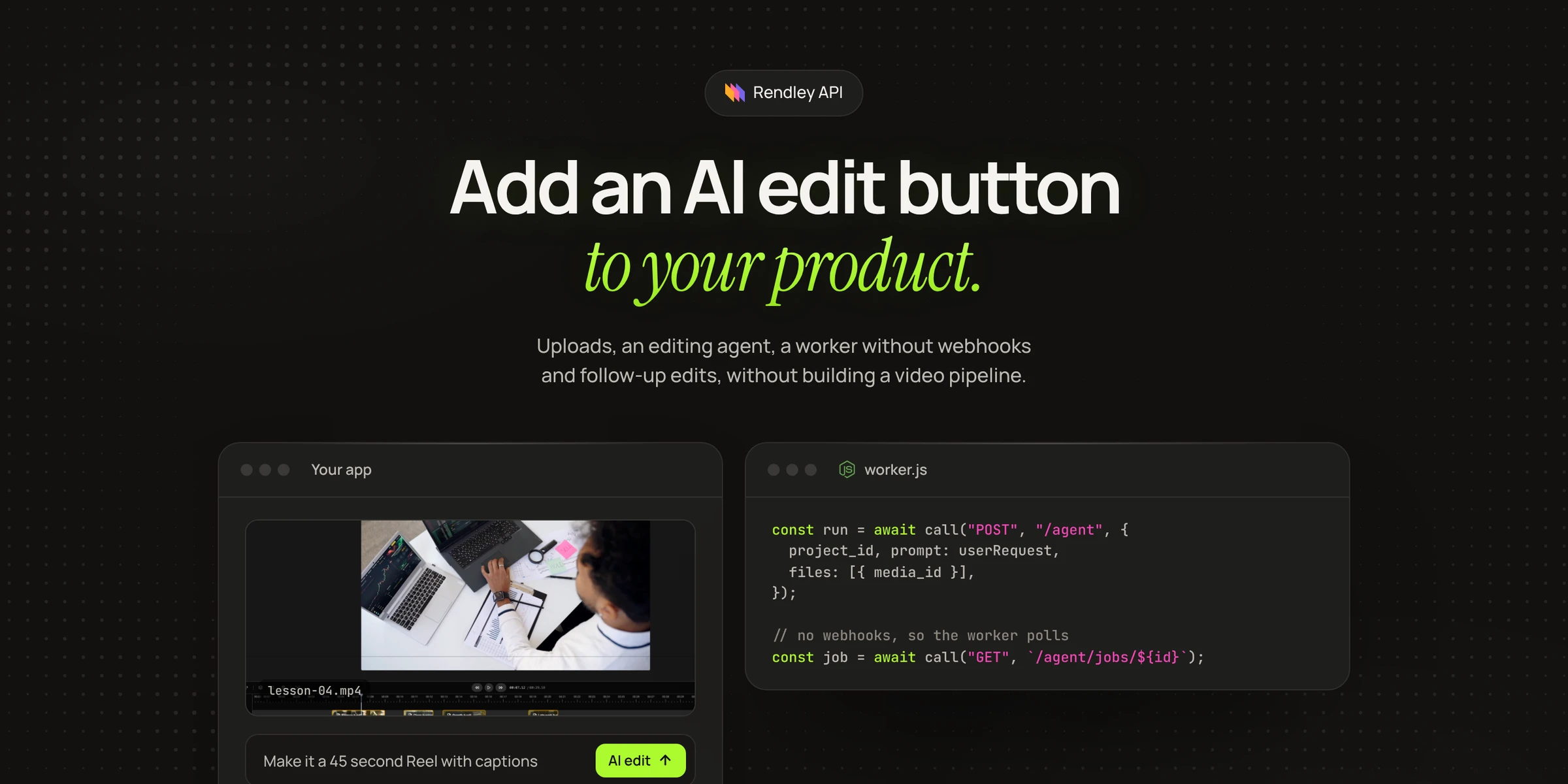
To add AI video editing to a SaaS product, you call an editing agent from your backend: the user's upload goes to the agent with their request, a worker waits for the edit, and the export comes back to your storage. Building it in house instead means owning a transcoding pipeline, speech to text, a caption renderer, reframing, a render farm and an editor UI, before anything decides what a good edit is.
If you want AI to make demo or launch videos for your own SaaS rather than add editing to your product, read how to make a product demo from a screen recording instead.
From your user's side the feature is small. They upload a video, type or pick what they want, such as "a 30 second highlight with captions", and get back a video they can download or ask to change. Behind it, your backend sends Rendley a link to the file, starts an edit, waits for it, exports the result and copies the file to your storage.
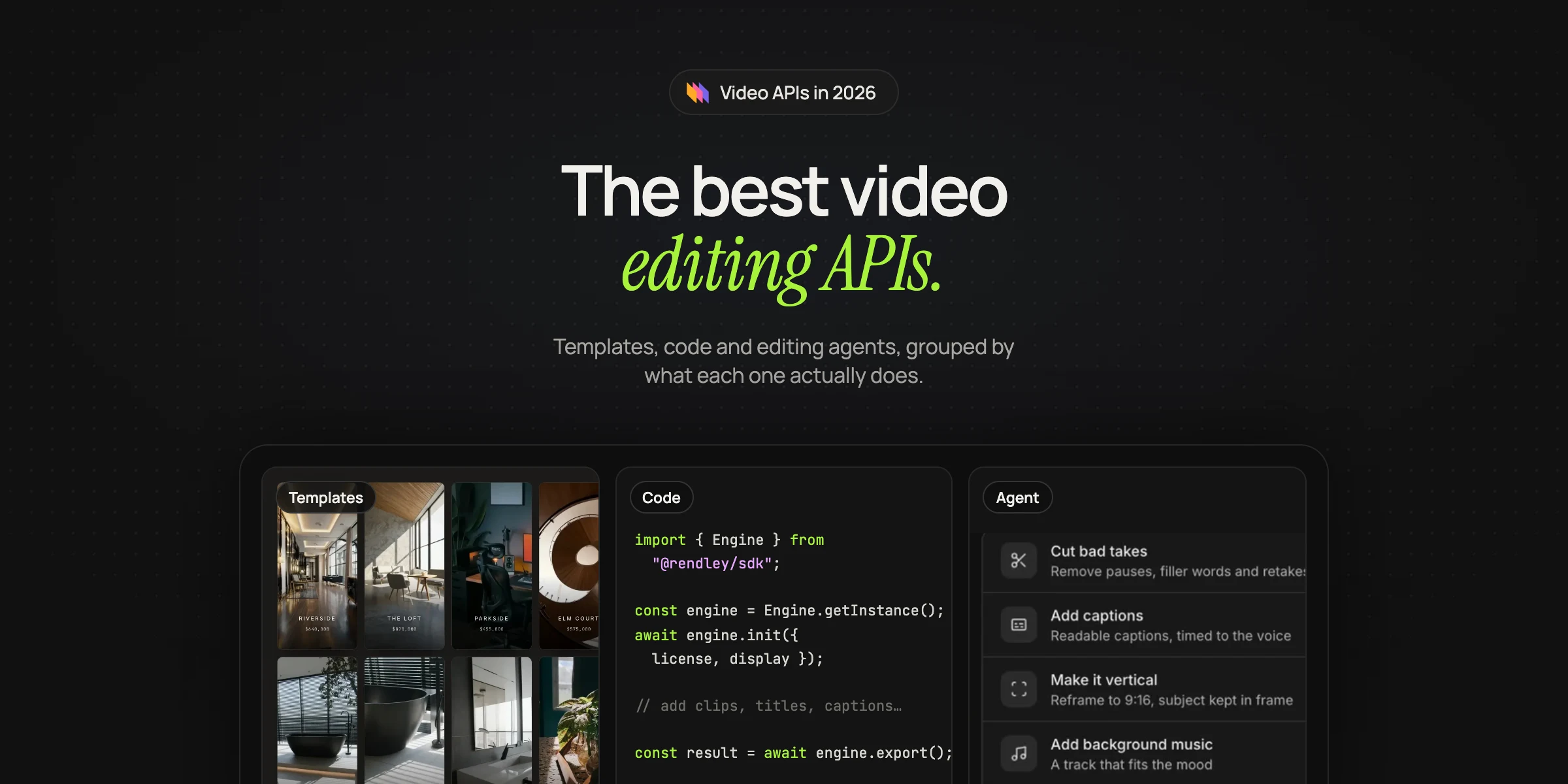
We build it on Rendley's video editing API, whose agent transcribes, cuts, reframes and captions. Two facts shape the design:
- The agent's result is an editable Rendley project, not a file. A video file exists only after you call export, which renders the project and spends credits.
- Nothing runs on the free plan. The API refuses agent jobs and exports there, so even a prototype needs a paid plan (Rendley pricing).
Create the API key in Rendley's Settings, under API Keys. It has full access to the account's projects, media and credits, so it lives in your backend's secrets, never in a browser or mobile app (Rendley docs). Your users talk to your API, and your API talks to Rendley.
Running an edit
Your users already upload videos to your app, so the file is in your storage. You don't upload it again: give the agent a link and Rendley downloads the file itself. A presigned download URL from S3, R2 or Google Cloud Storage works, as long as it opens without cookies, a login or custom headers (Rendley docs). Give it an hour or so before it expires.
An edit takes a few minutes, and Rendley does not send webhooks, so run the whole thing in a background job, such as a queue worker, and poll. The function checks the job every five seconds (Rendley docs).
const API = "https://api.rendley.com/v1";
const headers = {
  Authorization: `Bearer ${process.env.RENDLEY_API_KEY}`,
  "Content-Type": "application/json",
};

function sleep(ms) {
  return new Promise((resolve) => setTimeout(resolve, ms));
}

// body is what you send to POST /v1/agent.
export async function runEdit(body) {
  // 1. Start the edit
  let res = await fetch(`${API}/agent`, { method: "POST", headers, body: JSON.stringify(body) });
  let job = (await res.json()).data;

  // 2. Wait for the agent
  while (job.status === "pending" || job.status === "running") {
    await sleep(5000);
    res = await fetch(`${API}/agent/jobs/${job.job_id}`, { headers });
    job = (await res.json()).data;
  }
  if (job.status !== "completed") {
    throw new Error(`The edit ${job.status}`);
  }

  // 3. Render the project to an MP4
  res = await fetch(`${API}/projects/${job.project_id}/export`, {
    method: "POST",
    headers,
    body: JSON.stringify({ settings: { target_resolution: "1080p" } }),
  });
  const exportId = (await res.json()).data.job_id;

  let render = { status: "queued" };
  while (render.status === "queued" || render.status === "processing") {
    await sleep(5000);
    res = await fetch(`${API}/jobs/${exportId}`, { headers });
    render = (await res.json()).data;
  }
  if (render.status !== "completed") {
    throw new Error(`The export ${render.status}`);
  }

  return {
    projectId: job.project_id,
    threadId: job.thread_id,
    summary: job.last_message,
    downloadUrl: render.output.url,
  };
}
The user's request becomes the prompt, wrapped in your product's defaults.
const HOUSE_RULES =
  "Keep it under 60 seconds unless asked otherwise. Add readable captions inside the safe area. " +
  "Never add text the speaker did not say, except a title if asked.";

const video = await runEdit({
  prompt: `${userRequest}\n\nEdit upload.mp4. ${HOUSE_RULES}`,
  files: [{ url: fileUrl, name: "upload.mp4" }],
});
Save projectId and threadId with the video, and copy the file from downloadUrl to your storage straight away, because the link is signed and expires. summary is the agent's plain description of the edit, worth showing the user.
API runs are unattended by default: the agent approves its own plan instead of stopping to ask, which suits a product feature and makes the prompt your main control (Rendley docs).
Letting users ask for changes
Each run creates a Rendley project and keeps the agent's conversation, so a change is one more run on the same project and thread.
const changed = await runEdit({
  project_id: video.projectId,
  thread_id: video.threadId,
  prompt: "Make the intro shorter and add a call to action at the end.",
});
A text box under the finished video with a few suggested chips covers most requests. Only one edit can run on a project at a time, so disable the box while a job is in flight, or the second request gets 409 AGENT_PROJECT_BUSY (Rendley docs).
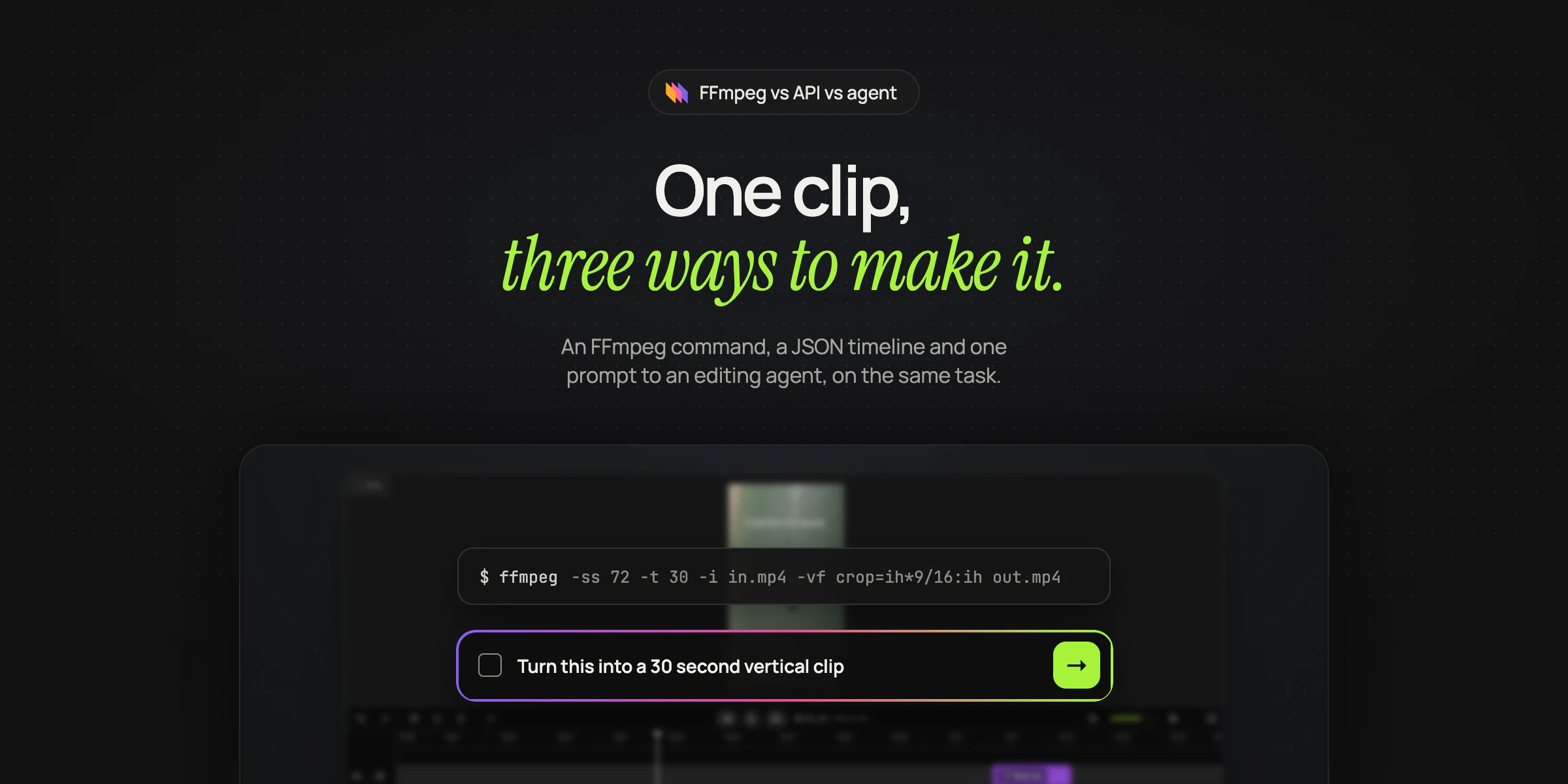
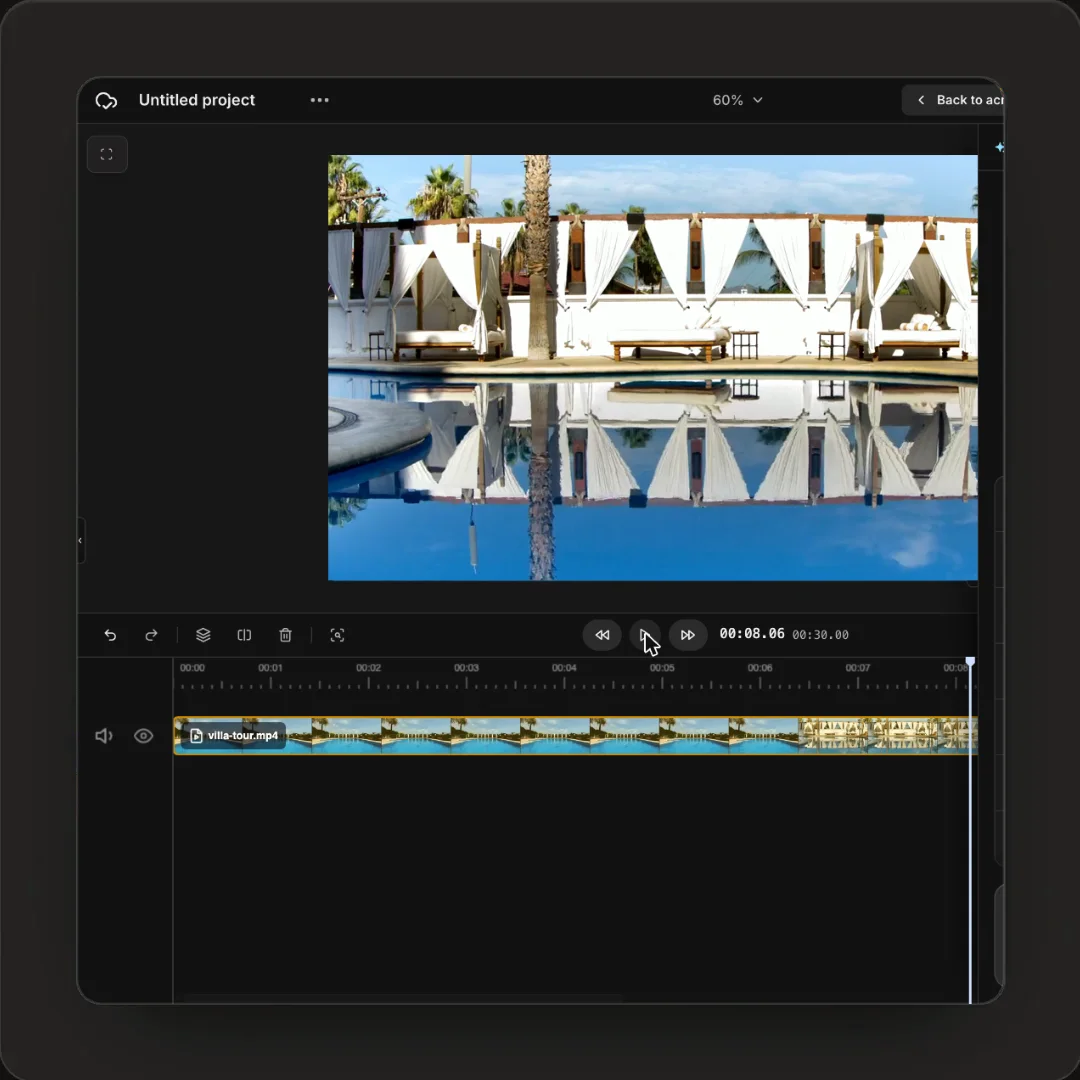
Hand adjustments, such as dragging a clip or nudging a caption, need an editor UI. Rendley Connect opens the Rendley editor with the user's video loaded and hands the finished file back to your app, with your users signing in to a Rendley account. To put the editor inside your own pages under your brand, build it on the Rendley SDK, a JavaScript video editing SDK that runs in the browser.
Controlling cost
Every edit and export spends from your Rendley account. Exports and direct AI tasks can be priced for free before you run them (Rendley docs). Agent runs have none, so for requests that could involve generated footage or voiceover, start the run with "interactive": true: it pauses with the plan and its price in cost_credits, and your code approves it under a budget or asks the user. A few prompt templates are cheaper and more predictable than a free text box, and the API reports your credit balance, so you can alert before it runs out.
The API uses your normal Rendley plan and credits. For a daily pipeline, pick a plan whose agent allowance refills every month (pricing).
Handling load and errors
Each plan allows a set number of agent jobs at once. Above it, the API answers 429 AGENT_CONCURRENCY_LIMIT_REACHED, so queue new edits and start them as others finish (Rendley docs). 400 NOT_ENOUGH_CREDITS does not clear on retry, so pause new jobs and alert someone. A failed job carries retryable, and since there is no idempotency key, retry a request that starts paid work only after a clear rejection (Rendley docs).
One architecture, different prompts
A creator app's "make it a Reel" button asks for a vertical cut under 45 seconds with captions and the speaker in frame. A course platform asks to remove filler words and false starts and keep every slide visible. A real estate platform asks for a 60 second tour with the address on screen; when every video shares a layout like that, build it once as a Rendley template so the agent fills in a design you control.
Frequently asked questions
Can I white label the result?
Yes. Paid plans, which the API requires, export without a watermark, and all calls come from your backend, so your users only see your product.
Do my users need a Rendley account?
Not with the API, because your backend uses your key. With Connect, they sign in to Rendley.
Can each customer have their own brand kit?
Yes. A brand kit belongs to a workspace, so keep one workspace per customer and pass its workspace_id when you create each project. Pro allows 3 workspaces and Business unlimited.
Start with one button
Pick the request your users ask for most, write it as a prompt with your house rules, and ship that before adding a free text box. The API docs have a quickstart, and how to edit video with an API has a runnable script to start from.