How to Automate Video Editing with Zapier
Turn spreadsheet rows, files and form entries into finished, captioned videos with Zapier. We build a Zap that turns a script into a YouTube Short and show the video it made.
Editing is the slowest part of publishing video on a regular schedule. Every clip has to be cut, narrated, captioned and exported, and that work starts again with the next video. Teams that want to post every day usually find that editing time, not ideas, decides how much they publish.
Zapier is one way to take that work off someone's desk. It connects more than 9,000 apps so that an event in one app can start work in another, without writing code. Each automation you build in Zapier is called a Zap. A Zap begins with a trigger, such as a new row in a Google Sheet, and then runs one or more actions, such as sending an email or adding a contact to a CRM (Zapier Help).
Most Zaps move information between apps. With the right video app, a Zap can also do the editing. In this guide we build a Zap that turns a script in a spreadsheet into a finished YouTube Short.
What a video step in a Zap gives you
- More videos without more editing time. Each new row, file or form entry becomes a video, so how much you publish stops depending on how many hours someone can spend in an editor.
- Videos that start from the tools you already use. The trigger can be a spreadsheet, a Google Drive folder, a Shopify store, a CMS or a form, and the finished video can go to YouTube, Slack, Dropbox or your social accounts.
- A consistent look. The same instructions and brand settings apply to every video, so the hundredth one has the same captions, fonts and voice as the first.
- Someone still in charge. Each video can stop for review before it is published, and anything that needs fixing can be changed without starting over.
How a video Zap works
Every video Zap has the same four parts. A trigger says when to make a video, such as a new script in a sheet or a new recording in a folder. An edit step makes the video. An export step renders it to a file. A final step sends the file where it needs to go.
The edit step needs an app that can do the editing itself, not just store or move files. For this guide we use Rendley, a video automation platform. You can give it your footage and ask it to edit it, or ask it to create a video from scratch from a script or an idea. Its AI agent does the work on a real timeline, adding voiceover, stock footage, music and captions, then renders the result. The Rendley app on Zapier makes that agent a step you can add to any Zap.
Before you start
You need three things to follow along.
- A Zapier account, which you can create at zapier.com.
- A Rendley account, which you can create at app.rendley.com. Video jobs and exports through Zapier need a paid plan, and the plans are on our pricing page.
- A Rendley API key, which you create under API Keys in Rendley's Settings.
The first time you add a Rendley step to a Zap, Zapier asks you to connect an account. Paste the API key there, and your Zaps use the same projects and brand settings as your Rendley account.
Building a Zap that turns a script into a YouTube Short
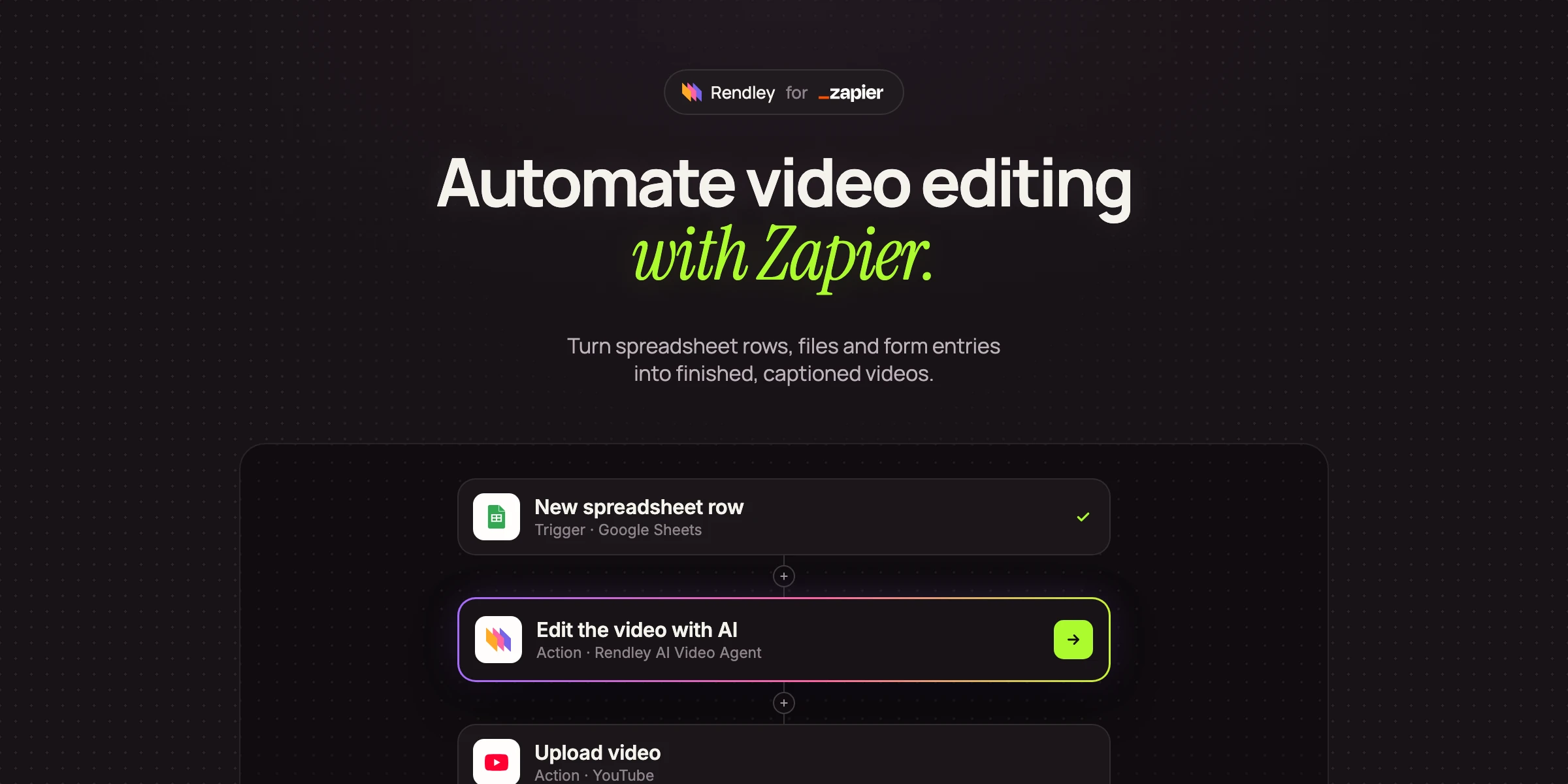
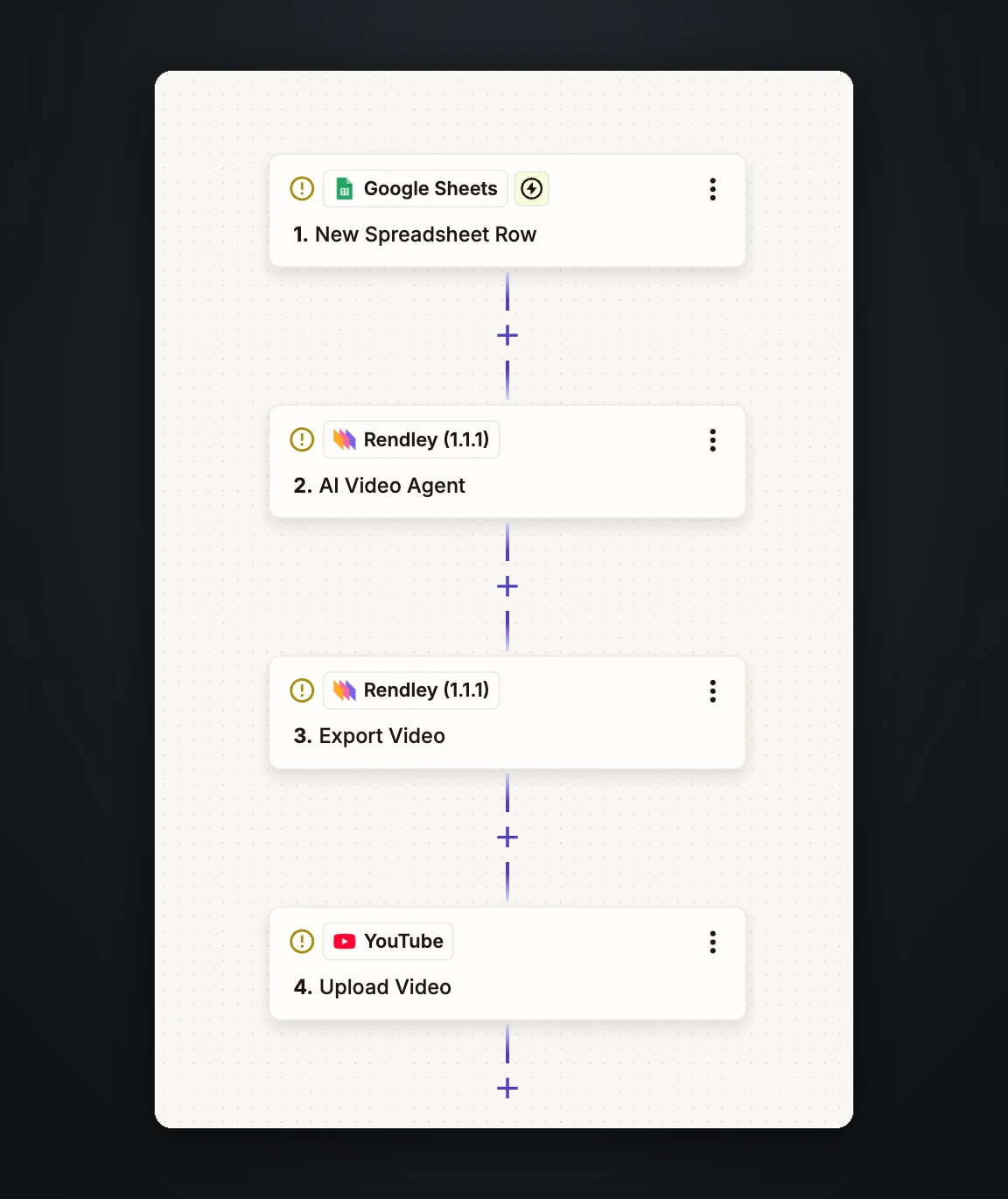
We built this Zap around a Google Sheet with one column for the title of each video and one for its script. You can start from the Google Sheets and Rendley integration on Zapier, or add the Rendley app to any Zap you already have. The Zap has four steps.
- Google Sheets, New Spreadsheet Row. The Zap starts whenever someone adds a row to the sheet.
- Rendley, AI Video Agent. The prompt describes the video and includes the script from the new row.
- Rendley, Export Video. This renders the project from step 2 to an MP4 file.
- YouTube, Upload Video. This uploads the file from step 3 with the title from the sheet.
The main field in the AI Video Agent step is the prompt. Leave Project empty to start a new video, add footage or images under Files if you have them, and turn on Wait for completion so the Zap waits for the finished video.
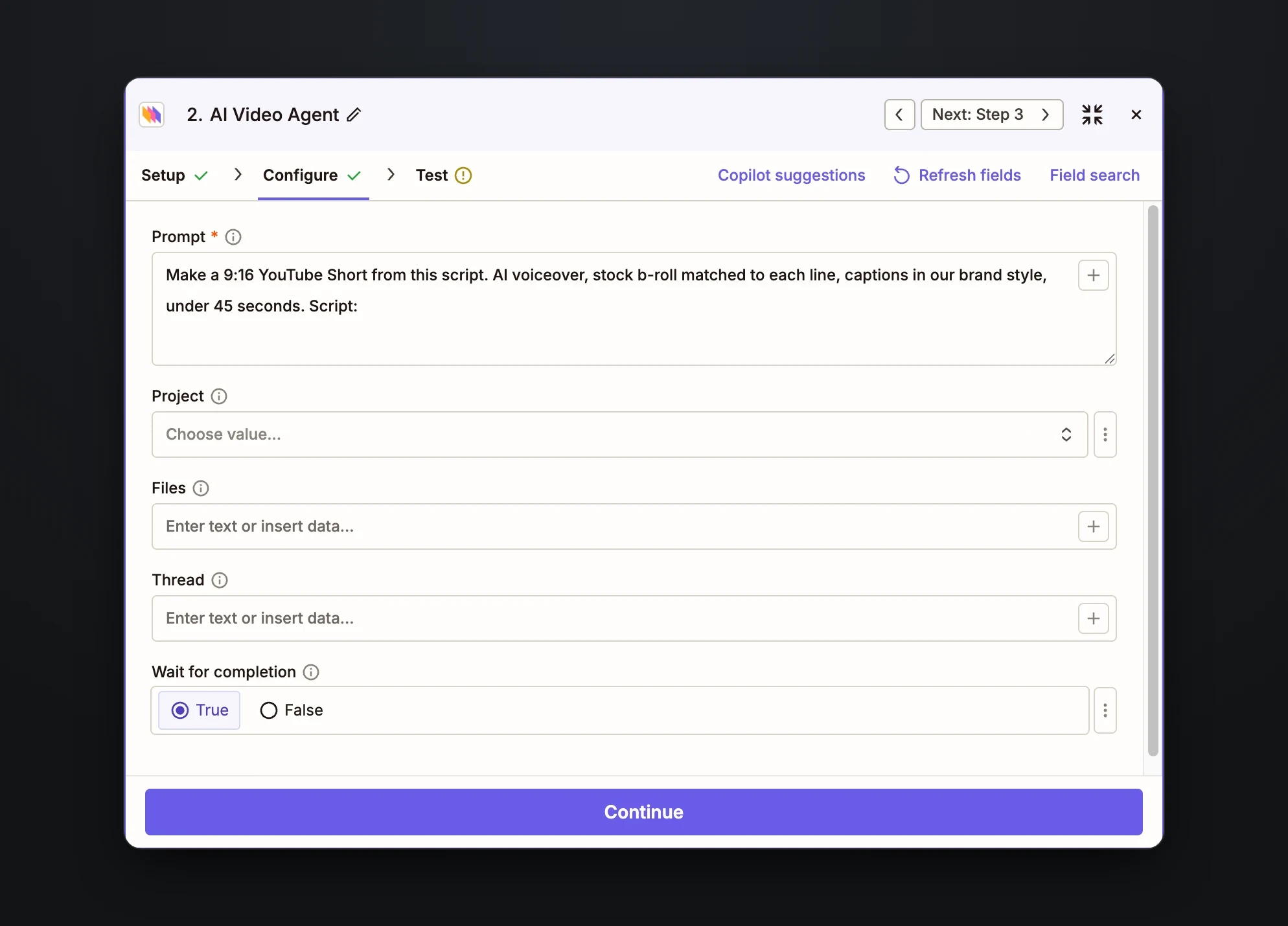
The prompt is where you decide what the video looks like. Ours asked for a vertical YouTube Short under 45 seconds, with an AI voiceover, stock b-roll matched to each line and captions in our brand style, followed by the script column from the sheet. "Our brand style" works because Rendley keeps a brand kit for each workspace, with your fonts, colors and caption style, and the agent applies it to every video. It helps to write the prompt as you would brief a human editor, try it on a few rows, and adjust the wording until the videos look the way you want. After that, every new row gets the same treatment.
An example video
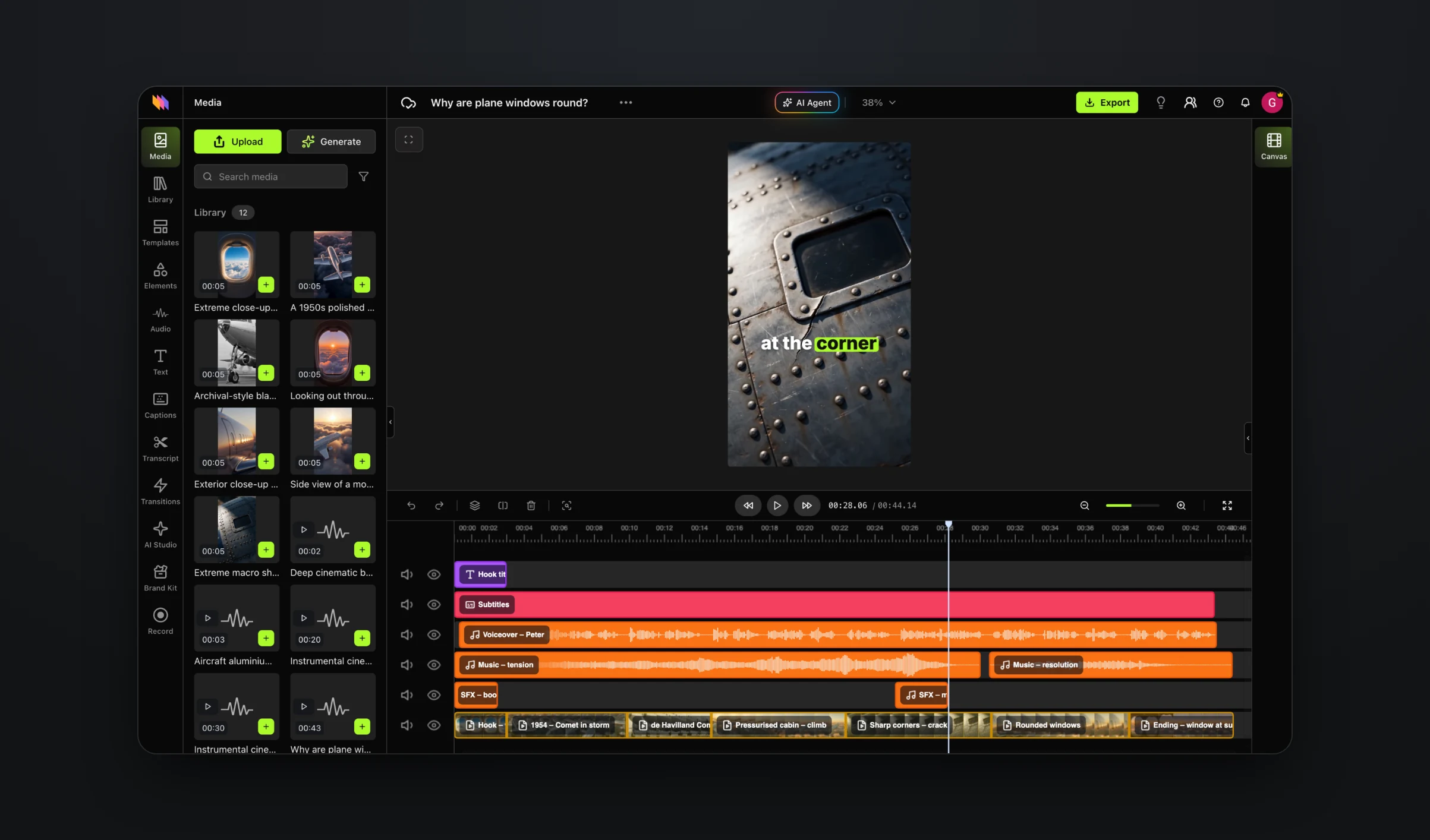
Here is a Short made from one row of the sheet, a script about why plane windows are round. The voiceover, every shot and the music were generated with Rendley's AI tools from that script, and the captions follow the narration word by word.
You're never stuck with what the Zap produces. Every video is also saved as a project, so you can open it in Rendley Studio and adjust anything on the full timeline: swap a shot, fix a caption, change the music or tweak the timing. If you'd rather not touch the timeline, just ask the agent for the change in a sentence. Then export again.
Other Rendley actions in Zapier
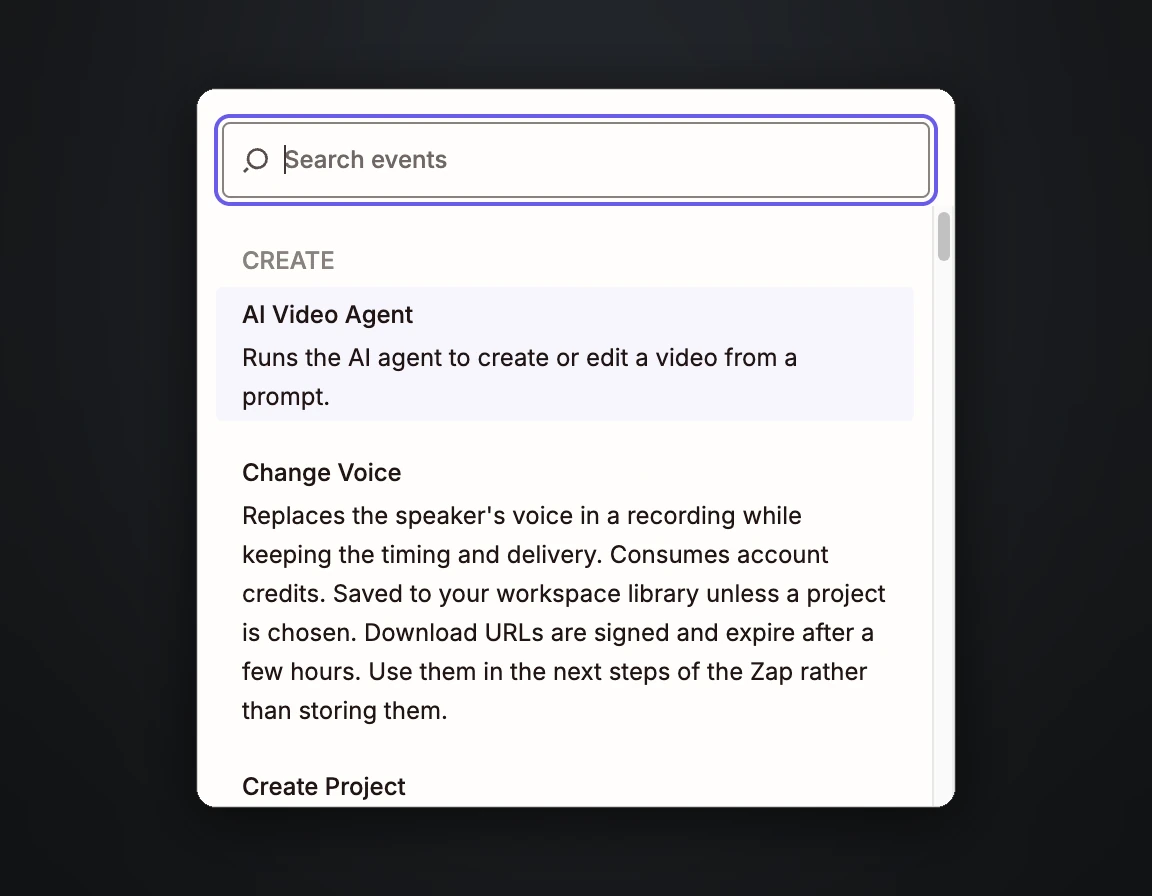
The AI Video Agent does the whole edit for you. If you'd rather build your own flow, Rendley also gives you more than twenty other actions in Zapier, including direct access to AI models for things like video generation, voiceovers and background removal. You can combine them into a custom workflow that fits exactly what you need.
- AI tools that each do one job: generate an image, a video clip, music or a sound effect, turn text into speech, transcribe, dub a video into another language, lip sync, change or isolate a voice, upscale, or remove a background.
- Social actions that publish a video to connected YouTube, TikTok, Instagram, LinkedIn or X accounts right away or at a scheduled time, and cancel a scheduled post.
Waiting for your video
A Short usually takes a few minutes to make. For short videos, Wait for completion is all you need, and the Zap simply pauses until the video is ready. For longer ones, split the work into two Zaps. The first starts the video, and the second begins with Rendley's New Completed Job trigger and takes it from there.
Either way, upload or save the finished file in the same run, since download links expire after a few hours.
Publishing straight from the Zap
If you want the video to go out as soon as it is ready, replace the YouTube step with Rendley's Publish Social Post action. It posts the video to the YouTube, TikTok, Instagram, LinkedIn or X accounts connected in Rendley, either right away or at a time you take from the sheet. One Zap then goes from a script to a published video on several platforms. Publishing and scheduling need the Pro plan or above.
Posts made this way also appear in Rendley's content calendar, so the whole team can see what went out and when. If a scheduled video needs another look, the Cancel Scheduled Social Post action takes it off the schedule.
More Zaps to try
The same pattern of a trigger, an edit step and an export works for many other jobs.
- When a new product is added to a Shopify store, create a product video from a template, with the product's name, price and photo filled in.
- When a new recording lands in a Google Drive folder, remove the filler words and long pauses, add captions and b-roll, and send the result to Slack for review.
- When a feature ships, turn its screen recording into a product demo video with zooms, voiceover and captions.
- When a new post goes live on your blog, turn it into a short video for LinkedIn.
- When a row is added to an Airtable content calendar, create a draft video and leave it for someone to approve.
- When someone answers a Typeform, create a personalized video with their name and answer on screen.
Getting started
To build your first video Zap, create an API key in Rendley, add the Rendley app to a Zap and paste the key when Zapier asks for it. Then pick the video task your team repeats most often and write the prompt you would give an editor. Everything the Zap makes is saved as a project in Rendley Studio, where you can watch it, change it or publish it.
If you work in Make instead, read how to automate video editing with Make. For an n8n version of the Shorts workflow, see how to automatically create and post YouTube Shorts. Developers can call the same agent directly through the Rendley API.