Automate video production with templates
Design a video once, choose the parts that change, and make every new version without re-editing. Each version is a separate project you can edit in Studio.
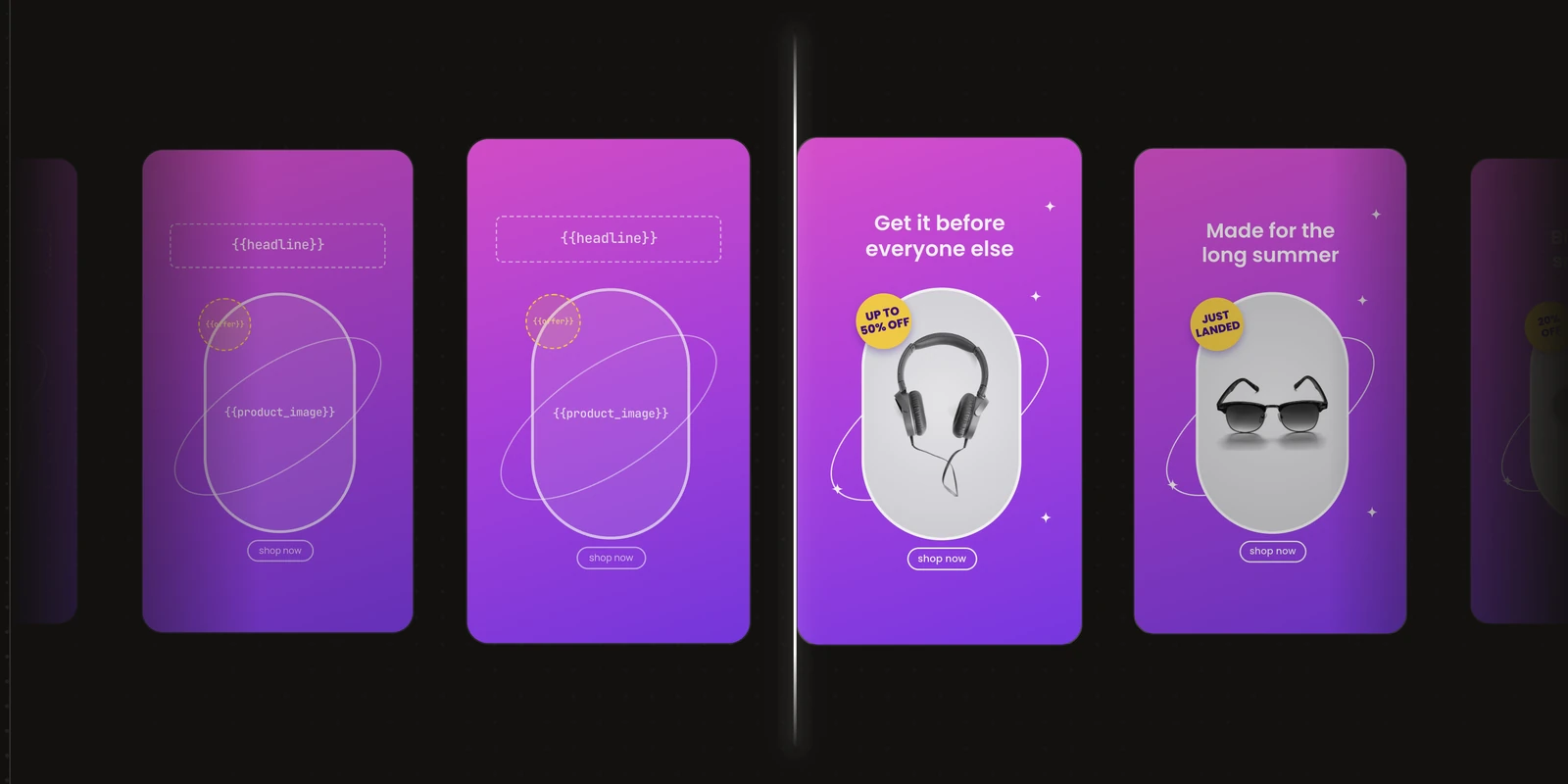
Some videos are made many times with the same design and different details, like a promo for each new product or a teaser for each webinar. Without a template, you copy the last project and change the text and photos by hand every time. A video template lets you automate video production for these videos, so you design the video once and only enter the new details for each version.
What a video template is
A video template is a video you've already designed, with some of its parts marked as fields. A field is a part you replace each time you make a new version. Everything that isn't a field stays as you designed it.
Take a product promo. The product name, the price, and the product photo are different for every product, so you make those three the fields. The rest of the video, like the logo, fonts, and music, stays the same in every promo you make from the template.
Each time you use the template, you get a new video project with the new details in it. The template itself doesn't change.
How templates automate video production
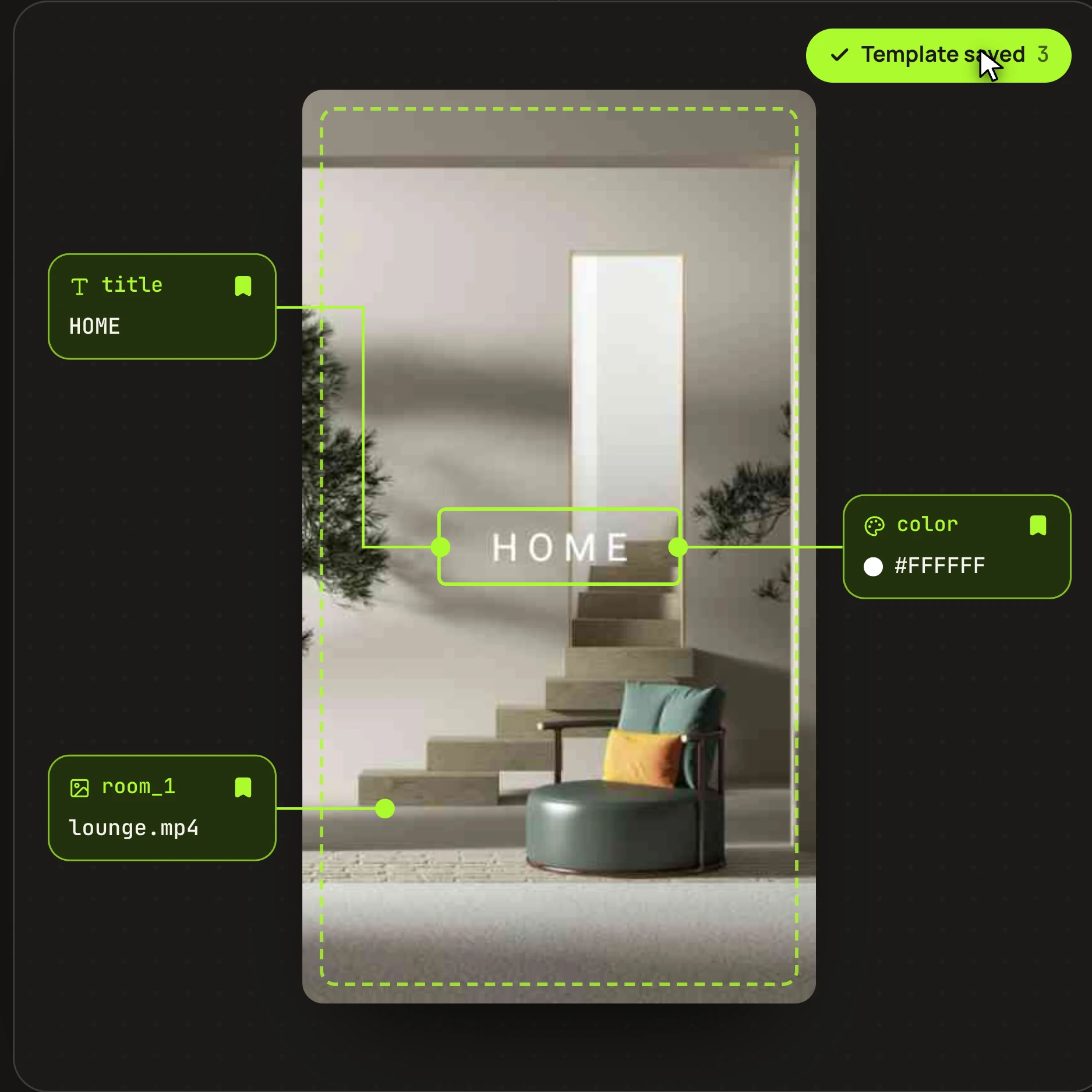
With a template, the design work happens once. Someone builds the first promo in Rendley Studio, either by editing it directly or by asking Rendley's AI agent for a first version from a short brief and the product photos. They then mark the parts that change as fields, using the bookmark next to each property, and save the video as a template.
From then on, a new promo only needs its new details. Opening the template in Studio starts a new project with a short form next to the preview, showing only the fields. You enter the product name and price, add the photo, and export the video. The layout, animation, and timing all come from the template, so a routine version doesn't involve the timeline at all.
What's left for a person is choosing the content and checking the result before it goes out.
What stays consistent between videos
The design lives in the template, so every video made from it uses the same logo, fonts, colors, and timing. The only differences between them are the values in the fields.
The main decision is which parts to make fields. Anything that changes between versions should be one, such as a call to action that moves from "Shop now" to "Back in stock" later in a campaign. Anything that should never change, like the logo, is better left in the design. Properties animated with keyframes always stay in the design.
Changing one video or the whole template
Each video made from a template is its own project. Correcting the price in one promo means changing that field and exporting that video again, and no other video changes.
When one video needs more than new details, such as a second product photo, Edit project opens its full timeline. From then on that video is a regular project, and the template stays as it was.
To change the design for future videos, you edit the project the template came from and save it as a template again. Videos made earlier keep their original design.
Making many videos at once
In Studio, you make videos from a template one at a time. If you need many at once, such as one for every product in your store, the same template works through Rendley MCP, the Rendley API, or a workflow tool.
Rendley MCP connects Rendley to an AI assistant like Claude or ChatGPT. You give the assistant your list of products and ask it to make a video from your template for each one. It creates the projects and exports the videos.
The Rendley API is for developers. Your code sends the template ID with the values for one video, such as the product name, price, and photo URL. Each request creates one project, which your code then exports. The docs show the full flow in render a video from a template.
Workflow tools like n8n, Make, and Zapier connect the API to the apps you already use. For example, a workflow can make a new video each time a product is added to your store.
Every video made these ways is a regular project in your workspace, so you can open it in Studio to check or change it. To create your first template, open a video in Rendley Studio and mark the parts that change.

