AI B-Roll Generator for Talking-Head Videos
How to add b-roll to a talking-head video with AI. Where cutaways help, how an AI picks them from what you say, and a real edit with the result and how we fine-tuned one shot.
A talking-head video with no b-roll feels long even when it is short. Cutting away to footage of what the speaker is describing keeps people watching, but finding those shots by hand is slow. You transcribe the video, decide where a cutaway helps, search stock libraries, trim each clip and line it up with the sentence.
That loop is a good fit for AI, because every step starts from the words being said. In this guide we explain what makes b-roll work in a talking-head video, how an AI chooses cutaways, and walk through a real edit, including how to fine-tune a shot once the b-roll is on the timeline.
What b-roll does in a talking-head video
B-roll is the footage you cut to while the speaker keeps talking. In a talking-head video it does three jobs.
- It shows what is being described, so the viewer does not have to imagine it.
- It hides jump cuts where filler words or retakes were removed.
- It resets attention every few seconds, which matters most on Reels, Shorts and TikTok.
It should never replace the speaker entirely. The first seconds, where the hook is, and the closing line usually work better on the face.
How an AI decides where to cut
Good b-roll follows the words, so an AI b-roll tool starts with a transcript. For each part of the video it then has to answer three questions.
- Is there something concrete here to show? "Spreadsheets full of numbers" is. "That is the thing about it" is not.
- What should the shot be? This becomes a stock search or a prompt for a video model.
- How long should it stay on screen? Usually two to four seconds, cut on the sentence.
Tools that only generate clips answer the second question and leave the rest to you. An editing agent answers all three and places the clips on the timeline for you.
Adding b-roll to a real recording
For this example we used Rendley, a video automation platform. You give it your footage and describe the edit, and its AI agent does the work on a timeline you can still change.
Our recording was a 21 second talking-head clip of a presenter at her desk, telling a short story about a business problem. For this example the presenter and her voice were generated with Rendley's AI tools, and the edit works the same way on footage you shot yourself.
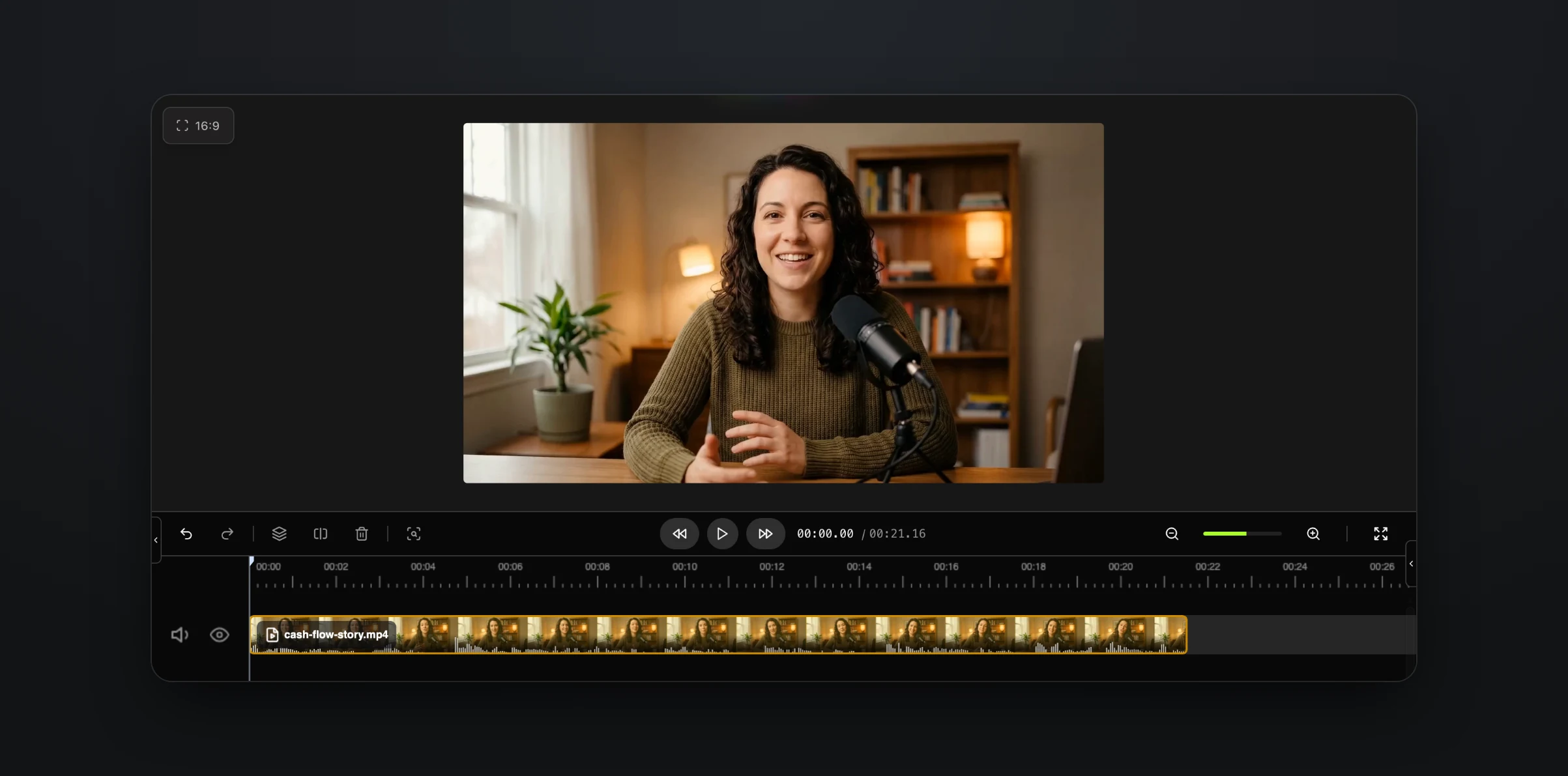
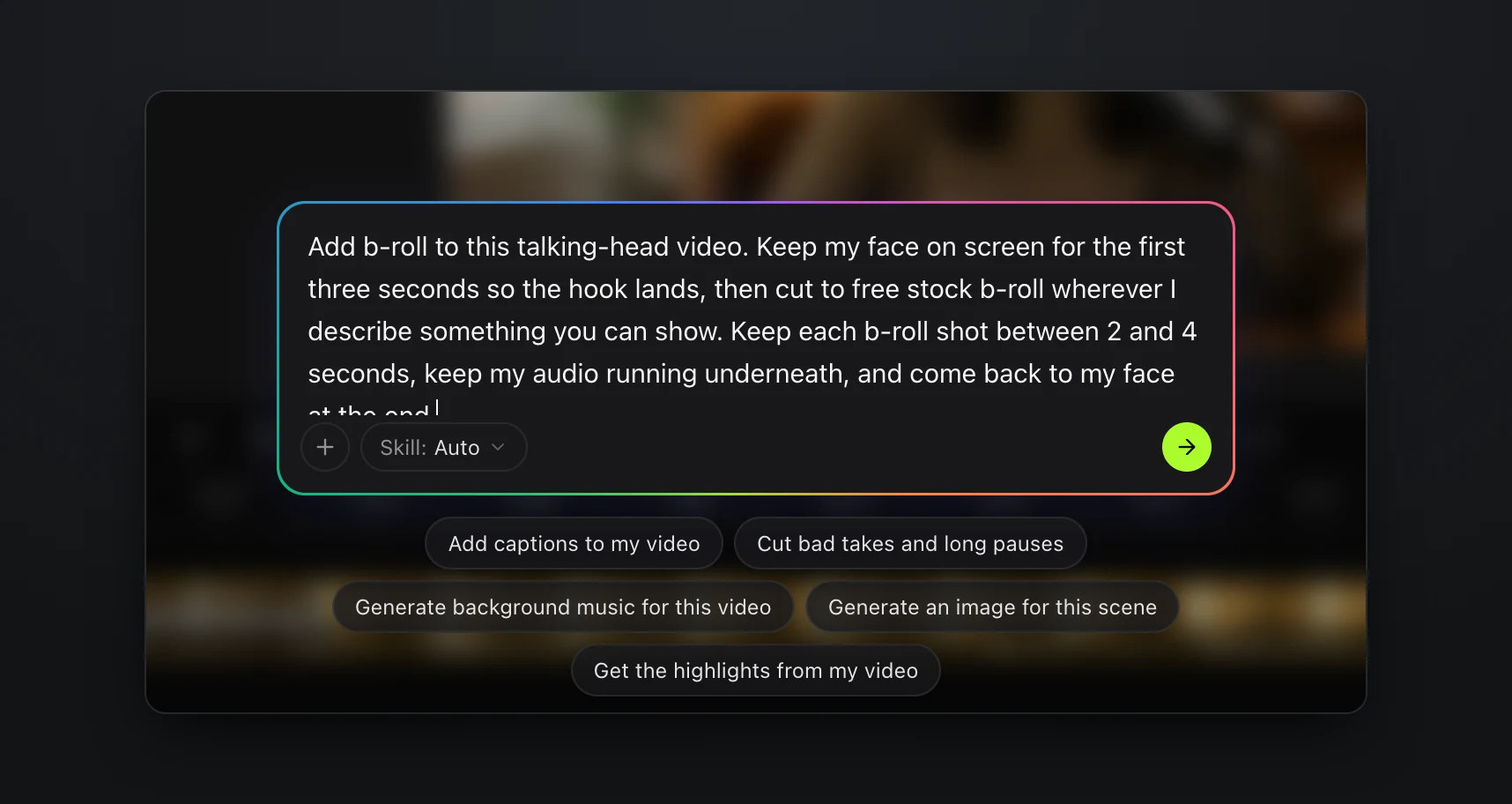
We opened the AI Agent and described the edit. It pays to be specific about the parts you care about, such as how long the face stays on screen and how long each cutaway should be.
Add b-roll to this talking-head video. Keep my face on screen for the first three seconds so the hook lands, then cut to free stock b-roll wherever I describe something you can show. Keep each b-roll shot between 2 and 4 seconds, keep my audio running underneath, and come back to my face at the end.
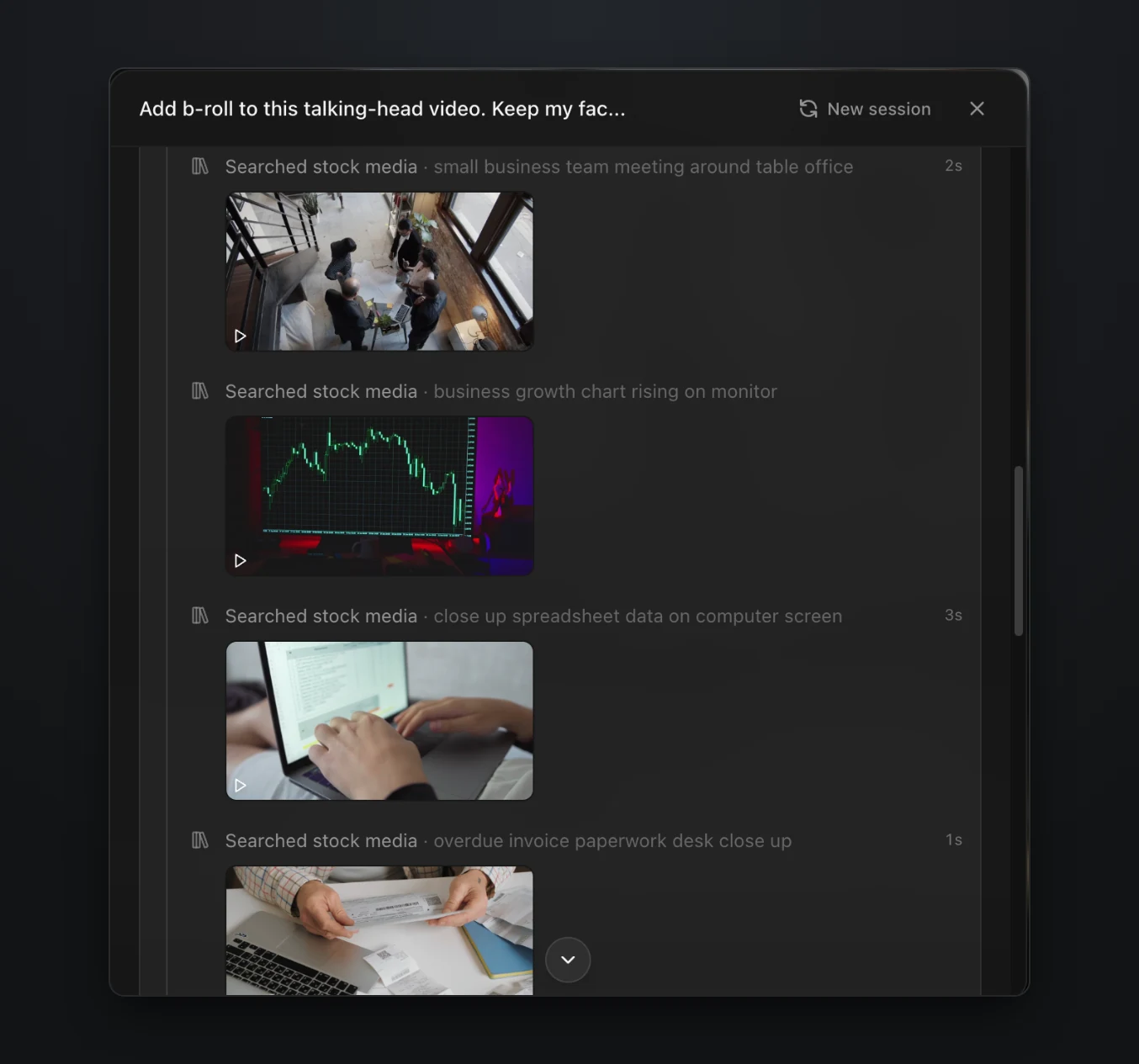
The agent first proposed to transcribe the audio and review the footage. Once we approved, it wrote a stock search for each concrete moment in the story, a team meeting, a growth chart, a spreadsheet, invoices, a late night at the desk and hands typing for the new billing process.
Stock searches are free. When the agent finished, it reported six full-frame cutaways of two to three seconds, the face on screen for the hook and again from 18.6 seconds to the end, and the original audio running underneath. It laid the b-roll out on two tracks above the recording, staggered so each new shot covers the tail of the previous one, and named each clip by what it shows.
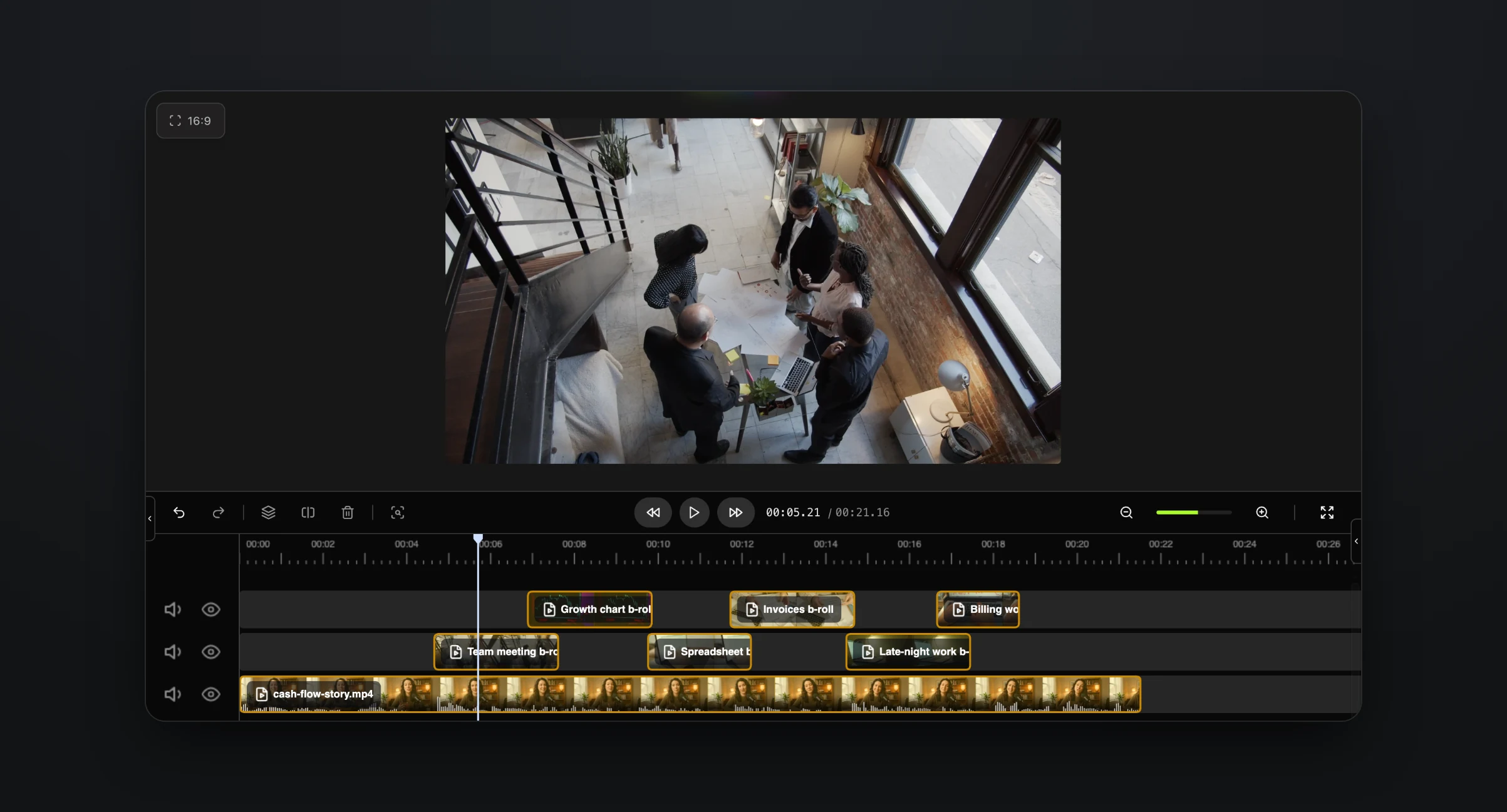
Here is the finished video, including the change described in the next section.
We asked for at least three seconds of face at the start, and the agent kept it on screen for 4.6, until the first moment in the story with something to show.
Fine-tune any shot with one message
Every cutaway the agent places is a normal clip on the timeline, so you can change any of them by hand or with another message. Watching the edit back, we wanted the growth chart to match the words more literally, since the presenter says the chart only went up. We asked the agent for a stock shot of a chart that clearly rises, with no logos, in the same position and length, without moving any other clip.
The agent searched again, reviewed three candidates against that request and kept an animated bar chart with an arrow climbing across it. We then moved the clip's start point in the editor so it opens on the rising arrow.
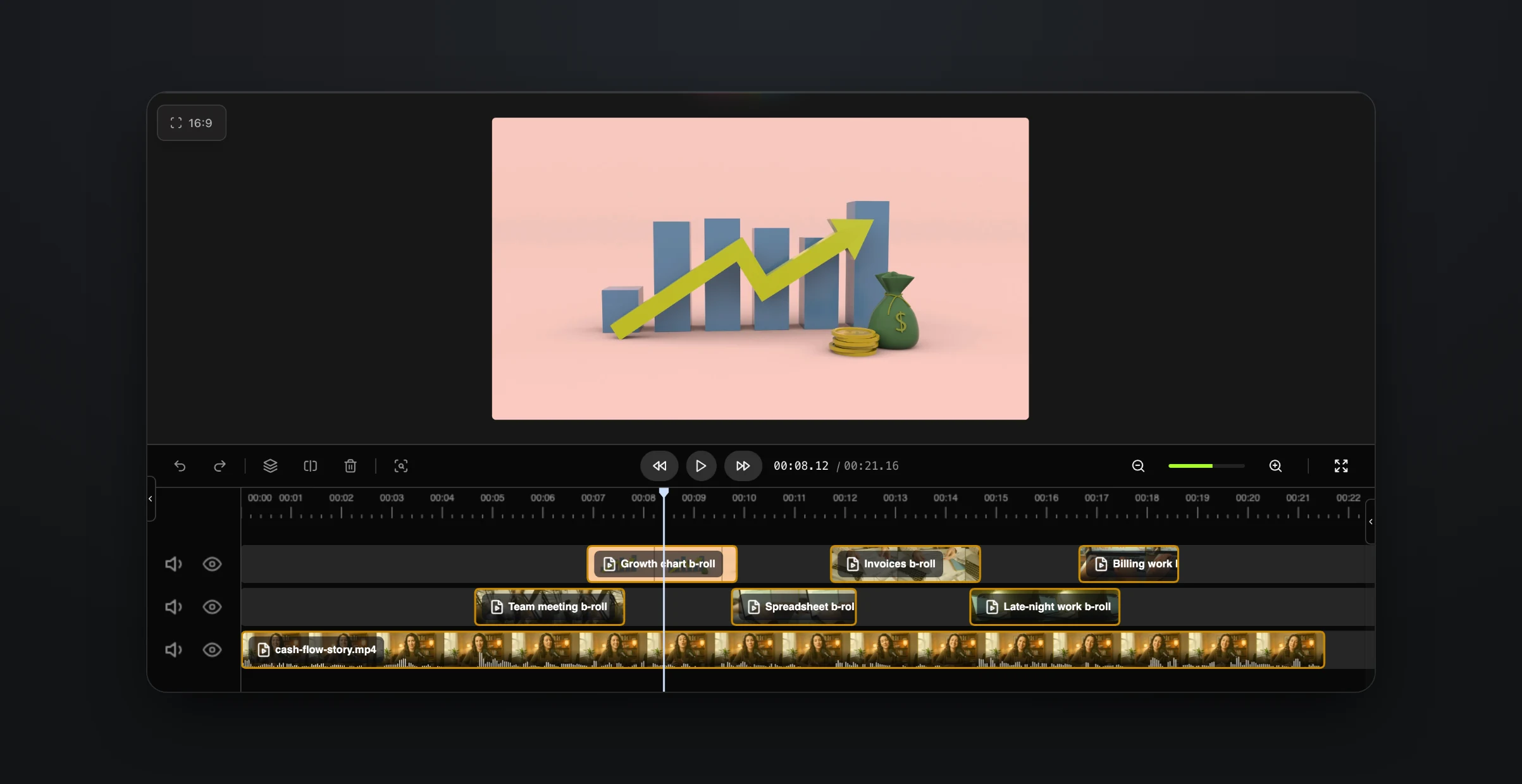
As with any edit built from stock footage, it is worth a quick scrub through the timeline before you publish. In practice that takes about 30 seconds. Look for logos and signage, which can read as an endorsement you never made, recognizable faces, shots you want to match a line more literally, and lighting that clashes with the recording.
Stock, generated or motion graphics
B-roll does not have to be footage. What works depends on the video. A founder story suits real-looking stock, a product walkthrough suits screen recordings, and a video about numbers often reads better with motion graphics such as an animated invoice, a price tag or a progress bar.
Stock footage is free in Rendley and is usually the right default for concrete things such as offices, cities, laptops, nature and people at work. When stock has nothing that fits, such as your own product or a specific scene, the agent can generate the shot with a video model such as Veo, Kling or Seedance. Generated clips cost credits, and the plan shows the estimate before anything is spent. That makes it worth keeping generation for the shots stock cannot cover.
The agent can create motion graphics too. Ask for an animated invoice over the line about invoices going out late, or a chart that builds as the numbers come up, and it designs the animation in your brand kit's colors and fonts and places it on the timeline with the rest of the b-roll.
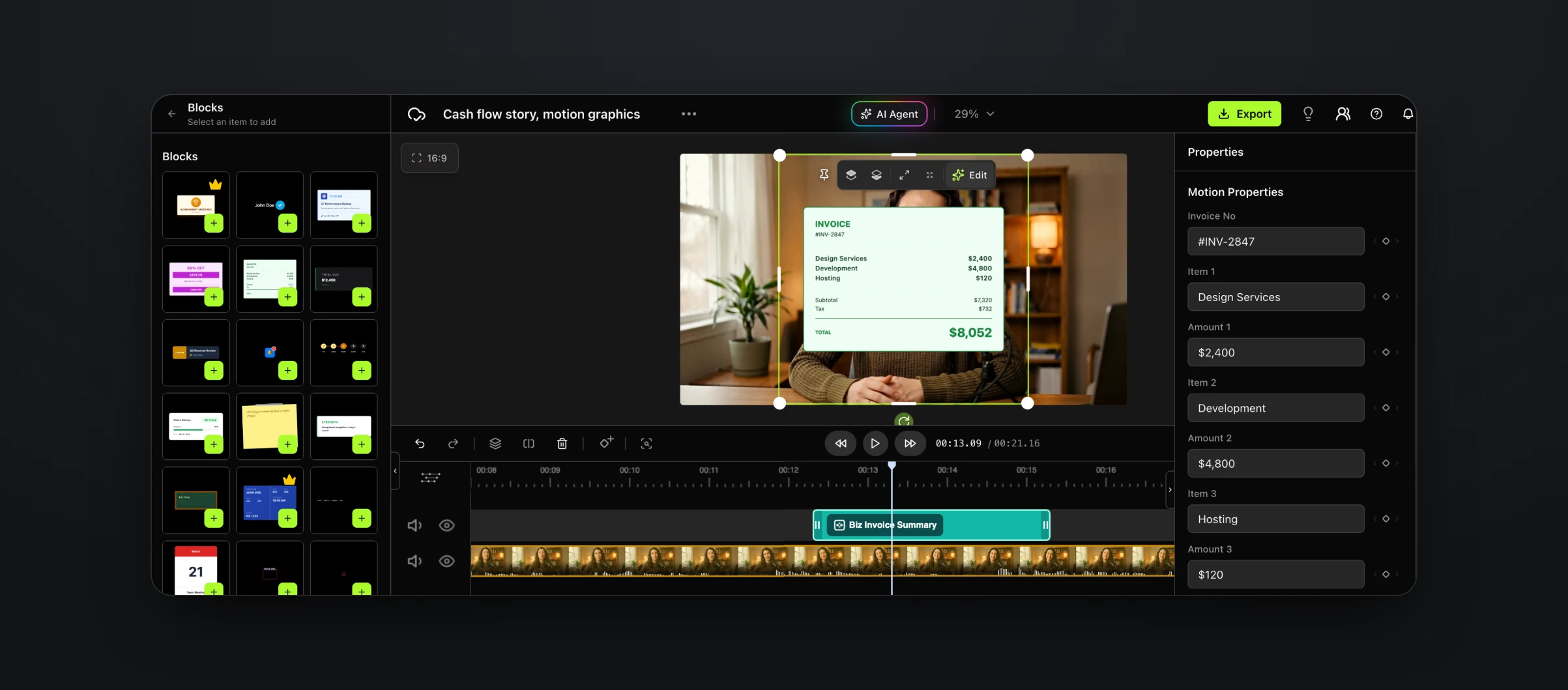
You can mix all three in one request, for example "use stock for the office shots, generate the close-up of our app on a phone and add an animated invoice when I talk about billing."
Adding b-roll to every recording automatically
If b-roll is a step you run on every recording, the edit can start as soon as the file is saved. Send the recording and the same prompt to the agent through the Rendley API, or connect it with no code through Zapier, Make or n8n. Each result is still a normal project, so someone can open it and check the cutaways before it is published. For screen recordings rather than talking heads, see how to make a product demo video from a screen recording.
Try it on your next recording
Open a talking-head recording in Rendley Studio, ask the agent for b-roll, then scrub through what it picked. If you publish the same kind of video every week, the YouTube automation guide shows how the rest of the pipeline fits around it.