How to Automatically Create and Post YouTube Shorts
Two ways to automate YouTube Shorts from start to finish. Turn a script into a Short, or cut Shorts out of the long videos you already have, then upload them automatically.
Posting a Short every day is a production schedule most teams cannot keep by hand. Each one needs a source, an edit, captions, a vertical frame and an upload with a title and description. The upload, which is what most people search for first, turns out to be the easy part. The edit is where the time goes.
Every one of those steps can now run without anyone opening an editor. In this guide we build two pipelines that do it, one that turns a written script into a Short and one that cuts Shorts out of long videos you already have, and show how to upload the results automatically or after a quick review.
What a good Short needs
- A vertical or square video, up to three minutes long (YouTube Help). Wider videos are treated as regular uploads.
- A hook in the first two seconds, on screen and in the audio.
- Captions, for everyone scrolling with the sound off.
- A title and description written for the Short, not copied from a long video.
The edit is the step that takes the most time, so that is where automation helps most.
The tools that run the pipeline
Both pipelines run in an automation tool, an app that connects other apps so that an event in one starts work in another. We use n8n here, which lets you build these workflows on a visual canvas and run them in the cloud or on your own server. Zapier and Make work the same way.
For the edit itself we use Rendley, a video automation platform. You give it a script or your own footage and describe the video you want, and its AI agent edits it on a real timeline, with voiceover, stock footage, music and captions. Rendley has a verified node for n8n, and apps for Zapier and Make. To connect any of them, create an API key in Rendley's Settings under API Keys and paste it when the tool asks for a connection (Rendley docs).
Turning a script into a Short
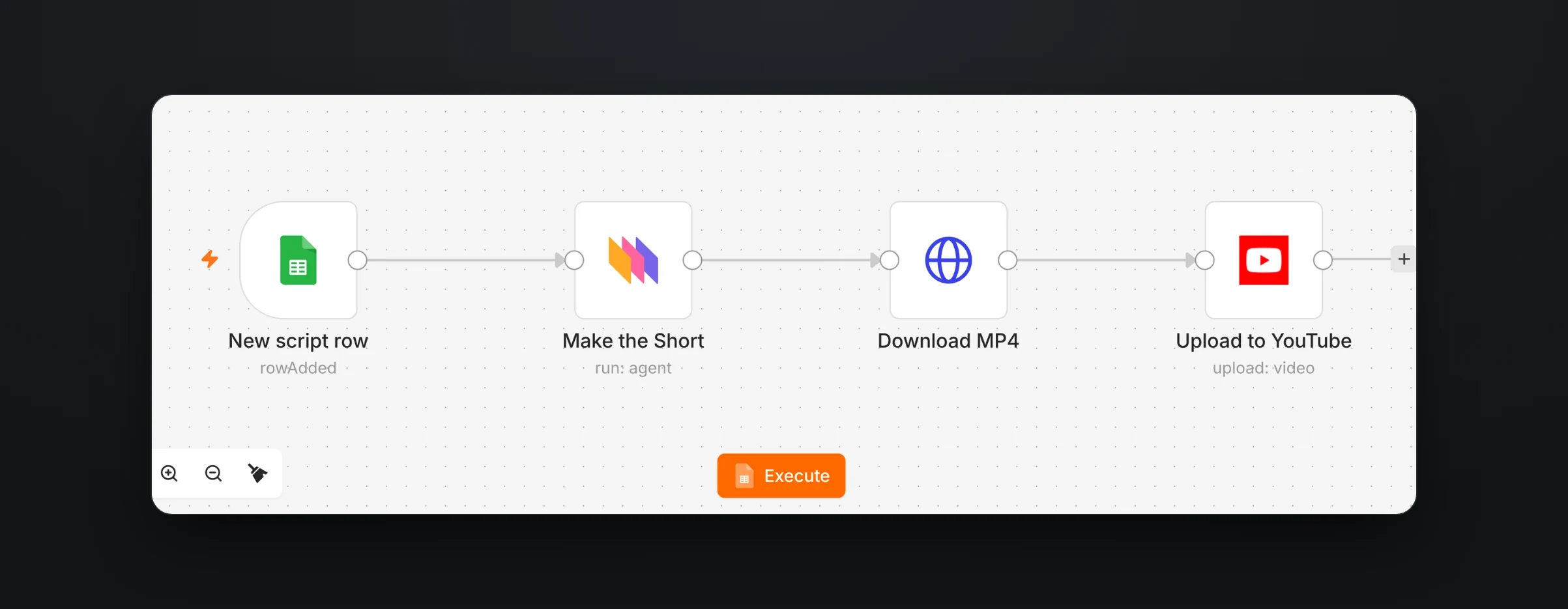
This is the faceless channel pattern. Someone writes a script, adds it to a spreadsheet, and the rest happens on its own. Whatever tool runs it, the pipeline has four steps.
- A new row in a spreadsheet, with one column for the title and one for the script.
- The Rendley AI video agent, with a prompt that describes the Short and includes the script.
- An export of the project the agent made.
- An upload of the exported file to YouTube, with the title from the sheet.
The prompt is where you set the format. Ours asked for a vertical YouTube Short under 45 seconds, with an AI voiceover, stock b-roll matched to each line and captions in our brand style, followed by the script column.
Here is the workflow in n8n. Rendley makes and exports the Short, and the last step uploads it to YouTube.
We tested the same steps with an 87 word script about why airplane windows are round. Less than five minutes later the agent had made a 40 second vertical Short with narration, seven stock shots matched to the script and captions in our brand style, and the export took another minute or two. Here is a polished version of that Short, with the voiceover, shots and music generated with Rendley's AI tools from the same script.
We build the same pipeline step by step in the Zapier guide and the Make guide, and developers can run it through the Rendley API.
Set the YouTube upload to private or unlisted while you are testing. Once you trust the results, switch it to public, or keep a person approving each Short in YouTube Studio.
Cutting Shorts out of long videos
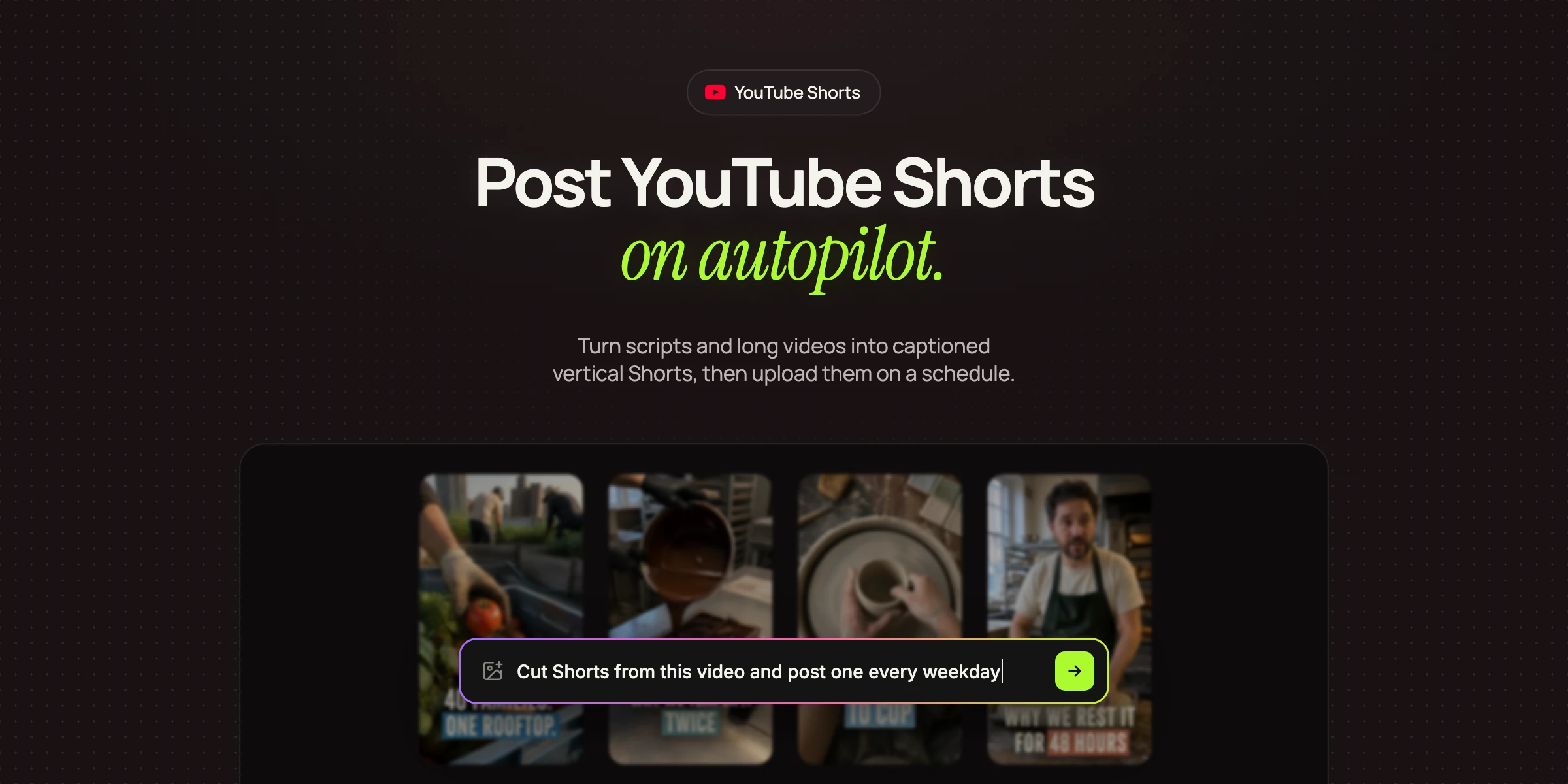
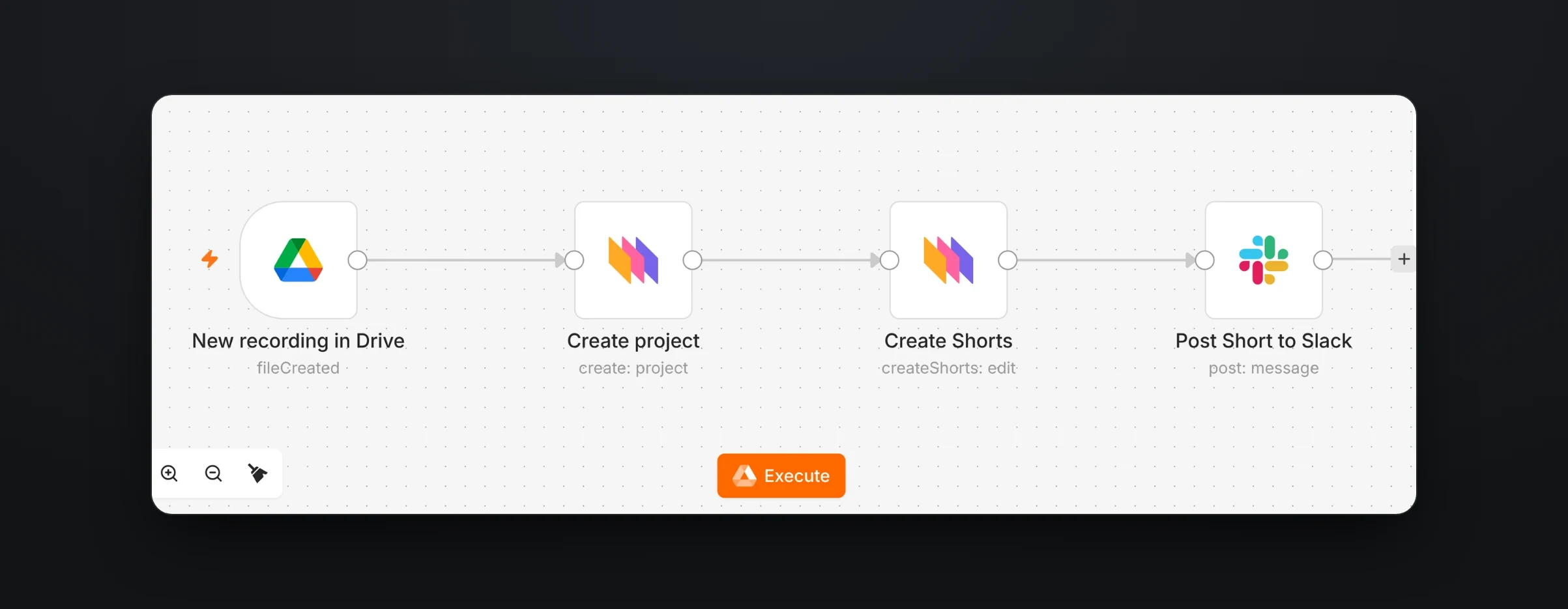
If you publish long videos, podcasts or webinars, your best Shorts are already in there. Rendley's Create Shorts step in n8n finds them for you. It transcribes the video and scores candidate moments on four things, a hook in the first two seconds, an idea that needs no earlier context, a clear payoff and a natural place to stop. It then builds the best candidate into a finished Short, trimmed and reframed to vertical with the speaker kept in frame, with filler words removed and captions added.
You choose how many Shorts it looks for and how long each can be.
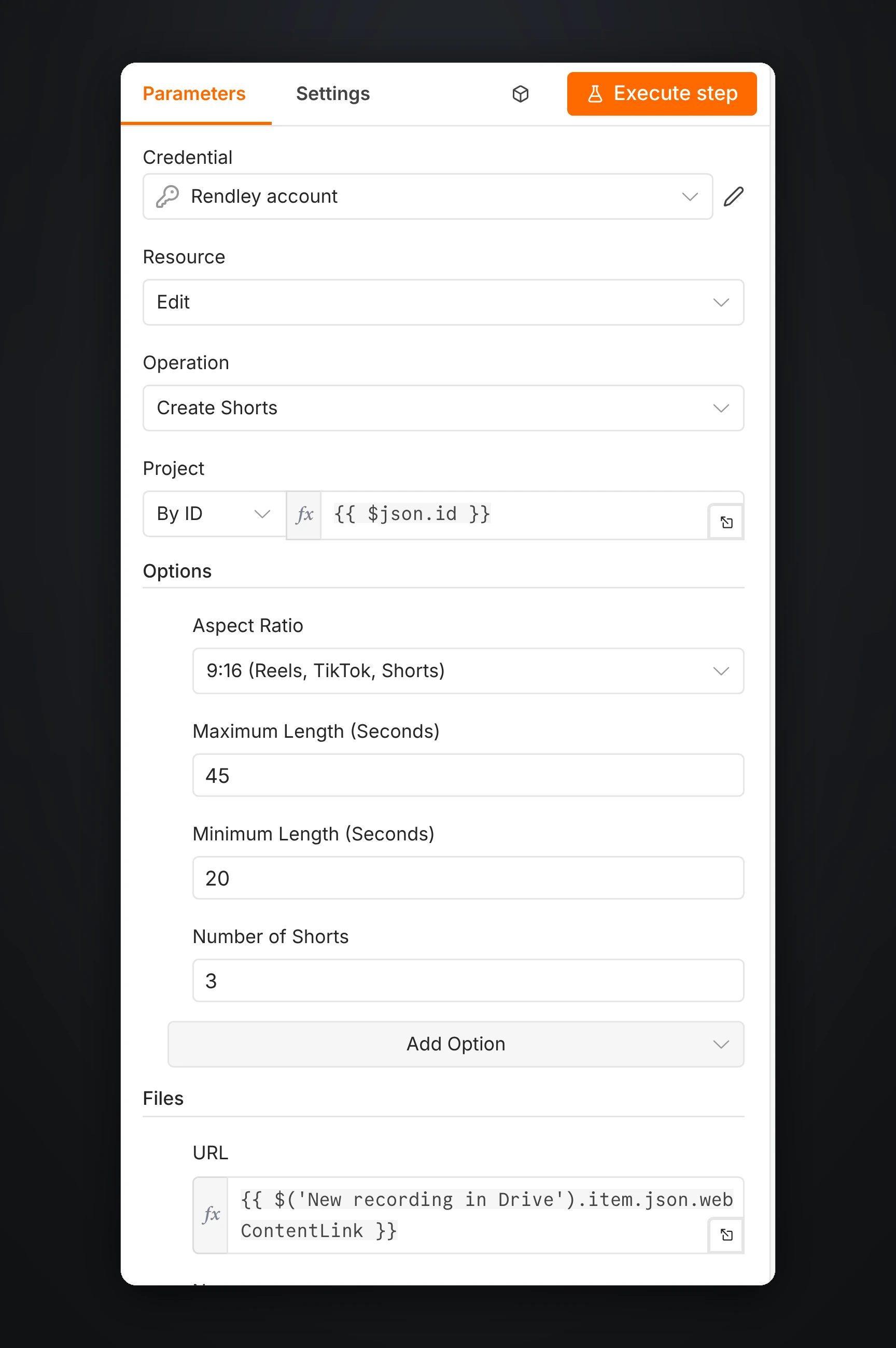
It builds the best one and lists the others, so you can ask for the next one whenever you want it.
This workflow posts each Short to a Slack channel for review instead of uploading it straight away. A clip cut from a longer conversation can lose its context, so it is worth a person checking that it makes sense on its own. Swap the Slack node for a YouTube node once you are happy with the results. To adjust the framing by hand, see our guide to auto reframing video.
Reviewing and scheduling from Rendley Studio
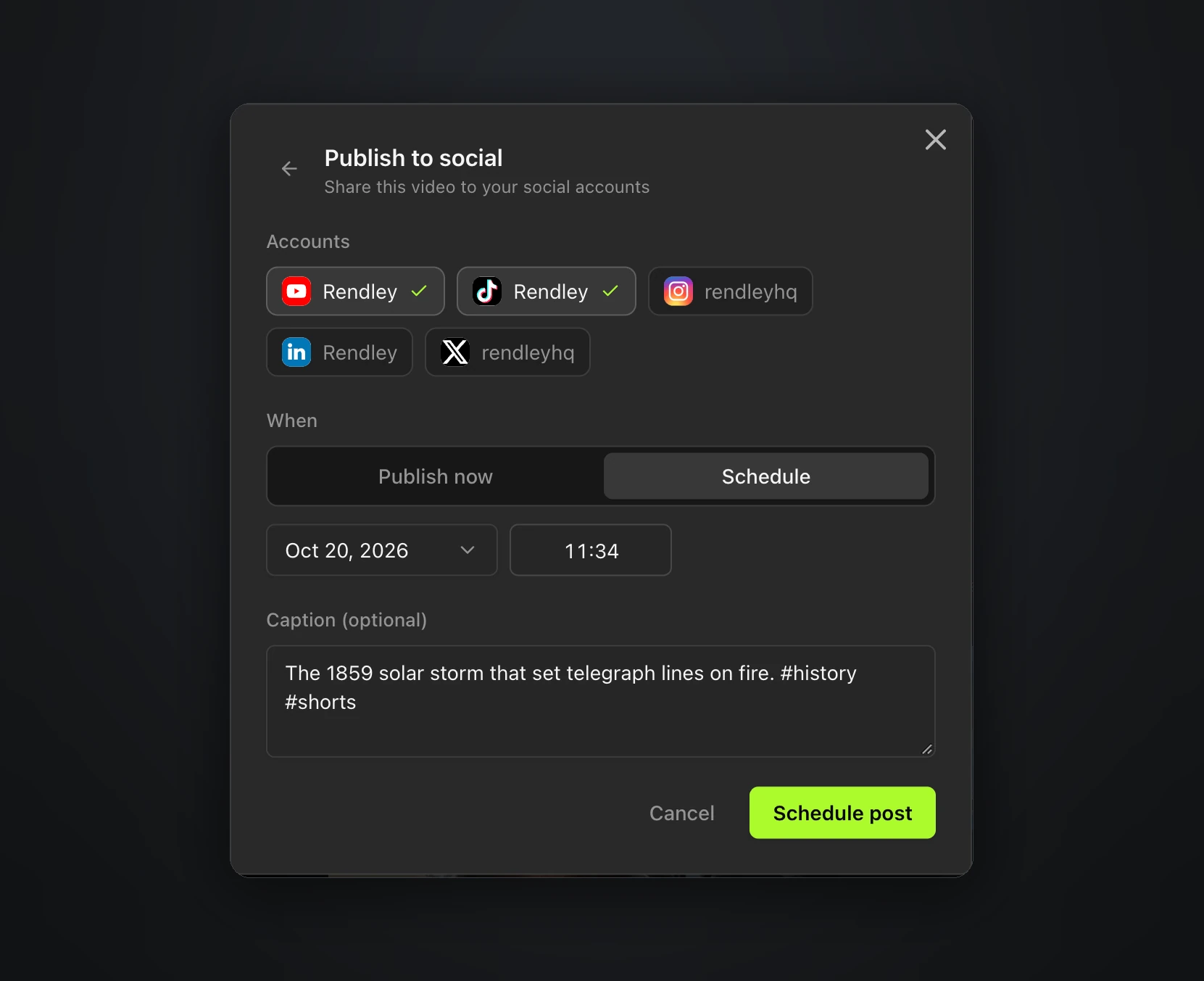
If you would rather watch each Short before it goes out, skip the upload step and schedule from Rendley Studio. Every project the automation creates is a normal project in your workspace. Open it, watch it, then use the content calendar to publish it now or schedule it to YouTube, TikTok, Instagram, LinkedIn and X at once. Scheduling is on the Pro plan and above.
Keeping automatic YouTube uploads reliable
A few habits keep an automated channel running smoothly.
- Keep a title column in the sheet instead of generating titles from the script, at least until you have seen what generated titles look like.
- Use a trigger for new rows only. A trigger that also fires when a row is edited can upload the same Short twice.
- Upload in the same run as the export, since download links expire after a few hours.
- Label realistic AI footage. YouTube asks you to turn on the altered or synthetic content setting when a video shows a realistic scene that did not happen, alters footage of a real event or makes a real person appear to say something they did not. Using AI to help write the script does not need it (YouTube Help).
Start with one Short a day
Set up the pipeline with uploads set to private, add five scripts to the sheet and watch what comes out. When the format holds, make it public. For the long-form side of the same channel, read the YouTube automation guide.