How to Automate Video Editing with Make
Build a Make scenario that turns new recordings into edited, captioned vertical clips, with an AI agent doing the edit for you.
Teams that publish a lot of video spend most of their time on the same few edits. They cut the pauses out of a recording, add captions, make a vertical version and send it somewhere for review. The steps barely change from one video to the next, which is exactly the kind of work that can run on its own.
Make is a no-code automation platform. You build workflows, which Make calls scenarios, by connecting modules on a visual canvas. Each module is one step in an app, such as watching a Google Sheet for new rows or posting a message to Slack, and the data from one module can be mapped into the next.
In this guide we build a scenario that turns a recording listed in a spreadsheet into a captioned vertical clip.
Why automate video editing in Make
- The edit starts the moment a recording arrives, instead of waiting in someone's queue.
- Every video gets the same treatment, with the same captions, framing and length, because the instructions are written once.
- The steps around the edit, such as storing the file, asking for approval and posting it, run in the same scenario.
- People spend their time reviewing finished videos rather than making them.
The edit step
Most apps in Make move or store files. For the edit itself you need an app that can do the editing. We use Rendley, a video automation platform. You can give it your footage and ask it to edit it, or ask it to create a video from scratch, and its AI agent does the work on a real timeline, adding captions, cuts, voiceover, stock footage and music, then renders the result.
The Rendley app on Make gives you the AI video agent, which does the whole edit for you from a written instruction, called a prompt. If you'd rather build your own flow, it also gives you direct access to AI models for single jobs, so you can combine them into exactly the workflow you need.
- AI modules that each do one job: generate an image, a video clip, music or a sound effect, turn text into speech, transcribe, dub a video into another language, lip sync, change or isolate a voice, upscale, or remove a background.
- Export video, which renders a finished project to a video file.
- Social actions that publish a video to connected YouTube, TikTok, Instagram, LinkedIn or X accounts right away or at a scheduled time, and cancel a scheduled post.
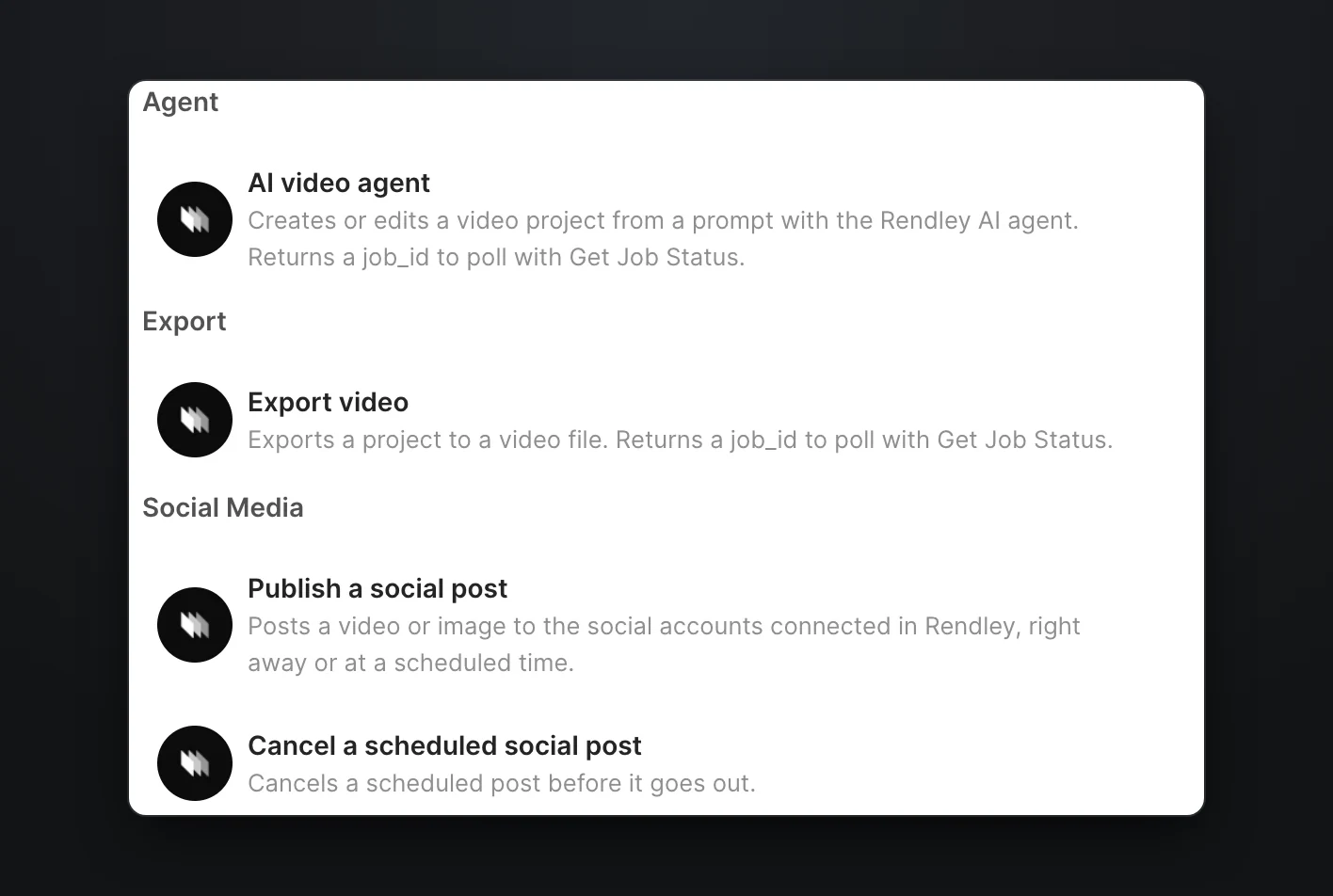
Connecting Rendley to Make
You need a Make account, a Rendley account from app.rendley.com and a Rendley API key, which you create under API Keys in Rendley's Settings. Paste the key when Make asks you to connect Rendley.
Agent jobs and exports need a paid Rendley plan, and the plans are on our pricing page.
Building a scenario that turns a recording into a captioned vertical clip
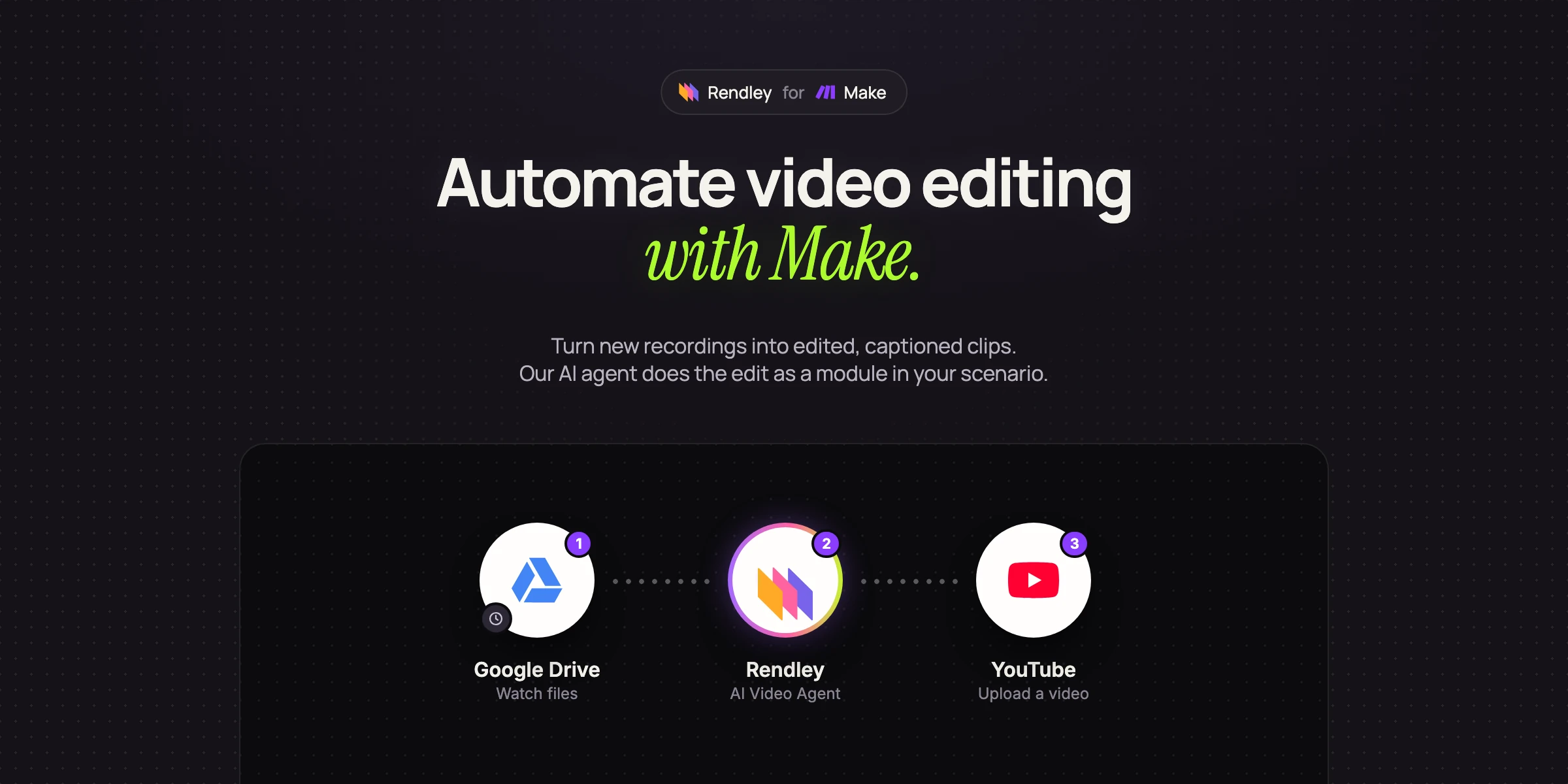
This scenario takes a recording listed in a Google Sheet, removes filler words and long pauses, adds captions, reframes it to vertical and exports it.
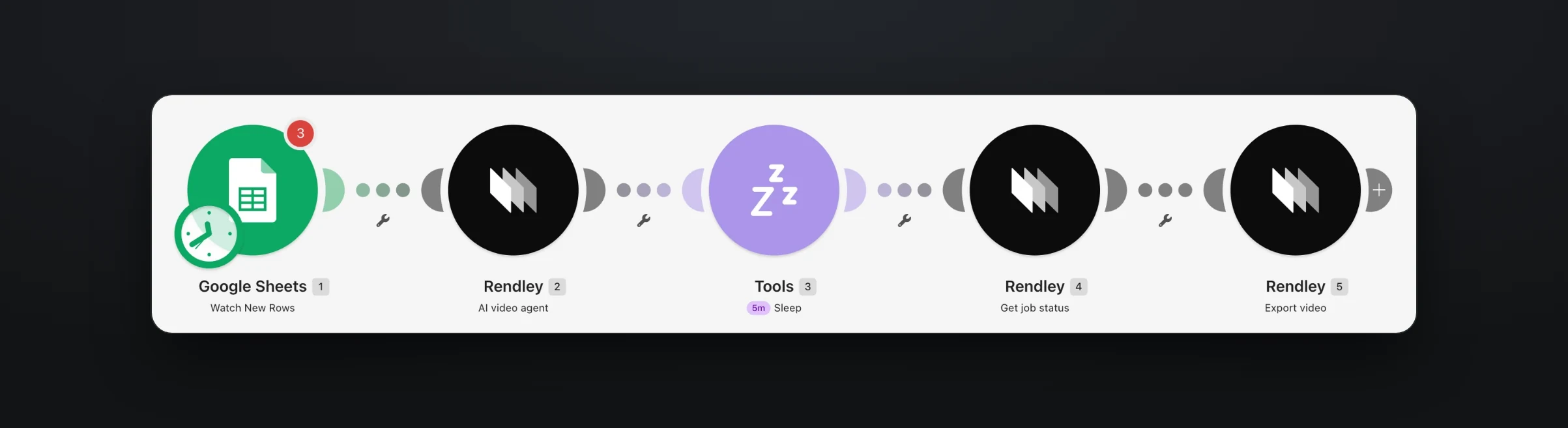
- Google Sheets, Watch New Rows. Each row holds a link to a recording.
- Rendley, AI video agent, with the prompt below and the link to the recording.
- Tools, Sleep, to give the edit time to finish.
- Rendley, Get job status, to check on the agent.
- Rendley, Export video, to render the finished project.
Give the AI video agent module your prompt and the link to the recording. Leave the project empty and it starts a new one.
Our prompt was short and specific.
Remove filler words and long pauses from this recording, add captions in our brand style, and reframe it to 9:16.
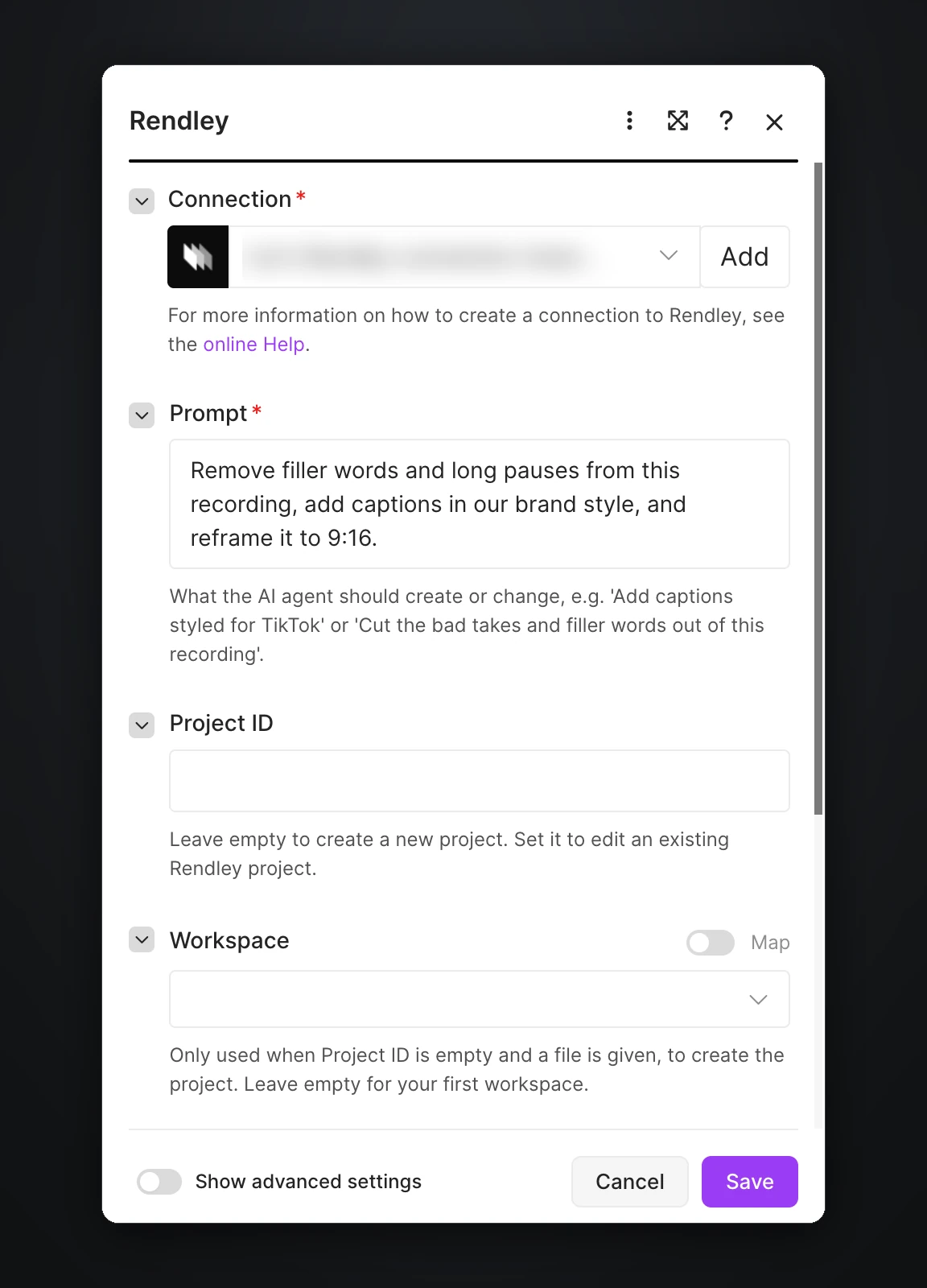
"In our brand style" works because Rendley keeps a brand kit for each workspace, with your fonts, colors and caption style, and the agent applies it to every video.
The edit takes a few minutes, which is what the next two modules are for.
Here is what that kind of edit does to a real recording. We took a five minute talking-head take full of long pauses, false starts and retakes, kept the best take of each line, cut the pauses between words, added word-by-word captions and reframed it to 9:16. What was left is a 38 second clip.
Waiting for your video
A video edit usually takes a few minutes, so the scenario waits and then checks on it with the Get job status module. For most edits, a Sleep module of up to five minutes before the check is all you need. When the video is ready, Export video renders it and hands you a download link.
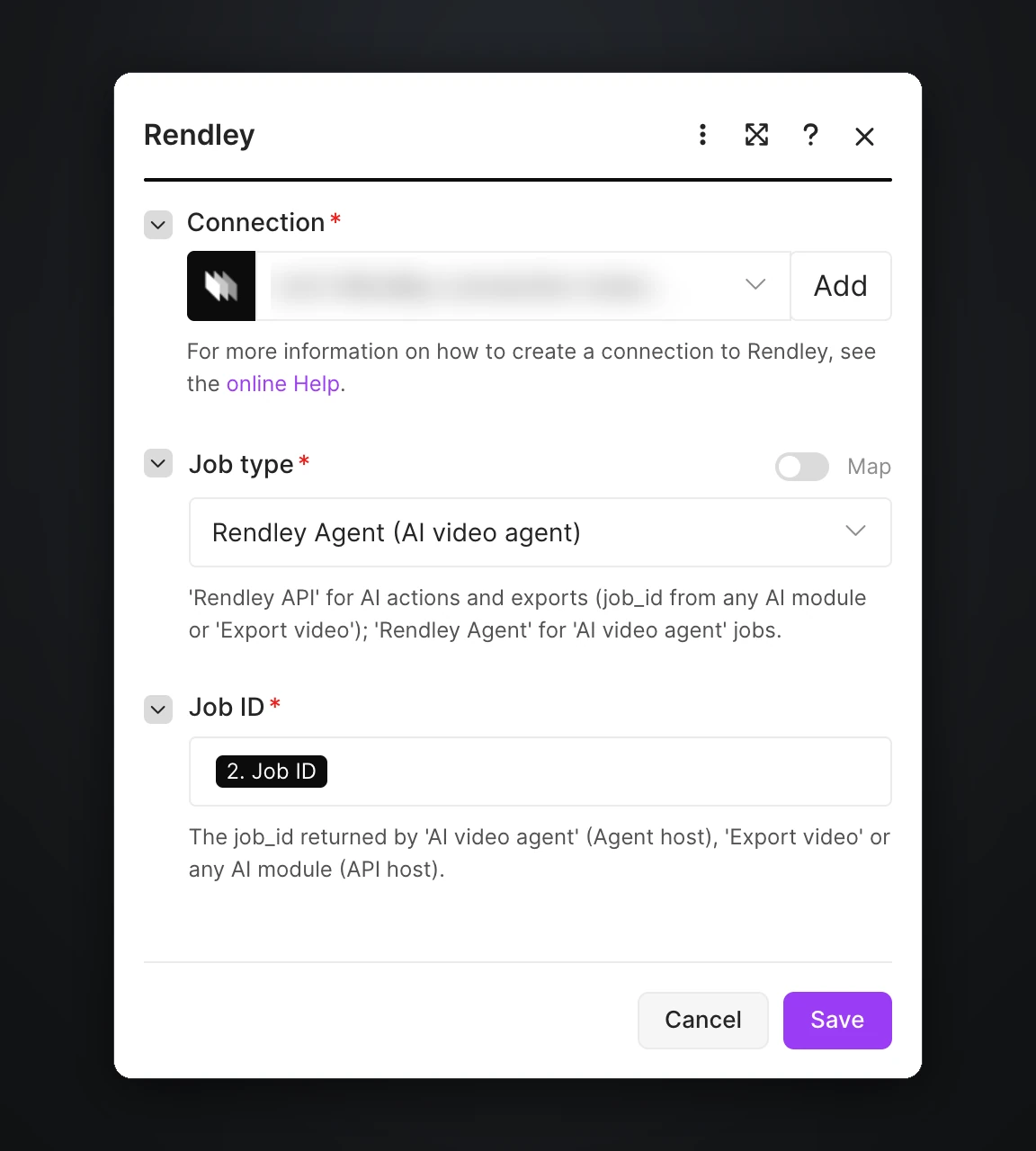
What to do with the finished video
- Publish it. The Publish a social post module posts the video to the accounts connected in Rendley, right away or at a time you map from the sheet. Publishing and scheduling need the Pro plan or above.
- Send it for review. Post the download link to Slack or email it to whoever approves videos, and publish only after a person has watched it.
- Store it. Upload the file to Google Drive or Dropbox in the same run, since download links expire after a few hours.
You're never stuck with what the scenario produces. Every video is also saved as a project, so you can open it in Rendley Studio and adjust anything on the timeline: swap a shot, fix a caption, change the music or tweak the timing. Or ask the agent for the change in a sentence, then export again.
More scenarios to try
- A new product photo in a Drive folder goes to the AI video agent with your ad brief, and comes back as a vertical video ad waiting for review.
- A new webinar recording becomes three Shorts, each sent to Slack for approval before it is scheduled.
- A new video in Dropbox is dubbed into Spanish and German with the Dub video module, and each version is uploaded next to the original.
- A new blog post in your RSS feed becomes a short LinkedIn video.
- A new talking-head recording gets b-roll cut in wherever the speaker describes something you can show.
Getting started
Pick the video task your team repeats most often, write the prompt you would give an editor and put it in the AI video agent module. Review the first few results in Rendley Studio before you add the publish step. If your team uses Zapier instead, read how to automate video editing with Zapier.