How to Start a YouTube Automation Channel with AI
Set up a faceless YouTube automation channel that stays inside YouTube's 2026 rules. Script, AI voiceover, b-roll, captions, Shorts and scheduled uploads, with an editing agent doing the edit.
A YouTube automation channel is a channel where you choose the topics and set the quality bar, and most of the production happens without you editing every frame. For years that meant a small team of freelancers, with a scriptwriter, a voiceover artist, an editor and a thumbnail designer, all coordinated by hand.
Most of that production line can now run on software. The part that changed most is the edit, which used to be the slowest and most expensive job to outsource. In this guide we set up a channel from the format to the first upload, show a real video an AI editing agent made from a script, and explain how to stay inside YouTube's monetization rules while you do it.
Why YouTube's 2026 rules change how you automate
In July 2026 YouTube clarified which videos qualify for the Partner Program. Generic, repetitive or template-based videos with little variation between uploads are not eligible, whether they were made with AI, CGI or reusable templates (The Desk). YouTube was clear that this is not a ban on AI. It is a ban on sameness.
A pipeline that drops a new voiceover into the same template with the same stock clips is exactly what the policy describes. A pipeline where each video is cut to its own script, with footage chosen for each line, is not. Everything below is built around the second kind.
Outsourcing, AI voiceovers and AI-assisted editing are all allowed. YouTube looks at the result. It removes mass-produced videos with little variation from the Partner Program, it does not pay for reused footage that has not been meaningfully changed, and it asks you to label realistic scenes that did not happen or altered footage of real events (YouTube Help). Monetization thresholds change from time to time, so check YouTube's Partner Program page before you plan around them.
What a faceless YouTube automation channel runs on
Every automation channel does the same five jobs.
- Idea and script
- Voiceover
- Edit, which covers b-roll, music, captions and pacing
- Thumbnail and title
- Upload and schedule
The setup that works now keeps the script and the thumbnail with a person, because that is where channels win or lose, and hands the voiceover, the edit and the upload to software. The edit is the biggest of the three, so that is where automation saves the most time.
Pick one repeatable format
Automation only works on a format you can describe in a paragraph. "History explainers, 8 to 10 minutes, calm narration, archival-style b-roll, chapter titles, one Short per video from the opening hook" is a format. "Interesting videos about history" is not.
Write that paragraph down. You will give it to the editor, human or AI, with every video, so it doubles as your style guide.
Good faceless formats have three things in common. The visuals can come from stock or generated footage, the value is in the script rather than in a presenter, and there are hundreds of topics to work through. History, science, psychology, personal finance basics, true stories and tech explainers all fit.
Write the script yourself, or at least rewrite it
Use Claude or ChatGPT for research and a first draft if you like, but keep the script as the one part you do not automate end to end. It is what makes each video different from the last, which YouTube now requires for monetization, and it is what viewers subscribe for.
A script that edits well has short sentences, one idea per line and concrete nouns. "Telegraph wires caught fire" gives an editor something to find footage for. "The consequences were significant" does not.
Let an editing agent turn the script into a video
This is the step a freelance editor used to do, and it is where the time savings are. We use Rendley, a video automation platform. You give it a script or your own footage and describe the video you want, and its AI agent edits it on a real timeline, adding the voiceover, stock footage, music and captions.
Before the first video, fill in the brand kit once with your fonts, colors, caption style, preferred voices and logo. You can import most of it from your channel's website.
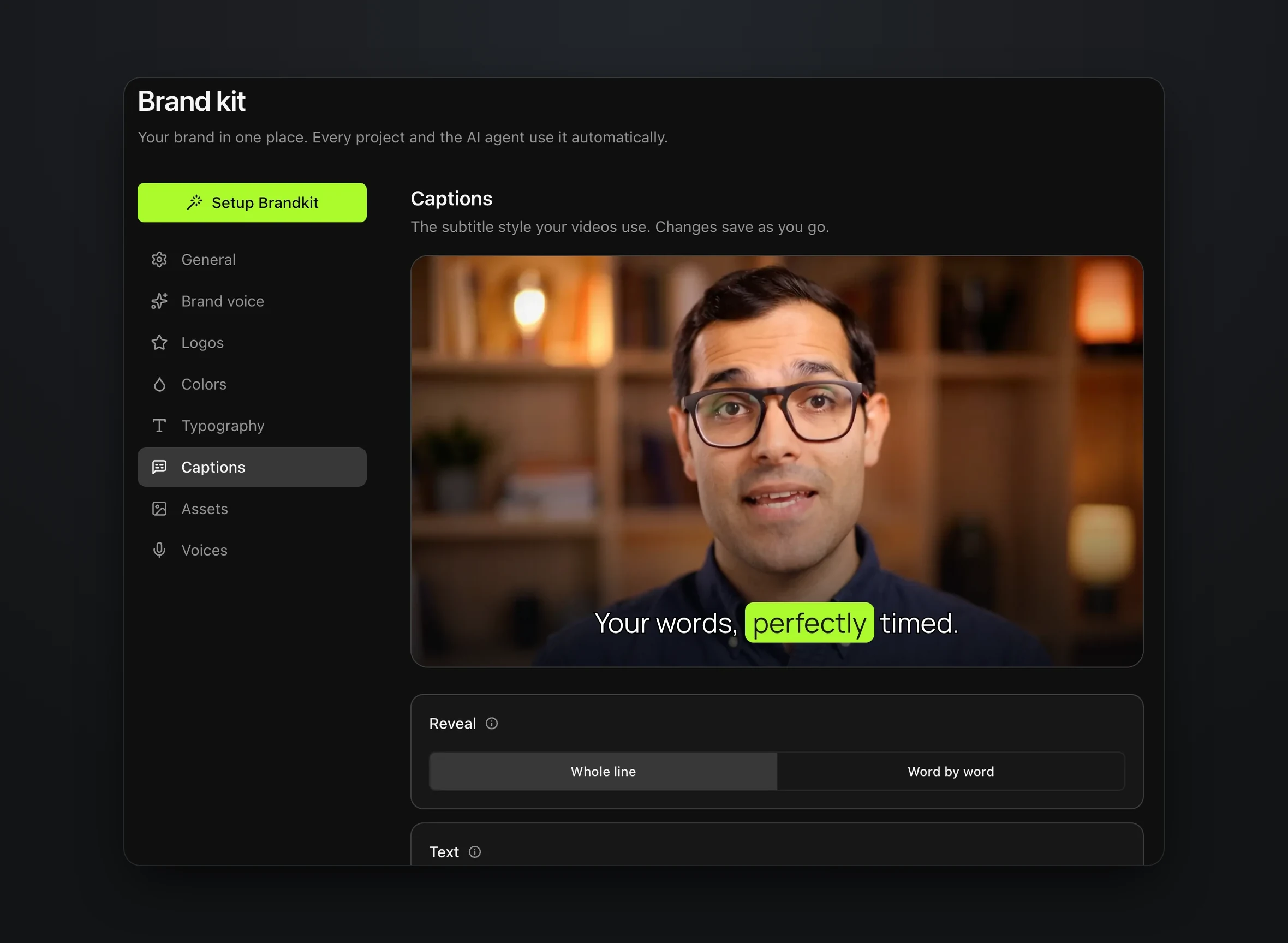
Every video the agent makes reads the brand kit, so video 40 has the same captions, title style and narrator as video 1. When there is no face on the channel, that consistency is what viewers recognize.
Then open Create in Rendley Studio, describe the format in plain language and paste the script. Here is the brief we used for a 60 second test video about the 1859 Carrington Event.
Make a 60 second 16:9 YouTube video for a history explainer channel from this script. Calm documentary male voiceover. Free stock b-roll that matches each line. A subtle music bed under the voice. Styled captions. A short title card at the start that says The Carrington Event.
The agent reads the brief, plans the edit and shows you the plan before it changes anything. Our plan searched stock footage line by line, the same way it adds b-roll to a talking-head video, for shots such as vintage telegraph equipment, aurora over a night landscape, a solar flare and a power grid at night. It then recorded a voiceover for each line, made a music bed and transcribed the narration for captions.
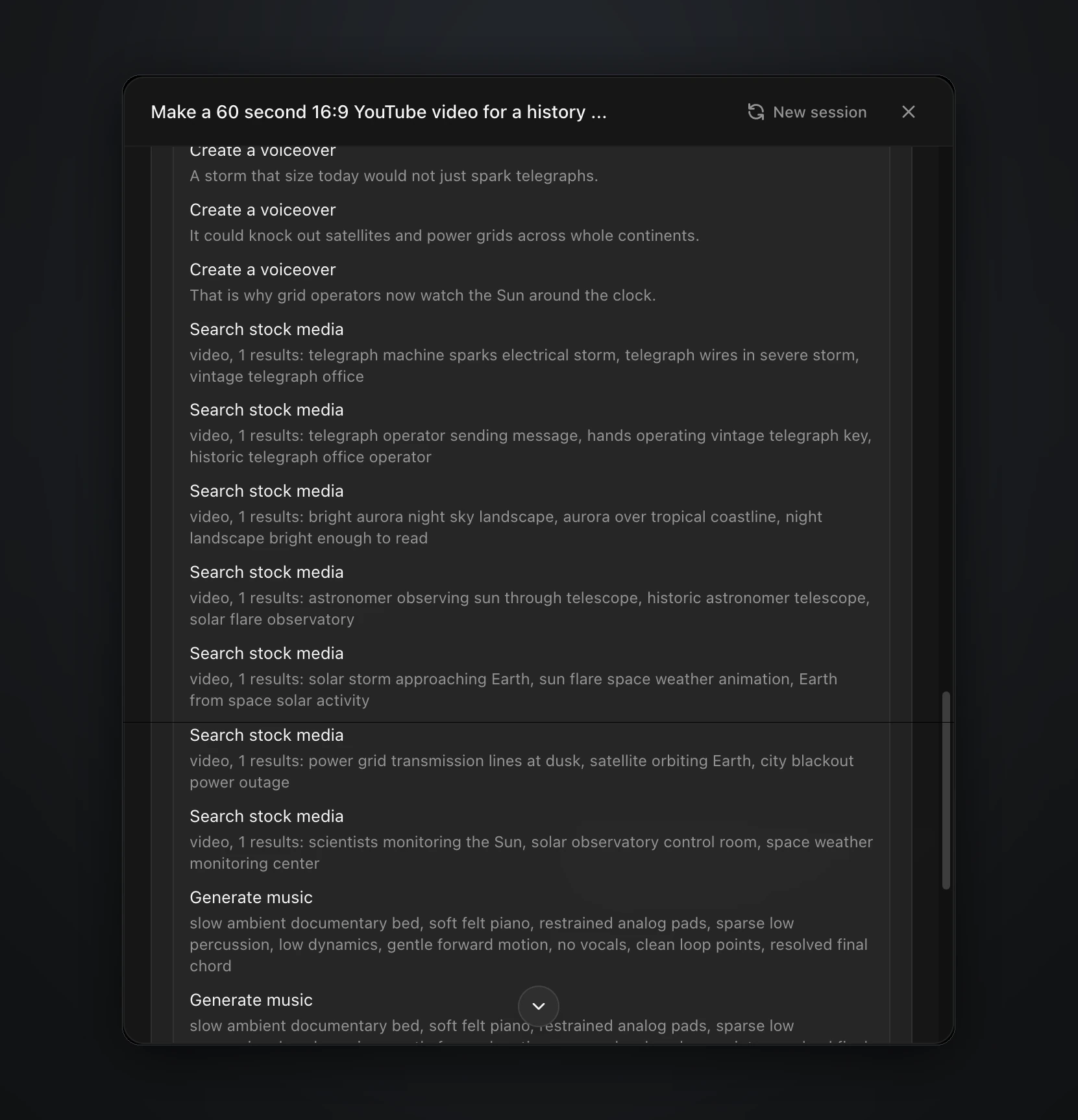
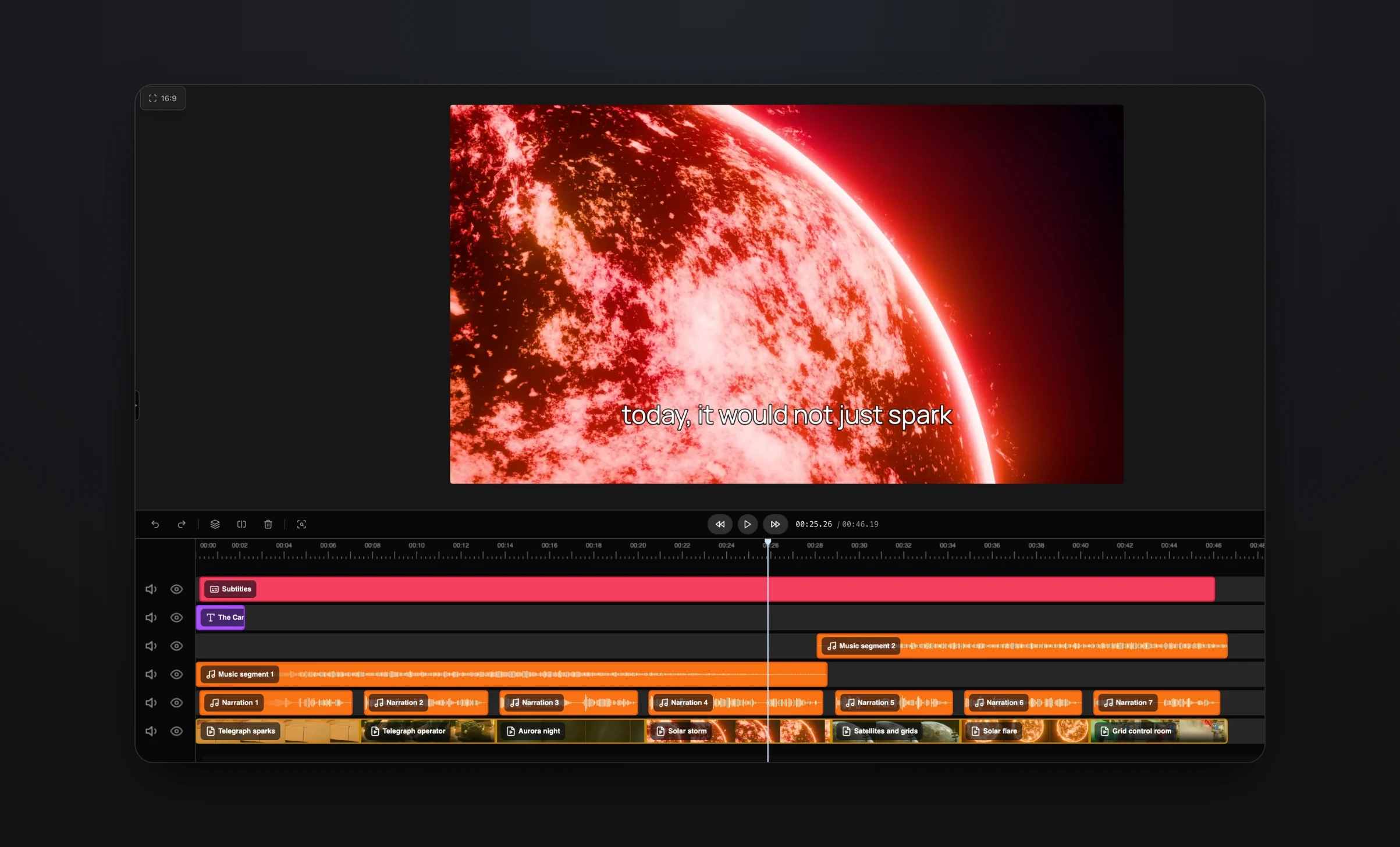
After approval it built the video on the timeline, with seven narration clips, seven stock scenes named after what they show, a title card, two music segments and a caption track. Here is the finished video.
The agent also reports what it did not finish, so read its summary before you export. In our run it said the narration came out at 46 seconds rather than 60, because it reads at a natural pace, and that the captions stopped before the last lines. We regenerated the captions for the whole narration in the Captions panel, which took a few clicks.
That fix was easy because the result is an editable project, not a flat file. Every clip, caption, music segment and line of narration sits on its own track in Rendley Studio, so you can swap a shot, retime a caption or rewrite a line of narration whenever you want. If you'd rather not touch the timeline, ask the agent in a sentence, such as "the aurora shot is too long, cut it to two seconds and use a different one for the satellite line."
Make a Short from every long video
Every long video should produce at least one Short. Duplicate the project and ask the agent for a vertical version of the opening 30 seconds, or right-click the clip and use Auto-reframe, which keeps the subject in frame as it moves. We cover that in how to auto reframe video for Reels, Shorts, and TikTok.
Keep thumbnails and titles for yourself
Thumbnails and titles decide whether anyone sees the video, so this is where your own time is best spent. You can generate background images in Rendley's AI Studio with image models such as Nano Banana, but the idea behind the thumbnail should be yours.
Schedule the upload
Export the video and add it to the content calendar in Rendley Studio to publish it now or schedule it to your connected YouTube channel. The same dialog can post the Short to TikTok, Instagram, LinkedIn and X. Scheduling is available on the Pro plan and above.
Make the second video faster than the first
The first video takes the longest, because you are deciding the format as you go. After that, reuse your format paragraph as the opening of every request, turn your best project into a template with the parts that change exposed as fields, and keep a backlog of 20 scripts so production never waits on writing.
Templates make production fast, but the July policy update is the reason not to stop there. Vary the footage, the structure and the hook from video to video. An agent that picks footage for each script helps, but a channel where every video has the same shape will still look template-based.
Once the format is settled, the steps between a finished script and an uploaded video can run without you. The Rendley API runs the same agent you use in Studio, and the Zapier and Make apps do the same thing without code. Upload as private or unlisted at first, and keep a person watching each video before it goes public.
What a video costs
A classic automation channel pays a freelancer for every edit, and that bill grows with every upload. With an editing agent, the edit is part of a monthly plan. Voiceover, captions and music come out of a monthly allowance on paid plans, stock footage is free, and generated footage and images use credits.
Our Carrington Event video used no credits at all, because every scene was stock footage and the voiceover, captions and music came from the allowance. Generated footage is where the cost is, and AI Studio shows the price of each clip before you confirm. Start with stock and generate only the shots stock cannot cover. Plans and allowances are on the pricing page.
The job that stays yours
Automation removes the editing, not the decisions. The channels that last are the ones where a person still chooses the topics, writes or rewrites the scripts, judges the thumbnails and watches every video before it goes out. An editing agent gives that person back the hours the edit used to take.
To try it, open Rendley Studio with one script.