How to Auto Reframe Video for Reels, Shorts, and TikTok
Turn a wide video into a vertical one without losing the subject. How auto reframe differs from cropping, the settings that matter, a real example, and how to make every aspect ratio automatically.
Most video is still shot wide, and more and more of it is watched vertical. Turning a 16:9 video into a 9:16 one for Reels, Shorts and TikTok means throwing away more than two thirds of the frame, and the hard part is deciding which part to keep.
Auto reframe answers that by following the subject through the shot instead of cropping the middle. In this guide we explain how it differs from a crop, which settings decide whether the result looks smooth or seasick, and show a real clip before and after.
Cropping and reframing are not the same thing
A crop picks one window and keeps it for the whole video. If the subject stays in the center, that is all you need. Rendley's free video resizer does it in the browser, with presets for every platform.
Most footage does not stay centered. People walk across the frame, the person talking changes in an interview, and a skater rides from one side of the park to the other. A center crop loses them. Reframing tracks the subject and moves the window with it, so every frame of the vertical version is built around what matters in the shot.
Two ways to reframe a video
We use Rendley, a video automation platform with an editor and an AI agent, for the examples below. It offers auto reframe in two places.
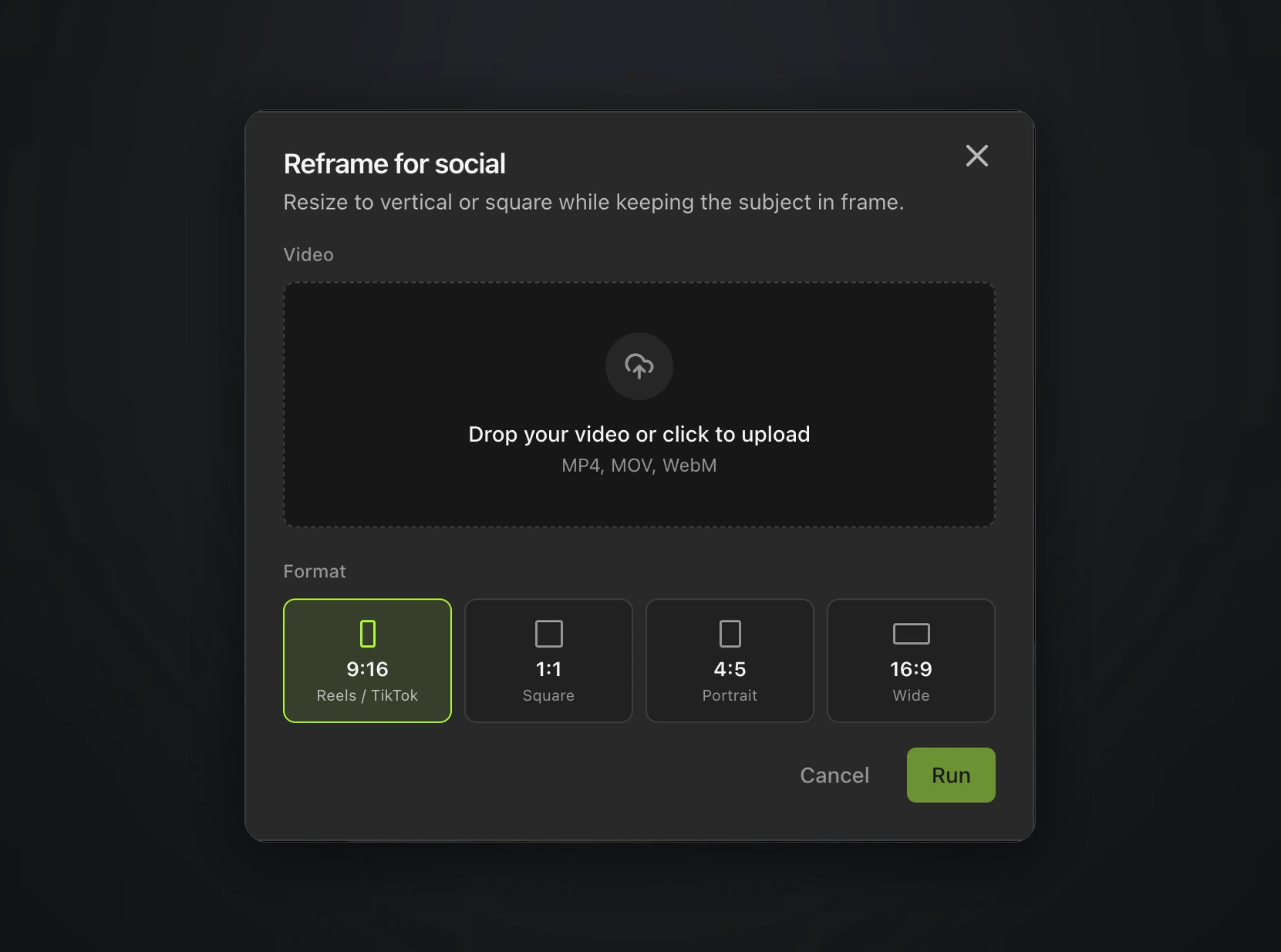
If you only need the vertical file, use Reframe for social on the Home page in Rendley Studio. Upload the video, pick 9:16, 1:1, 4:5 or 16:9 and run it, without opening the editor.
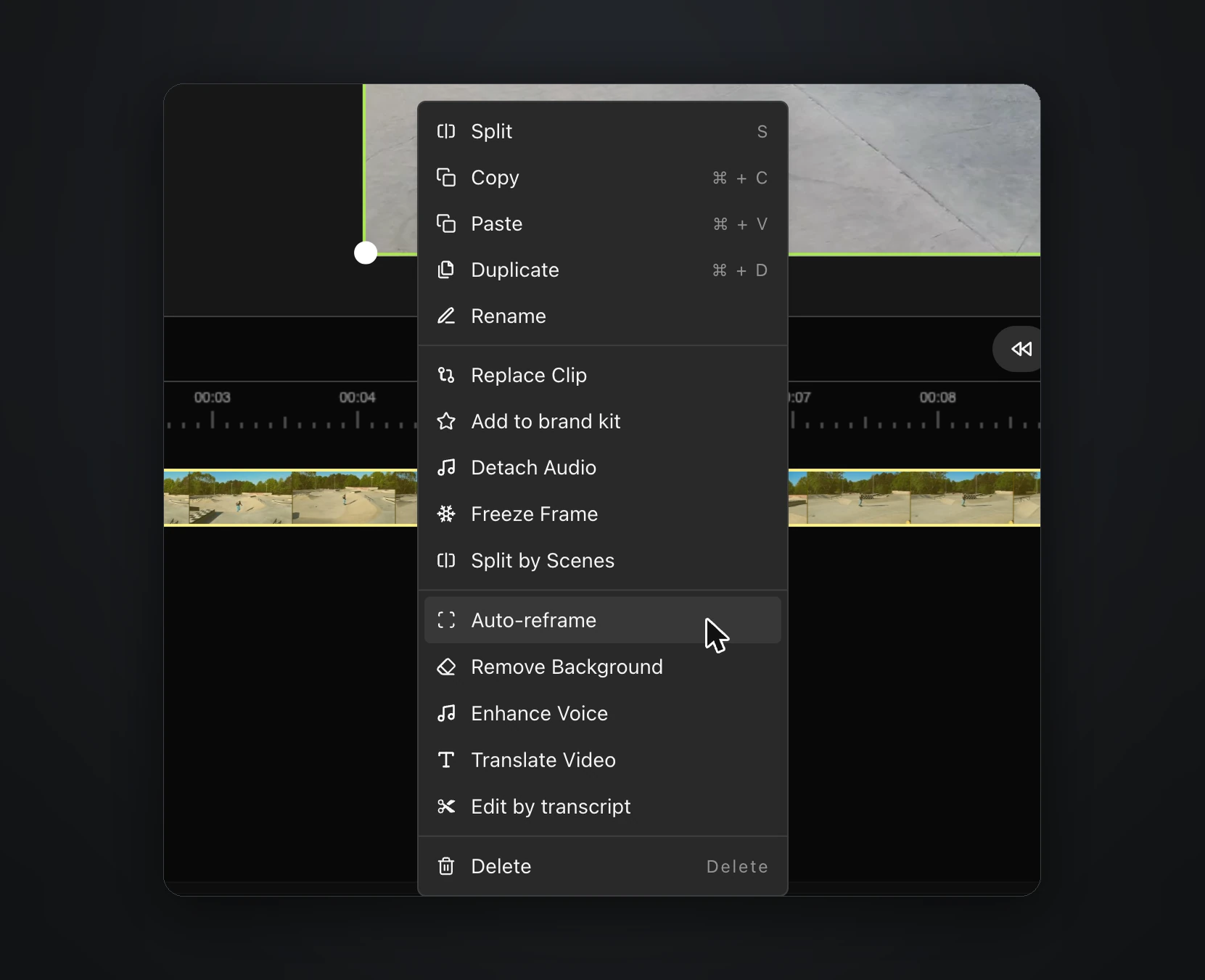
If the clip is part of an edit, reframe it in the editor instead. Right-click the clip on the timeline and choose Auto-reframe.
The AI video reframe settings that matter
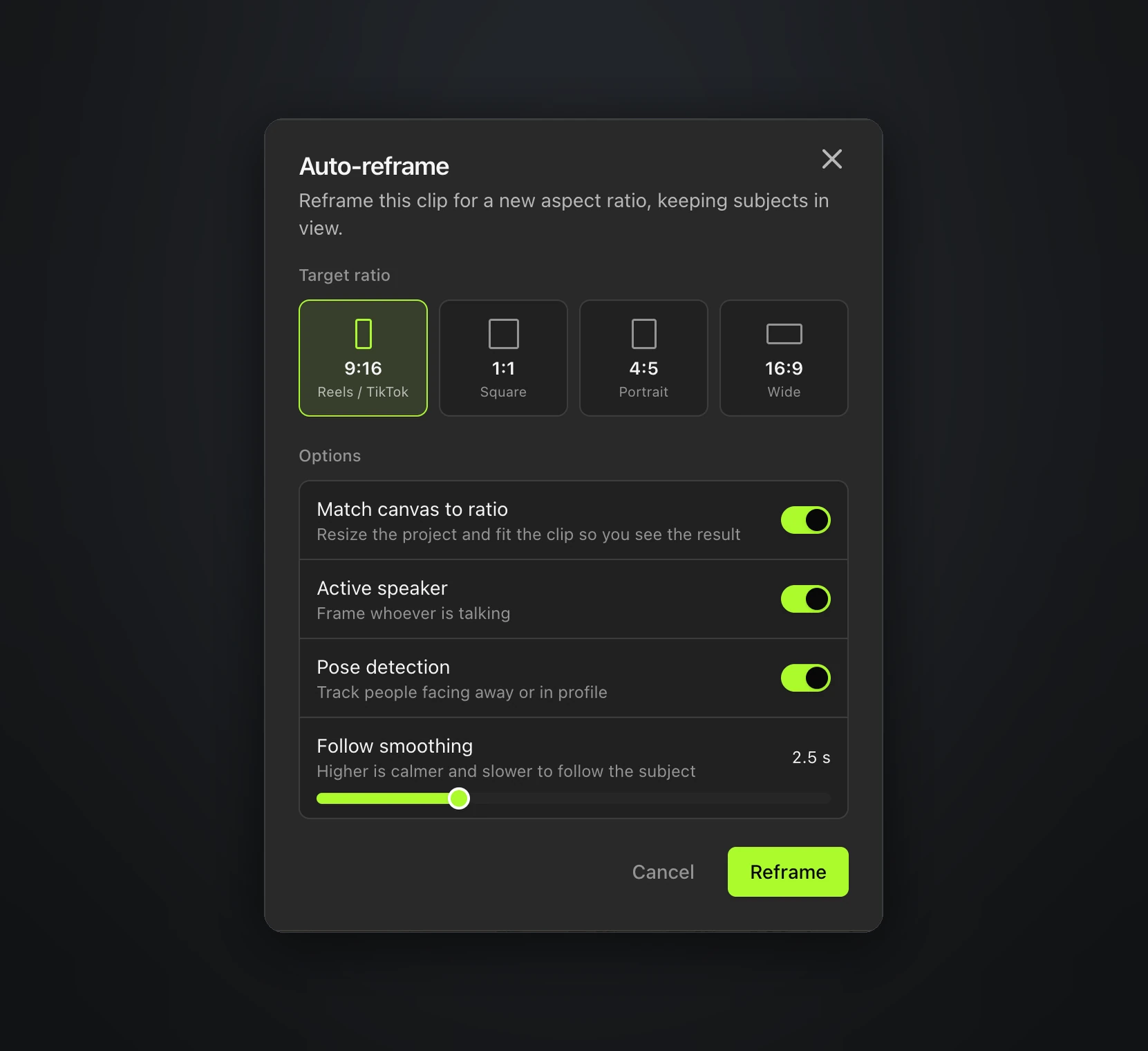
- Target ratio. Use 9:16 for Reels, Shorts and TikTok, 4:5 for feed posts on Instagram and Facebook, and 1:1 for square placements.
- Match canvas to ratio. This resizes the project to the new shape and fits the clip, so you see the result straight away. Leave it on unless the clip sits inside a larger layout.
- Active speaker. This frames whoever is talking, so turn it on for interviews and podcasts, where the subject changes with the conversation.
- Pose detection. This keeps tracking people who face away from the camera or turn to profile, which face detection alone would lose.
- Follow smoothing. This sets how quickly the frame follows the subject. Higher values are calmer and slower to react, and the default of 2.5 seconds suits most footage. Lower it for fast action, and raise it for talking heads so the frame does not twitch every time someone nods.
A real example, skate footage from wide to vertical
We took a 12 second stock clip of a skater in a park, 1920 by 1080 pixels, with the skater riding across the frame.
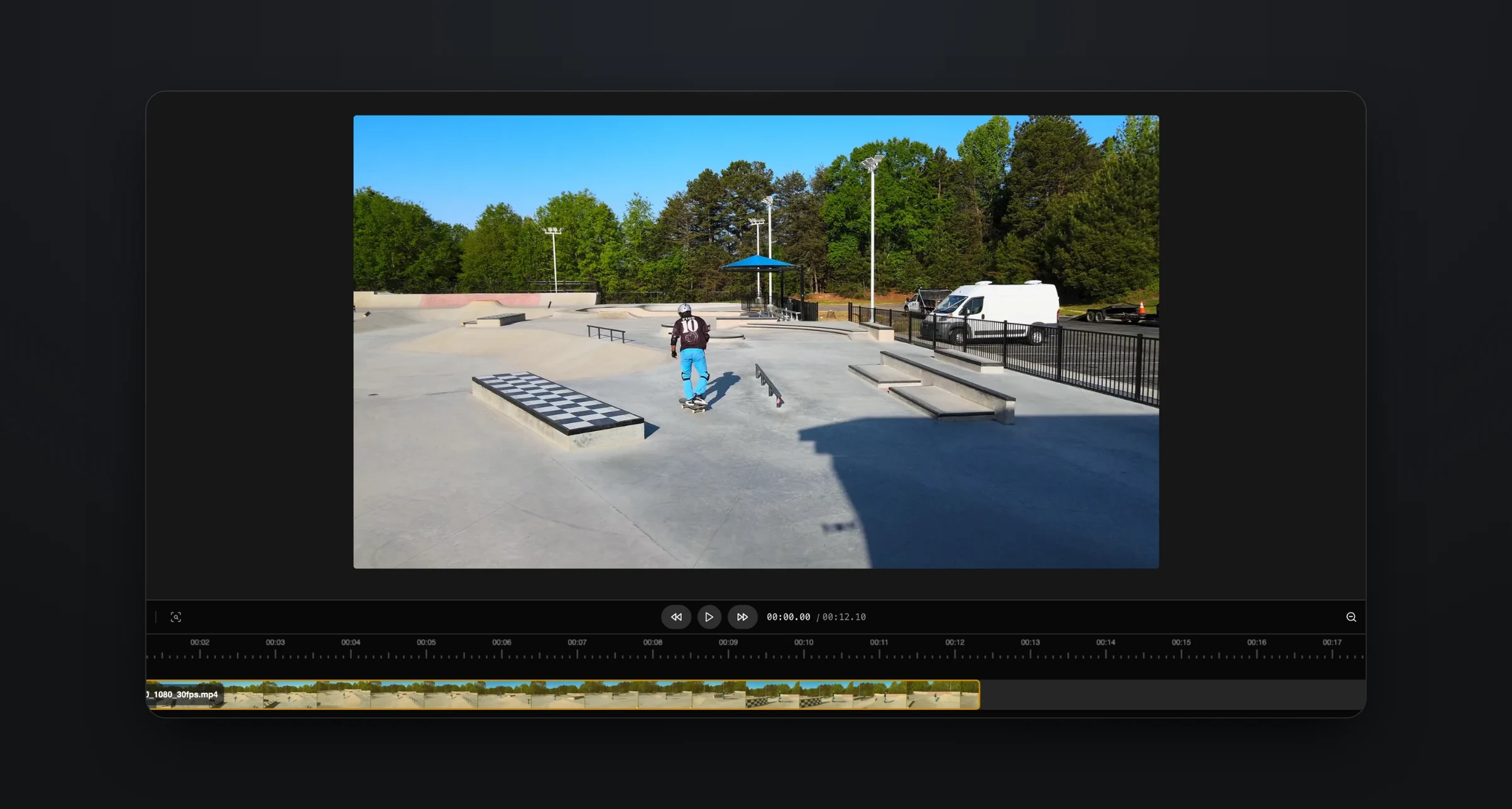
We ran Auto-reframe to 9:16 with the default settings. Rendley tracked the skater through the clip, which took a few seconds for 12 seconds of footage, then resized the canvas and stored the movement as keyframes on the clip. Subject detection runs on your device, so the reframe used no credits.
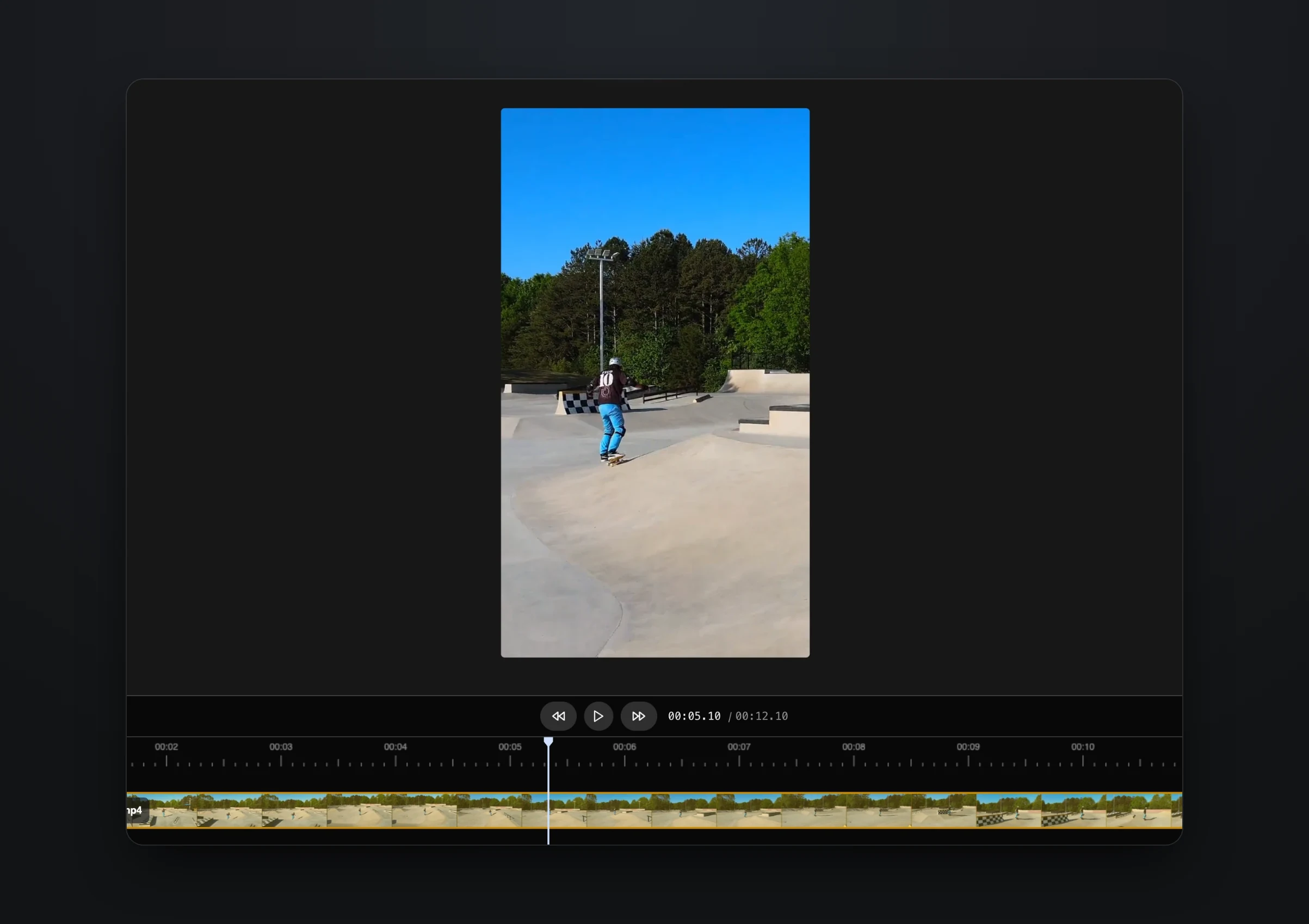
The skater stays in frame all the way across the park. Because the movement is stored as keyframes, you can still adjust any part of the path by hand in the editor.
When there is nothing to reframe
Our first test was a talking-head recording that looked landscape in its project. Auto-reframe answered "Clip already matches this ratio, nothing to reframe", because the recording had been shot vertical on a phone and placed in a 16:9 project. If a reframe does nothing, check the source file's real orientation before you change any settings.
What to check after reframing
- Text and graphics. Titles, captions and logos placed for a wide frame can end up at the edge of a vertical one, or outside it. Move them after the reframe, or add them afterwards.
- Platform safe zones. Reels, Shorts and TikTok put buttons and captions over the bottom and the right of the video, so make sure the subject's face is not underneath them.
- Fast moments. If the frame lags behind quick action, lower Follow smoothing and run it again.
A project has one canvas, so each shape lives in its own project. Duplicate the project before you reframe if you want to keep the wide version as it is.
Make every aspect ratio automatically
If every video you publish needs a vertical, a square and a 4:5 version, such as paid social ads, you do not have to reframe each one by hand. Send the video to the AI agent through the Rendley API once per shape, with a plain request such as "reframe this video to 4:5 and keep the speaker in frame", and export each project when it is done. The same works with no code from Zapier or Make. Each request creates its own project, so the versions stay separate and you can still adjust any of them in Studio.
Try it on one video
Open a wide video in Rendley Studio, right-click the clip and reframe it to vertical. If you make Shorts from long videos every week, how to automatically create and post YouTube Shorts shows where reframing fits in the rest of the pipeline.