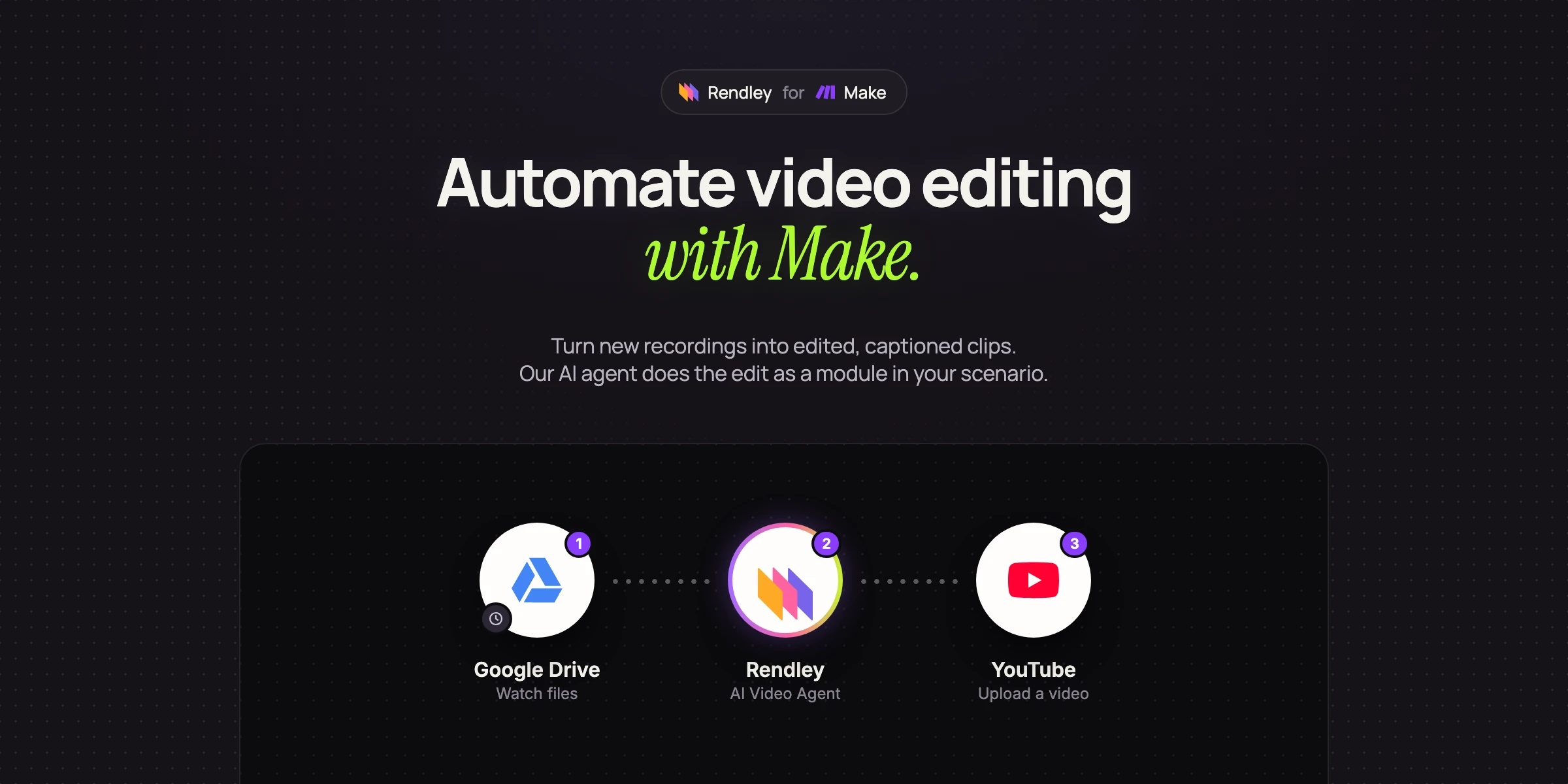
How to Automate Video Editing with n8n
n8n video automation: build a workflow that turns a new sheet row or file into an edited, captioned video with Rendley's AI agent as a node, then uploads it.
Most of the video a team publishes goes through the same few edits. Pauses and filler words come out, captions go in, a vertical version gets made, and the file is sent somewhere for review or posted. Those steps barely change from one video to the next, so they can run on their own.
n8n is a workflow automation tool. You connect nodes on a visual canvas, and an event in one app, such as a new row in a sheet or a new file in a folder, starts work in the others. It runs in n8n's cloud or on your own server.
For the edit itself we use Rendley, a video automation platform with a verified n8n node. You give its AI agent a prompt and your footage, and it edits the video on a real timeline: it cuts, captions, reframes, adds B-roll and music, and exports an MP4. Every result is also a project you can open in the Rendley editor and change by hand.
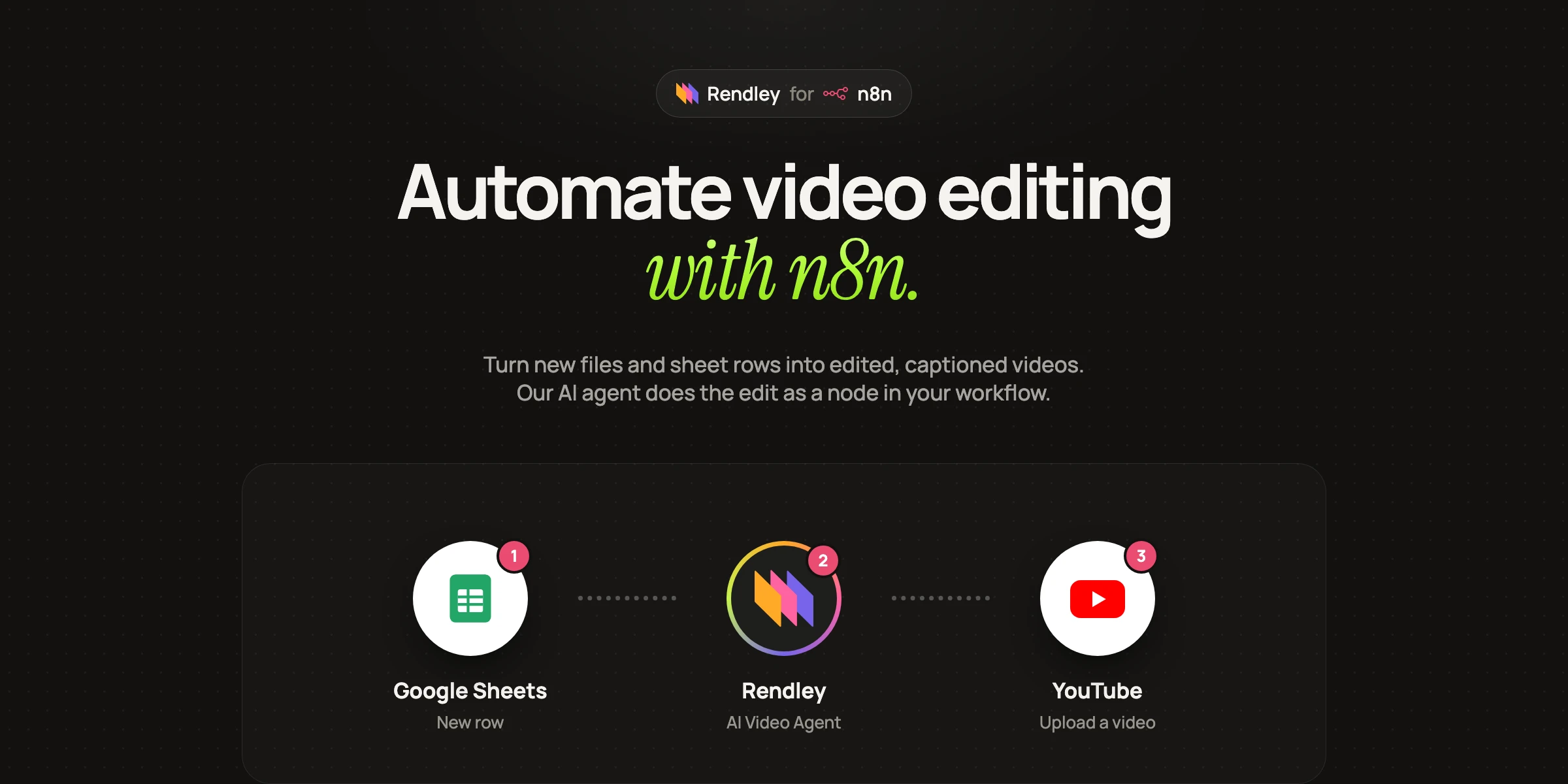
This n8n video automation guide builds one workflow: a new row in Google Sheets becomes an edited, captioned vertical video uploaded to YouTube. The same pattern works with Google Drive, Airtable, a form or a webhook as the trigger. For the other ways to automate video editing, see our guide.
What you need
- An n8n account, cloud or self-hosted.
- A Rendley account on a paid plan. The agent, AI operations and exports use Rendley credits.
- A Rendley API key. In Rendley, open Settings and create one under API Keys.
- Footage at a public URL, such as a shared Google Drive or Dropbox link, or a file from an earlier node.
Install the Rendley node
On n8n Cloud and self-hosted n8n 1.94 or later, open the nodes panel, search for Rendley and install it from More from the community.
On any self-hosted version you can also install it by name: open Settings → Community Nodes → Install and enter n8n-nodes-rendley.
Connect your Rendley account
Add a Rendley node to the canvas and create a Rendley API credential. Paste your API key and leave the API Base URL as it is. n8n tests the credential against your Rendley account.
Build the workflow
1. Trigger on a new row
Add a Google Sheets trigger that fires on a new row. Give the sheet two columns: video_url, a public link to the recording, and brief, what this video should be. Each new row becomes one edit.
2. Edit the video with the AI Video Agent
Add a Rendley node, choose the AI Video Agent resource and the Run operation.
- Prompt: map the
briefcolumn, or write the brief once and keep the sheet for links only. For example: Cut this recording to a 45 second vertical clip. Remove filler words and long pauses, add captions in the safe area, and add background music. - Files: map the
video_urlcolumn. Rendley imports each file into the project before the agent starts. - Project: leave it empty to create a new project for each row.
- Export Video After Edit: turn it on. The node exports the project once the edit lands and returns the file's
url.
The output also carries project_id and thread_id, so a later node can send a follow-up instruction to the same project, such as shorten the intro, instead of starting over.
The agent runs without asking questions. If a brief is ambiguous, the node fails and its error contains the agent's question. Rewrite the brief so it answers that question.
3. Upload the video
Rendley's url is a signed link that expires after a few hours, so move the file in the same run. Add an HTTP Request node that downloads the url as a file, then a YouTube node that uploads it with a title and description from the sheet. You can send it to Google Drive, S3 or Slack the same way.
To post instead of uploading, use the Rendley node's Social Media → Publish Post operation with the exported url as the media. It posts to the social accounts connected in Rendley, now or at a scheduled time, and needs a Pro or Business plan.
Choose a free-form run or a preset edit
Run takes any brief. For a repeatable job, the Edit resource wraps the same agent in preset prompts, each with an Additional Instructions field and the same Export Video After Edit option.
| Operation | What it does |
|---|---|
| Remove Filler Words | Transcribes the speech, then cuts fillers, stutters and dead air |
| Auto Edit | Cuts the raw footage down to a tight, watchable edit |
| Reframe | A new aspect ratio: 9:16, 1:1, 4:5 or 16:9 |
| Add Captions | Styled captions from the transcript |
| Create Shorts | Several short clips from a long video, within the count and length you set |
| Custom Prompt | Your own editing instructions, sent the same way every run |
The node also has operations to generate video, images, music and speech, to transcribe, dub, upscale or remove a background, to upload media, to read or import a brand kit, and to export or estimate the cost of a project.
Long edits and timeouts
Most operations start a job and, with Wait for Completion on, poll until it finishes. The defaults poll every 10 seconds and give up after 60 minutes; both are set per node. For workflows that poll on their own, turn waiting off and read the job later with Get Job.
Do the same from your own code
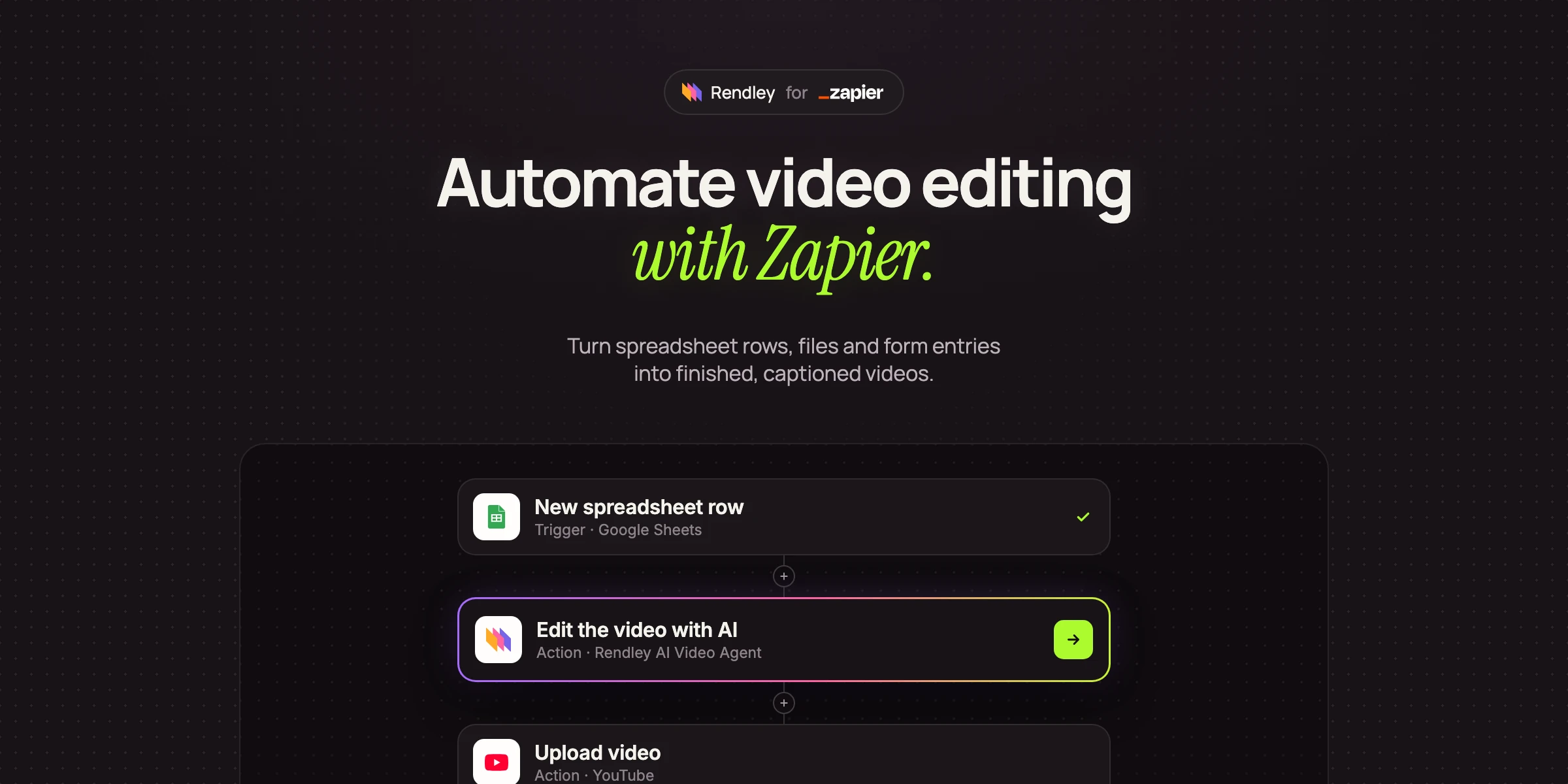
The node calls the Rendley API, so anything it does you can also do from your backend with the video editing API: send a prompt and files to POST /v1/agent, poll the job, and export. If you would rather start edits from Make or Zapier, the same agent is available there too, and our Make guide and Zapier guide walk through those.