7 CapCut Alternatives That Are Actually Good
Video Editing17 min read

7 CapCut Alternatives That Are Actually Good

CapCut paywalled its best features and raised prices. Here are 7 alternatives creators and teams are switching to in 2026, compared side by side on pricing, AI tools, and exports.

capcut alternativesfree video editorsvideo editing software 2026best video editorsonline video editorcapcut replacementvideo editing for beginners

CapCut changed what people expected from a free video editor. Overnight, millions of creators went from struggling with clunky software to trimming clips, adding effects, and publishing directly to TikTok in minutes. It was fast, it was intuitive, and it cost nothing.

But the CapCut of 2026 looks different from the tool that originally won people over. Between pricing restructures, feature paywalls, lingering questions about data privacy, and a brief period where the app was pulled from U.S. app stores entirely, a growing number of creators are exploring what else is out there.

This guide is for anyone looking for a CapCut alternative, whether you are a YouTuber, a freelance designer, a student working on class projects, a small business owner making product videos, or a marketing team producing branded content at scale. We will walk through seven strong alternatives, with honest breakdowns of what each one does well and where it falls short.

Creators are exploring new video editors as CapCut shifts from free to freemium

The 7 Best CapCut Alternatives in 2026

1. DaVinci Resolve

Best for: Serious editors who want professional-grade power at no cost

If raw editing power is your priority and you do not mind a learning curve, DaVinci Resolve is hard to beat. Originally built as a professional color grading suite, it has evolved into one of the most capable video editors available, and the free version is genuinely extraordinary.

Key Features

  • Professional editing, color grading, visual effects (Fusion), and audio post-production (Fairlight) all in one application
  • Industry-leading color correction tools used on major Hollywood productions
  • Free version supports up to Ultra HD (3840 x 2160) at 60fps
  • Multi-user collaboration so multiple editors can work on the same project
  • Available on Windows, macOS, Linux, and iPad

Pricing

PlanPrice
Free$0 (permanent, not a trial)
DaVinci Resolve Studio$295 one-time purchase

The Studio version adds AI-powered tools like neural engine face tracking, noise reduction, 120fps support, 32K resolution, and HDR grading. But the free version alone includes more features than many paid editors.

Pros

  • The free version is legitimately powerful with no watermarks and no time limits
  • One-time purchase for Studio means no recurring subscription costs
  • Color grading tools are unmatched at any price point
  • Regular free updates with significant feature additions

Cons

  • The interface is dense and intimidating for beginners
  • Requires a reasonably powerful computer to run smoothly
  • No browser-based or cloud option, so you are tied to specific hardware
  • No built-in stock media library or templates for quick projects
  • No modern generative AI integrations (no access to models like Sora, DALL-E, or similar)
  • Overkill for simple social media edits

Who should use it: Filmmakers, YouTubers who care about color grading, students learning professional editing, and anyone willing to invest time in learning a tool they will never outgrow. If you are making TikTok clips and want something quick, look elsewhere.

Professional video editing workspace representing DaVinci Resolve's advanced editing environment


2. VEED

Best for: Quick online editing, subtitles, and social media repurposing

VEED has carved out a niche as one of the most accessible browser-based video editors available. It is especially popular among social media managers, educators, and freelancers who need to add subtitles, trim clips, and resize videos for different platforms without installing software.

Key Features

  • Browser-based editing with no downloads required
  • Automatic subtitle generation with translation into 50+ languages
  • AI-powered tools including background noise removal, eye contact correction, and Magic Cut
  • Screen and webcam recording built into the platform
  • One-click resizing for YouTube, Instagram, TikTok, and other platforms
  • Voice cloning for content localization

Pricing

PlanPrice (billed annually)
Free$0 (720p, watermark, limited AI)
Lite$19/month per user
Pro$49/month per user
EnterpriseCustom pricing

AI credits are purchased separately on top of your plan, which can add up quickly if you rely on AI-powered features like subtitles, translations, or voice cloning.

Pros

  • Fast for subtitle-heavy workflows
  • No software installation needed
  • Strong translation and localization tools

Cons

  • Free plan exports include a VEED watermark
  • AI credits are not included in plans and must be purchased separately
  • Users report performance issues with longer or high-resolution files, including timeline lag and buffering
  • UI can feel unintuitive and behave unexpectedly, especially for creators coming from CapCut or other timeline-based editors
  • Gets expensive for teams since pricing is per user
  • Limited timeline editing compared to dedicated video editors
  • No modern generative AI integrations (no access to models like Sora, DALL-E, or similar)

Who should use it: Social media managers who need fast subtitles and captions, freelancers making short-form content, educators creating video lessons, and anyone who works primarily with talking-head or interview-style videos. If you need deep timeline control or work with long-form content, you may hit VEED's limits.

Browser-based video editing tools make it easy to edit from anywhere


3. Kapwing

Best for: Teams and AI-assisted content repurposing

Kapwing positions itself as an online video editor built for content teams. It combines traditional timeline editing with AI-powered features like Smart Cut and auto-subtitles, all within a browser.

Key Features

  • Cloud-based editor accessible from any browser
  • Team workspaces for organizing projects and sharing assets
  • Smart Cut automatically removes silences and pauses
  • AI-powered subtitles with multi-language translation
  • Brand kit for saving logos, fonts, and colors
  • Handles video, images, and GIFs in a unified workspace

Pricing

PlanPrice
Free$0 (watermark, 720p, limited AI)
Pro$16/month (billed annually)
Business$50/month per user (billed annually)
EnterpriseCustom pricing

Kapwing uses a credit system for AI features. Pro includes 1,000 credits/month and Business includes 4,000 credits/month.

Pros

  • Team workspaces for organizing shared projects
  • Browser-based with no installation needed
  • AI tools genuinely save time for repetitive editing tasks
  • Good selection of templates and quick-start formats
  • Brand kit keeps team output consistent

Cons

  • Free plan adds a watermark to all exports
  • Users report lag and occasional browser crashes when working with large 4K files
  • The credit system for AI tools can feel limiting on the Pro plan
  • Some reviewers have raised concerns about billing transparency and refund difficulty
  • Slower export times compared to desktop editors
  • No modern generative AI integrations for video or image generation

Who should use it: Content teams sharing projects and assets, social media managers repurposing content across platforms, and small businesses that want AI-assisted editing without learning complex software. Less suited for high-resolution or long-form production work.


4. Rendley

Best for: Creators and teams who want professional output with no watermarks and modern AI tools

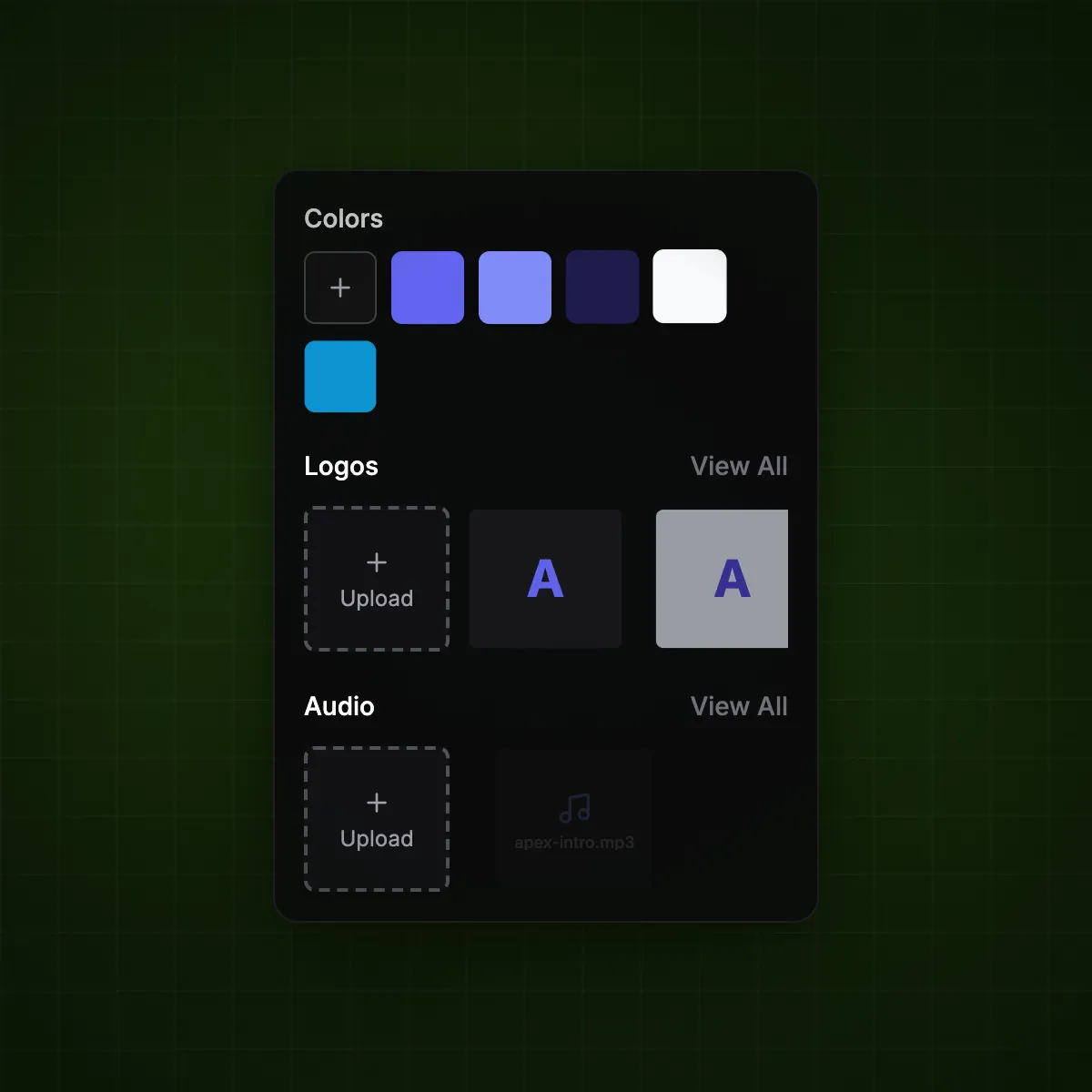
Rendley is a video editor built for the full content workflow, from creating and editing to reviewing and publishing. It offers clean exports with no watermarks on every plan (including free), a built-in commercial asset library, cutting-edge AI integrations, and a brand kit system for consistent output across teams and clients.

Key Features

  • No watermarks on any plan, including free, which is genuinely rare among video editors
  • Brand Kit system for storing logos, colors, and visual assets per brand, with the ability to switch between client brands instantly
  • Commercial asset library with stock videos, images, audio, and GIFs cleared for advertising use
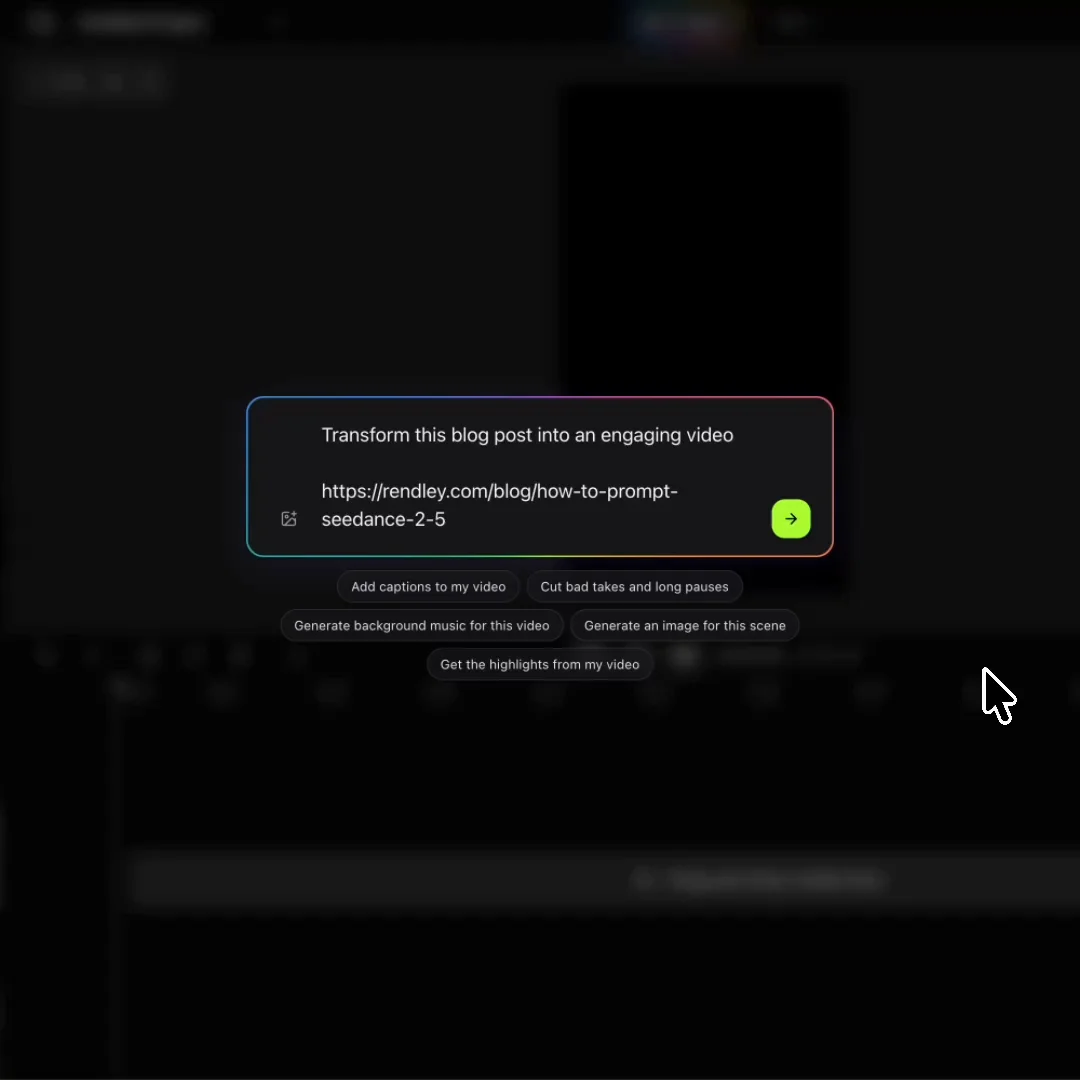
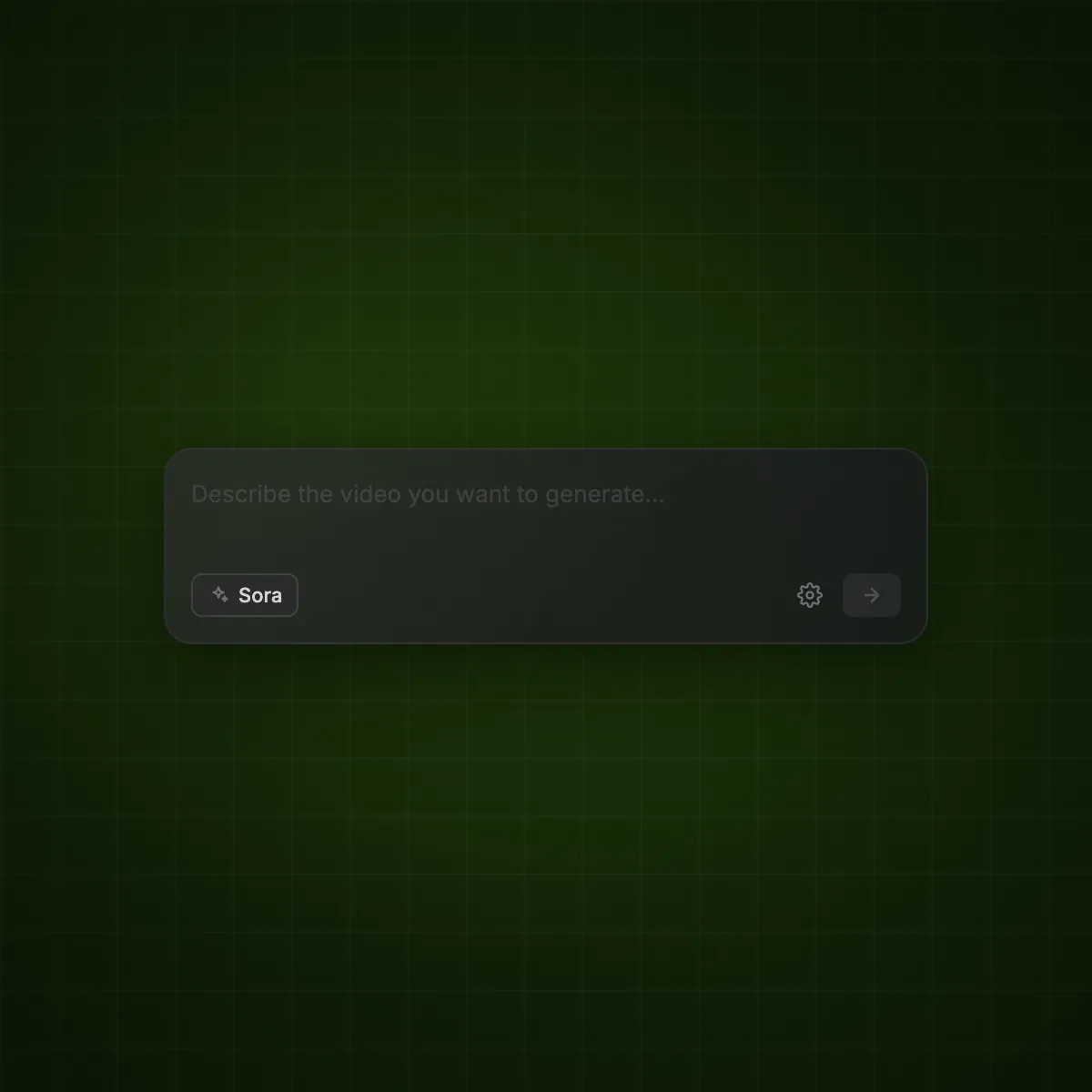
  • AI integrations with multiple models including Sora, Kling, Veo for video generation and DALL-E and Flux for image generation, plus AI voiceovers, captions, background noise removal, and more
  • UGC-style AI avatars that generate realistic faces and expressions without filming
  • End-to-end workflow: create, edit, review, and publish from one place
  • Team workspaces for managing separate clients, projects, or brands

Pricing

PlanPriceResolutionStorage
Free$0720pLimited
Starter$12/month1080p10GB
Pro$25/month4K100GB
Business$60/month4K1TB

All plans include premium filters, effects, transitions, and no watermarks. See full pricing.

Pros

  • No watermarks even on the free plan, so every export looks professional
  • Commercial asset library eliminates licensing guesswork for paid campaigns and client work
  • Brand Kit keeps output consistent across teams and client projects
  • Integrates with state-of-the-art AI models (Sora, Kling, Veo, DALL-E, Flux) directly inside the editor
  • Full workflow coverage from content creation to publishing
  • Clear, transparent pricing with no hidden paywalls

Cons

  • Free plan caps exports at 720p resolution
  • Smaller community compared to tools that have been around longer

Who should use it: Freelancers creating client deliverables who cannot have watermarks on exports. Small business owners making product videos and ads without a licensing headache. Marketing teams and agencies managing multiple brands. Anyone who wants modern AI-powered video creation with a complete workflow in one tool.

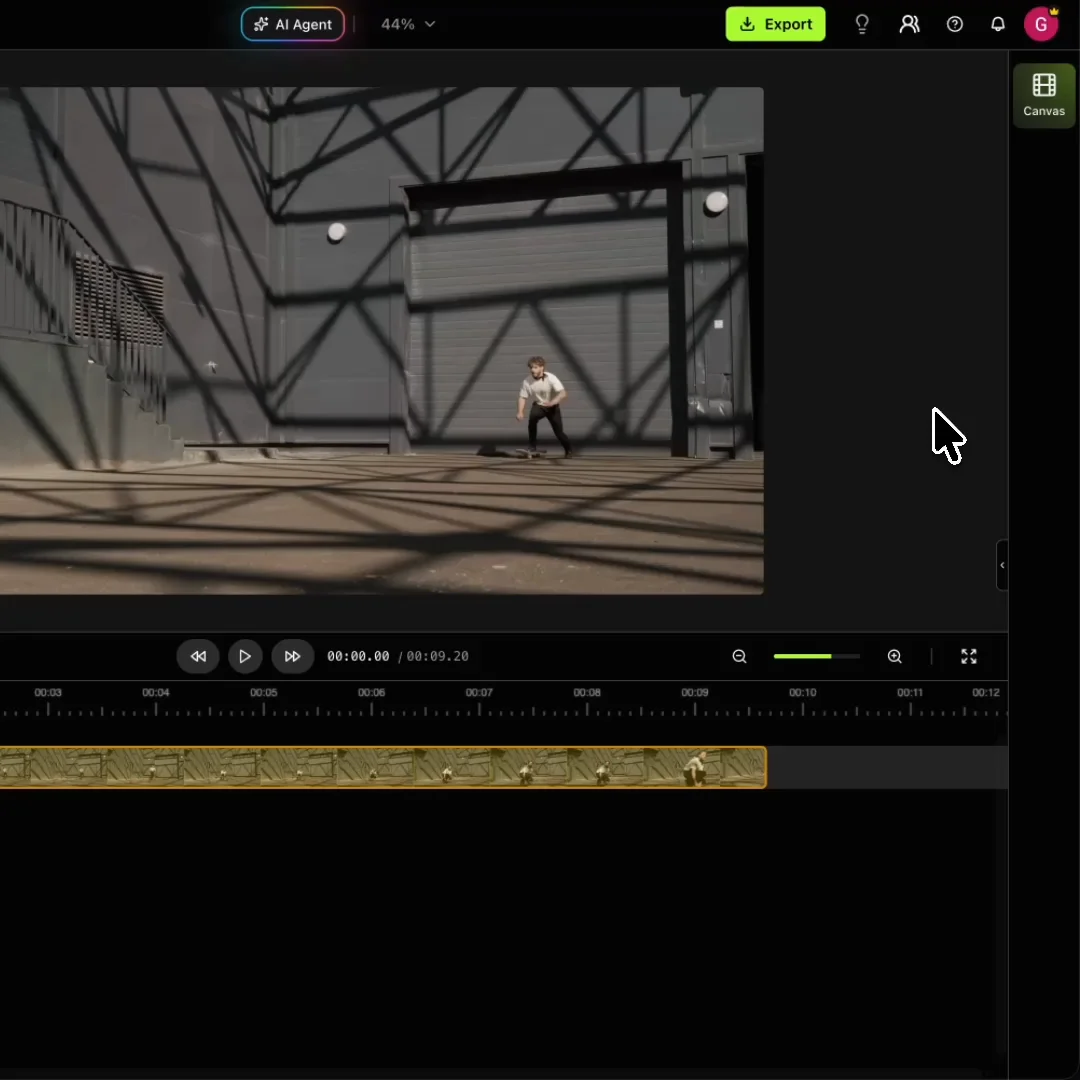
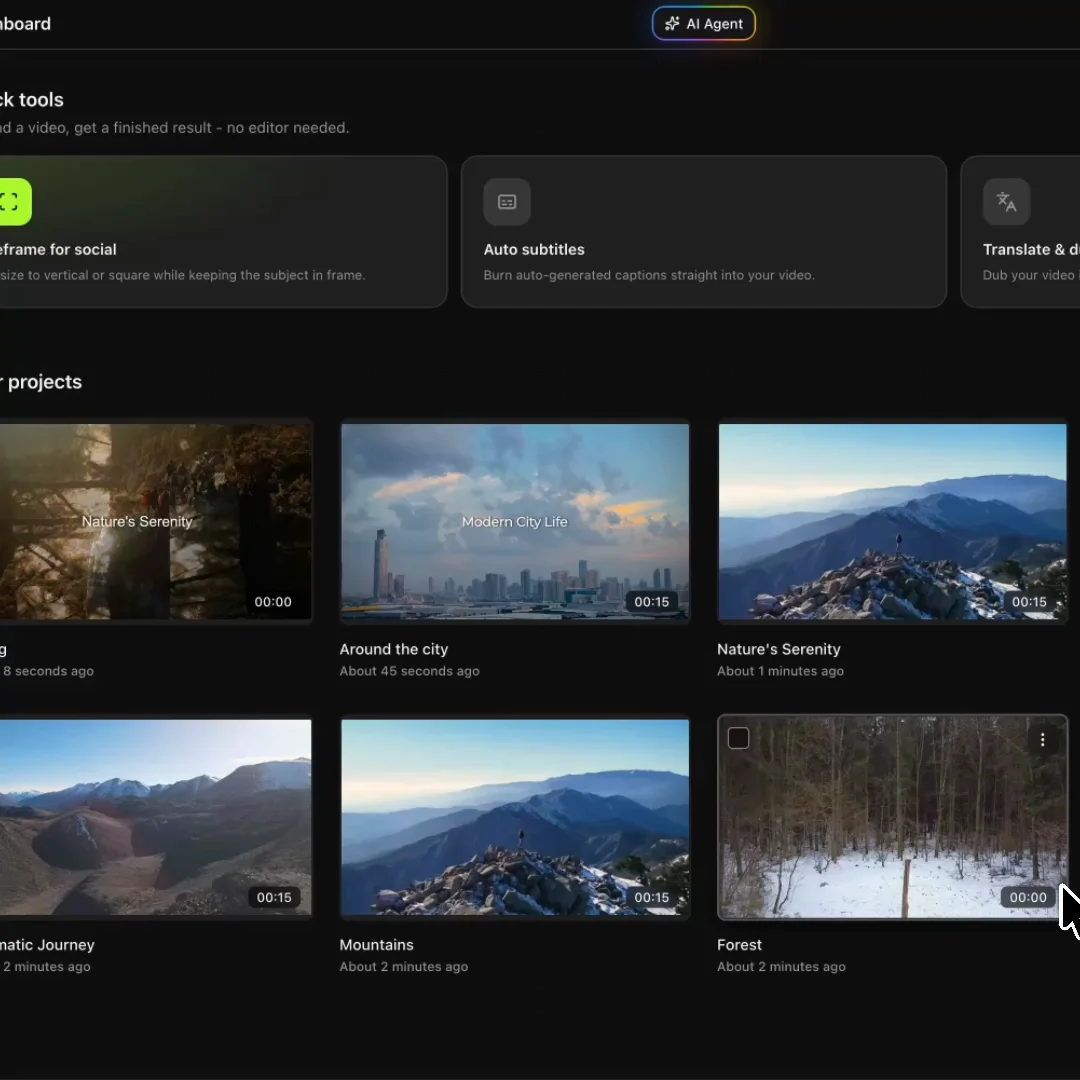
Clean browser-based video editing workspace representing modern online video editing tools


5. Clipchamp

Best for: Windows users who want a free, no-watermark editor built into their OS

Microsoft acquired Clipchamp and built it directly into Windows 11, making it one of the most accessible free video editors for PC users. It is straightforward, lightweight, and surprisingly capable for a tool that ships with the operating system.

Key Features

  • Built into Windows 11 and available in Microsoft Edge and Chrome browsers on all platforms
  • No watermarks on exports, even on the free plan
  • AI-powered subtitles in 80+ languages
  • Text-to-speech voiceover tool
  • Multitrack timeline editor with drag-and-drop controls
  • Free export up to 1080p HD

Pricing

PlanPrice
Free$0 (1080p, no watermark)
PremiumIncluded with Microsoft 365 subscription ($6.99/month)

The Premium tier unlocks 4K export, premium stock assets, and additional filters and effects.

Pros

  • Completely free with no watermarks, a major advantage over many competitors
  • Minimal learning curve with a clean, intuitive interface
  • Ships with Windows 11, so there is nothing to install for PC users
  • Microsoft 365 subscribers get the premium tier at no additional cost
  • Reliable performance for standard editing tasks

Cons

  • Significantly limited functionality compared to other tools on this list
  • Export is limited to MP4 format with no control over bitrate or frame rate
  • No advanced features like keyframing, custom transitions, motion tracking, or color grading
  • Only works in Edge and Chrome browsers
  • Premium stock library is gated behind Microsoft 365
  • No modern generative AI integrations for video or image generation
  • No built-in brand kit or team collaboration features

Who should use it: Windows users looking for a simple, free editor that handles basic cuts, trims, and social media videos. Students and hobbyists on a budget. Small business owners making quick product clips or presentations. Anyone who already has Microsoft 365 and wants an editor included at no extra cost.

Desktop video editing tools offer deep integration with operating systems


6. Canva Video

Best for: Non-editors who need template-driven videos that match their existing Canva designs

Canva expanded from graphic design into video, and it brings the same template-first philosophy. If you already use Canva for social graphics, presentations, or marketing materials, adding video to that workflow is a natural step.

Key Features

  • Thousands of video templates for social media, ads, and presentations
  • Drag-and-drop interface that requires virtually no learning curve
  • Built-in stock media library with commercial licensing on paid plans
  • Brand Kit for saving colors, fonts, and logos (on paid plans)
  • Collaboration features for team editing
  • One-click resizing to adapt videos for different platforms

Pricing

PlanPrice
Free$0 (limited templates and stock media)
Canva Pro$15/month per person
Canva Teams$10/month per person (minimum 3 people)

Pros

  • Incredibly easy to use, even for people who have never edited video before
  • Massive template library that covers almost every social format
  • Seamless integration with Canva's design tools for consistent branding
  • Brand Kit keeps everything on-brand across the team

Cons

  • Template-first approach limits creative control for custom projects
  • Video timeline is basic compared to dedicated video editors
  • Editing complex, multi-layer projects often results in sluggish performance
  • Exports can be slower than other editors
  • Free plan watermarks some premium elements
  • No modern generative AI integrations for video or image generation

Who should use it: Social media managers already using Canva. Small businesses that want templated videos matching their existing brand graphics. Teams that prioritize speed and consistency over creative flexibility. Not the right choice for anyone who needs full timeline control, advanced audio editing, or long-form video production.


7. InShot

Best for: Mobile-first creators who edit entirely on their phone

If you do all your editing on a phone and want something straightforward, InShot is one of the best mobile-first alternatives to CapCut. It is lightweight, fast, and purpose-built for the kind of short-form content that dominates social platforms.

Key Features

  • Clean, minimal mobile interface designed for quick edits
  • Export in 720p, 1080p, or 4K with platform-specific aspect ratios (9:16, 16:9, 1:1)
  • Speed curves, transitions, filters, and text overlays
  • Voiceover recording and music import
  • Keyframe animation for more precise control

Pricing

PlanPrice
Free$0 (with watermark and ads)
Pro$3.99/month
LifetimeOne-time purchase (pricing varies by platform)

Pros

  • Incredibly fast for mobile editing. Finished videos in 5 to 10 minutes
  • Simple enough that complete beginners can produce clean content immediately
  • Very affordable, especially with the lifetime purchase option
  • 4K export even on mobile

Cons

  • Free version adds a watermark and shows ads
  • No desktop version at all, so you are limited to phone editing
  • Lacks multi-layer editing and advanced features like masking
  • No collaboration tools or brand management features
  • No AI-powered features beyond basic filters
  • Not designed for anything beyond short-form content

Who should use it: TikTok and Instagram Reels creators who edit exclusively on mobile. Hobbyists who want the fastest path from recording to posting. Anyone who needs a lightweight, affordable mobile editor for social content. Not suitable for team workflows, client work, or projects that require desktop-level control.

Smartphone showing video editing interface representing mobile-first video editing tools


Quick Comparison Table

FeatureDaVinci ResolveVEEDKapwingRendleyClipchampCanva VideoInShot
Best forProfessional editorsSubtitles and quick editsTeams and repurposingFull workflow with AIWindows usersTemplate-based videosMobile-first creators
PlatformDesktop (Win/Mac/Linux) + iPadBrowserBrowserBrowser, desktop & mobile coming soonBrowser + Windows 11BrowserMobile only
Free plan watermarkNoYesYesNoNoOn some elementsYes
Max free resolution4K (UHD)720p720p720p1080pVaries1080p (with ads)
Generative AI modelsNoNo (AI credits extra)NoSora, Kling, Veo, DALL-E, FluxNoNoNo
Brand KitNoLite plan+Pro plan+All paid plansNoPro plan+No
Commercial asset libraryNoYes (paid)Yes (paid)Yes (all plans)Paid via M365Yes (paid)No
Team collaborationStudio onlyEnterpriseYesYesNoYesNo
Learning curveHighLowLowLowLowVery lowVery low
Starting paid price$295 one-time$19/mo$16/mo$12/moFree (or M365)$15/mo$3.99/mo

Choosing the right video editor depends on your workflow, team size, and content goals

How to Pick the Right CapCut Alternative for You

With seven solid options, the best choice depends on how you work and what you need. Here is a quick way to narrow it down.

Start with where you edit. If you work exclusively on mobile, InShot is purpose-built for that. If you want to edit from any device without installing software, browser-based options like Rendley, VEED, Kapwing, and Clipchamp give you that flexibility. If you prefer the power of a desktop application and have the hardware to support it, DaVinci Resolve is the clear leader.

Think about watermarks. If you need clean exports for client work, business presentations, or professional content, watermarks on free plans are a dealbreaker. DaVinci Resolve, Rendley, and Clipchamp all export without watermarks on their free tiers. That is a short list.

Consider your skill level. DaVinci Resolve is incredibly powerful but assumes you are willing to learn a professional tool. Canva and InShot sit at the other end, prioritizing simplicity above all else. VEED, Kapwing, and Rendley occupy the middle ground, offering capable editing tools that do not require weeks of training.

Factor in what you create. Short social clips have different requirements than branded marketing content or long-form YouTube videos. If brand consistency matters (freelancers doing client work, agencies, marketing teams), look for tools with brand kits and commercial asset libraries. If you just need to cut and post quickly, simpler tools will serve you better.

Look at the total cost. A $0 price tag means less if the free plan watermarks your exports and you end up paying anyway. Compare what you actually get for free, and what the paid plan you would realistically need actually costs. A lifetime purchase like DaVinci Resolve Studio or InShot Pro can be more economical long-term than a monthly subscription.

Final Thoughts

CapCut is still a good video editor, and for plenty of creators it remains the right tool. But the landscape has shifted. Features that were free are now paid. Privacy questions remain. And the tool's consumer-first design has always left gaps for anyone whose needs extend beyond quick social clips.

The good news is that the alternatives have gotten significantly better. Whether you want Hollywood-grade power for free (DaVinci Resolve), a fast browser-based editor with no watermarks (Rendley or Clipchamp), collaborative team editing (Kapwing), or the simplest possible mobile workflow (InShot), there is a tool built for the way you actually work.

The best next step is to try two or three options with a real project, not a test clip, but something you would actually publish. That is the fastest way to find out which editor fits your workflow before you commit.

Want a detailed breakdown? See our full Rendley vs CapCut comparison for a side-by-side look at features, pricing, AI tools, and privacy.

capcut alternativesfree video editorsvideo editing software 2026best video editorsonline video editorcapcut replacementvideo editing for beginners

Ready to create stunning videos?

Start editing with Rendley's powerful browser-based video editor. No downloads required.

Continue Reading

Explore more articles that might interest you

Why Marketing Teams Are Ditching CapCut (And What They Use Instead)
Video Editing10 min read

Why Marketing Teams Are Ditching CapCut (And What They Use Instead)

CapCut works for TikTok creators, but marketing teams need brand kits, commercial licensing, and watermark-free exports. Here is where CapCut falls short and what to use instead.

capcut alternativevideo editing for marketing teamscapcut for business
Top 7 Video Editing Tips to Boost Video Engagement
Video Editing5 min read

Top 7 Video Editing Tips to Boost Video Engagement

Master video editing with these 7 proven tips to boost engagement. Learn how to hook viewers, maintain pacing, use B-roll, add captions, and tell compelling stories.

Video EditingEngagementContent Creation